
Getting started
The first setup after signing up
Right after signing up, the "Welcome to ChiptunePRO" page asks about your garage, then the tools you are interested in. Your answers prepare your ChiptuneMAP listing and the order of the menu.
Before you start
- A freshly created account (see "Create my ChiptunePRO account"). The page opens on its own, and the app comes back to it until it is finished.
- It takes a minute. Nothing to pay.
Choose the language
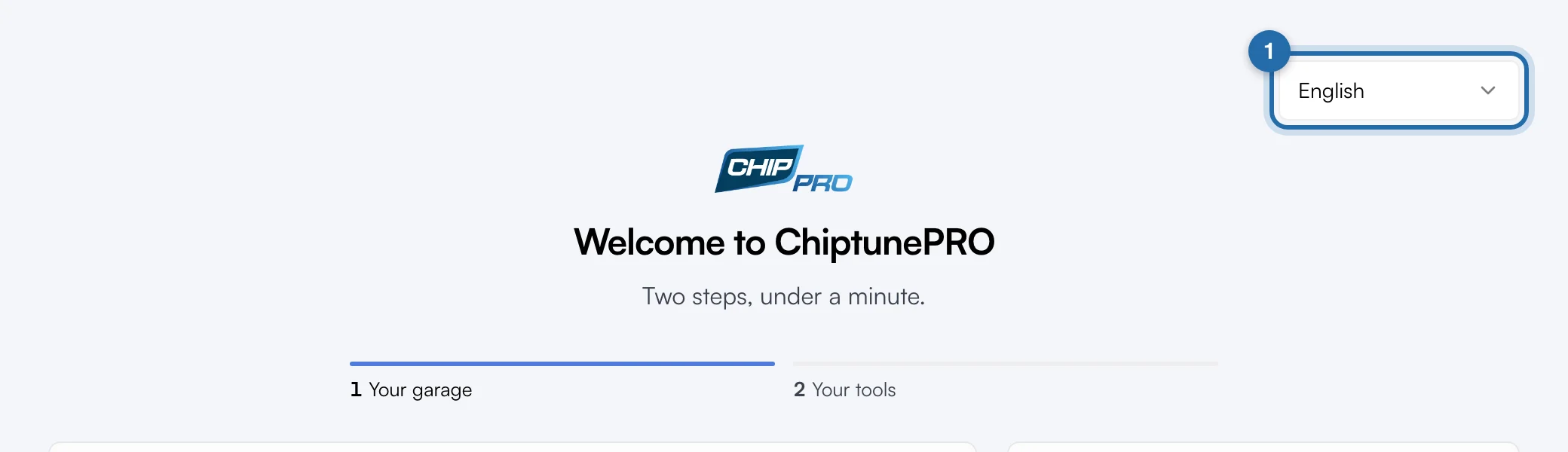
At the top right, choose Français, English, Español or Deutsch. Changing the language resets the country to that language's default and clears the town.
You and your garage
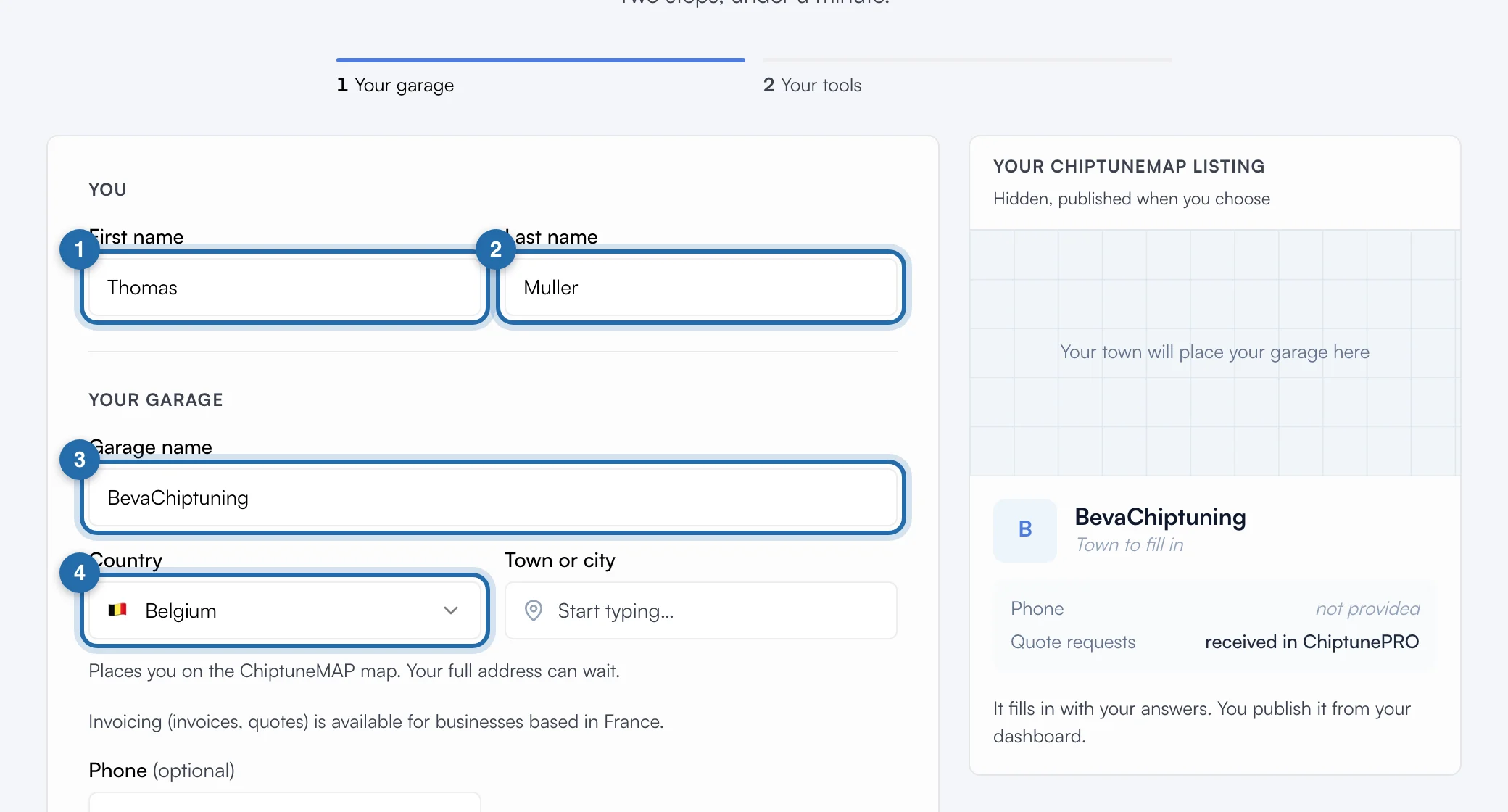
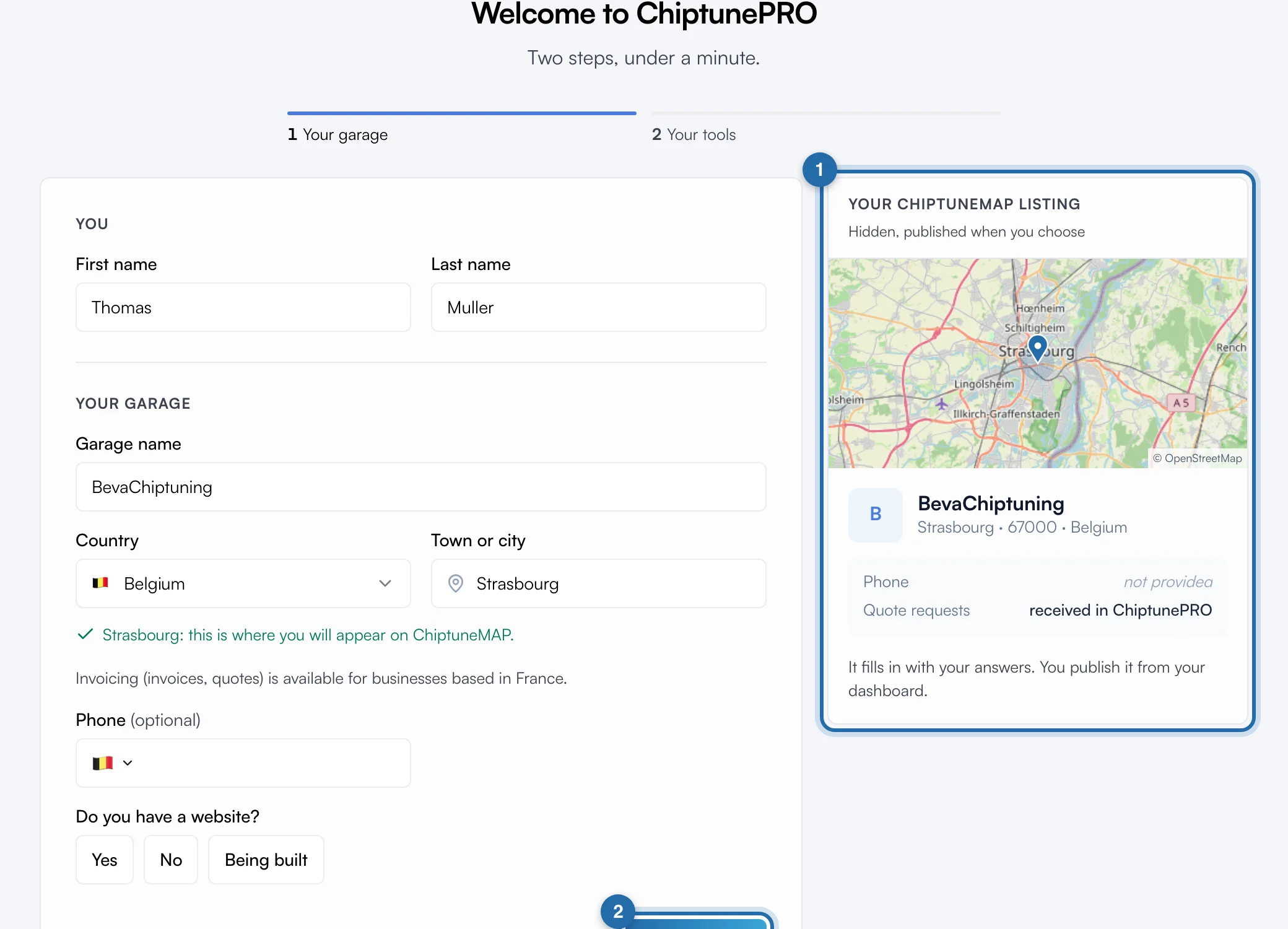
Step 1, "Your garage". In "You", type your "First name" and "Last name". In "Your garage", type the "Garage name" and check the "Country". Outside France, a line reminds you that invoicing (invoices, quotes) is available for businesses based in France.
The town
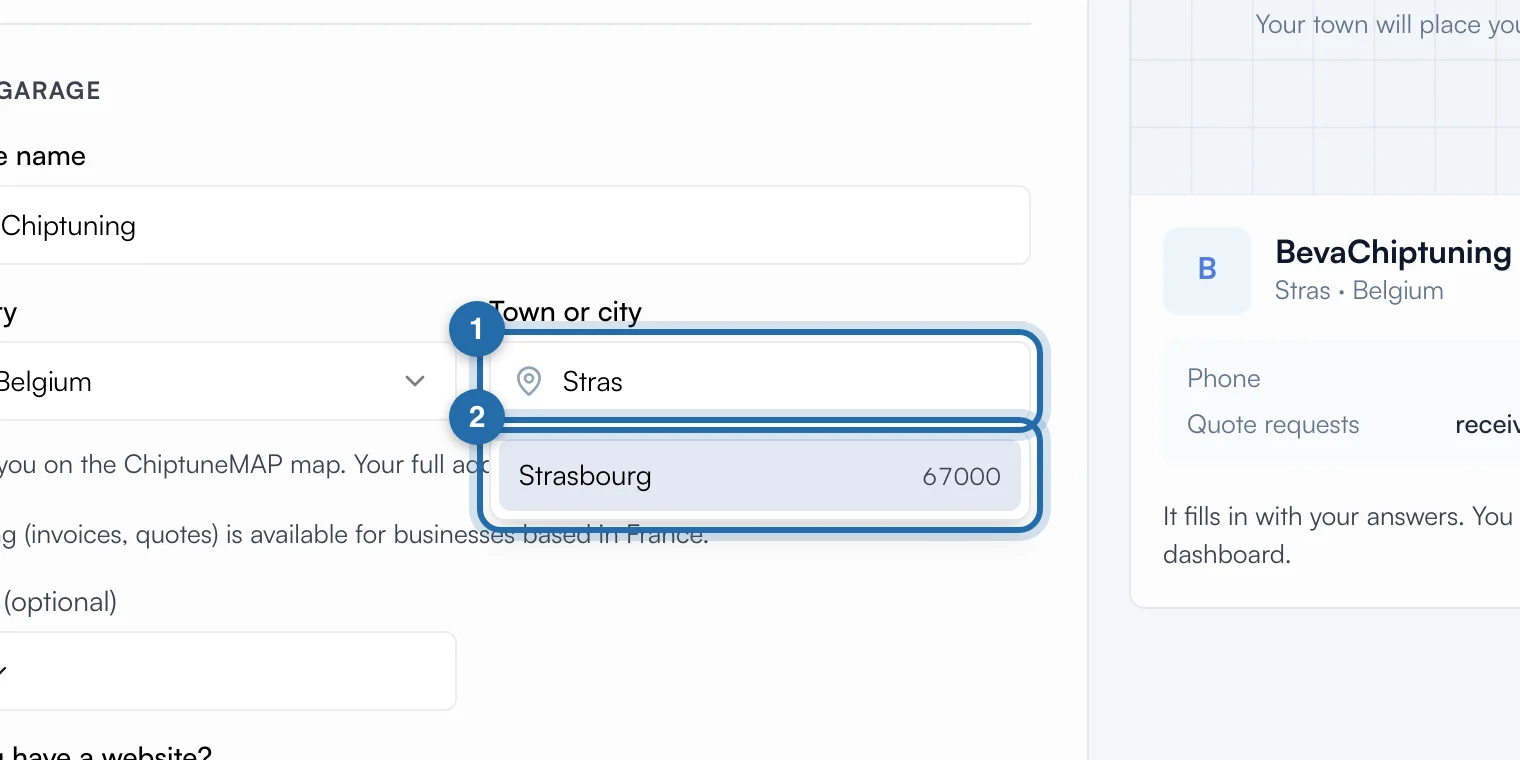
In "Town or city", type the first letters and click your town in the list. The line "…: this is where you will appear on ChiptuneMAP." confirms the choice. If the list suggests nothing, the typed town is kept. The full address goes in your listing later.
Phone and website
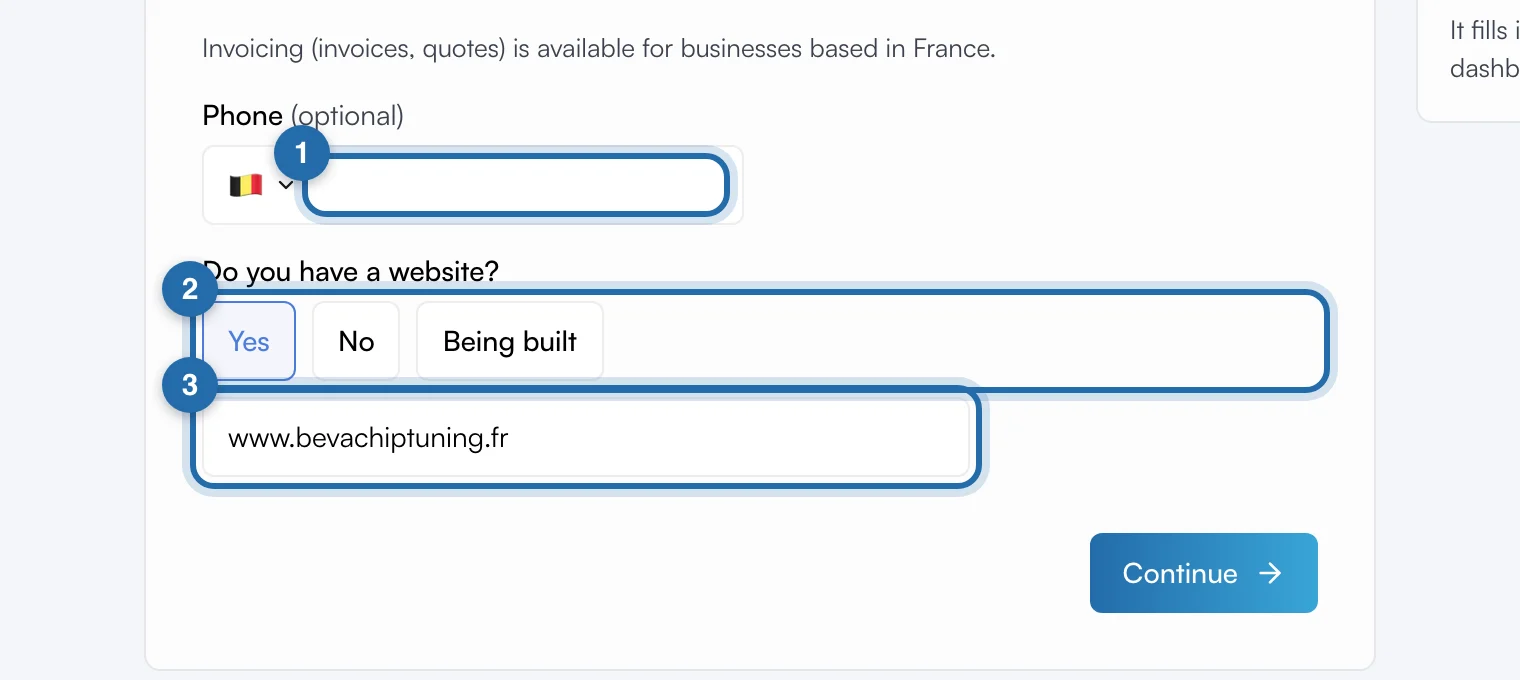
The "Phone" is optional. For "Do you have a website?", click "Yes" and type the website address, or "No" or "Being built". Without a website, Quick start and the menu offer your links to share instead of the code to paste on a website.
Watch the listing fill in
On the right, "Your ChiptuneMAP listing" shows the name, town and phone as you type. It is "Hidden, published when you choose": nothing appears on the map before you click "Publish my listing". Click "Continue".
Your tools
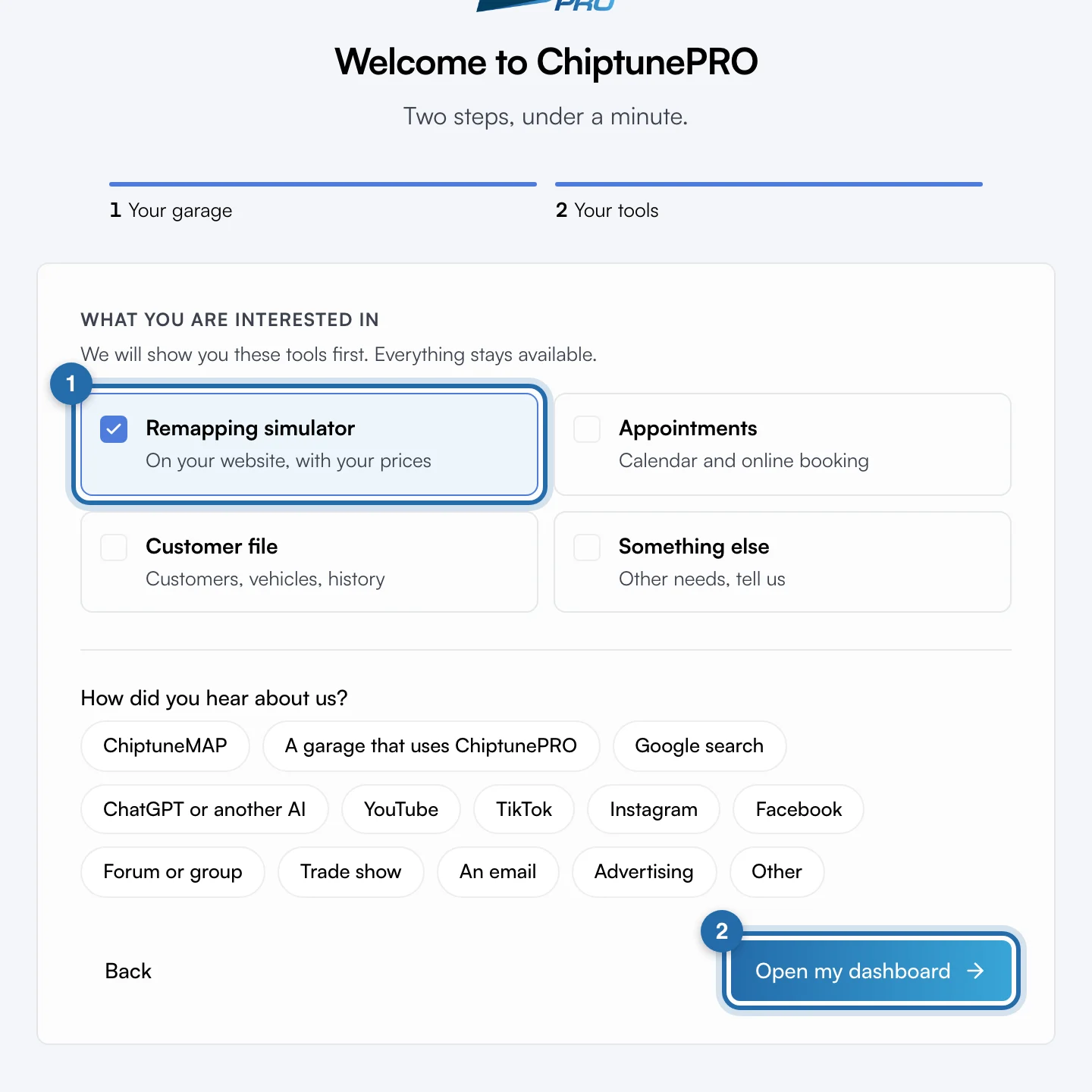
Step 2, "Your tools". In "What you are interested in", click one or more choices: "Remapping simulator", "Appointments", "Customer file", "Quotes and invoices" (France only) or "Something else". They move to the top of the menu, and everything else stays available. Below, answer "How did you hear about us?": "Other" asks for details.
Open the dashboard
Click "Open my dashboard". "Back" returns to step 1 without losing anything. On a new account, "Overview" only shows the "Next step" with its button, then "See all steps" and "Show the full dashboard". The full dashboard starts with the "Your ChiptuneMAP listing is ready" box and its "Publish my listing" button.
If it doesn't work
- I keep coming back to this page.
- Until it is finished, the app brings you back. Fix the fields in red and click "Open my dashboard".
- "Choose your town from the list".
- Towns are suggested but none is chosen. Click a line in the list under the field.
- Is my listing already online?
- No, it is created hidden. Publish it from the dashboard or from "ChiptuneMAP listing" (see "Publish and complete my ChiptuneMAP listing").
- I got the name or the town wrong.
- Correct them in "ChiptuneMAP listing", in the "Identity" and "Address" cards.
- I don't see "Quotes and invoices".
- This choice only shows when the country is France.