
ChiptuneMAP
Publish and complete my ChiptuneMAP listing
Fill in your listing on a single page and publish it in the ChiptuneMAP directory.
Before you start
- A ChiptunePRO account. The listing is free, whatever your subscription.
Open the listing page
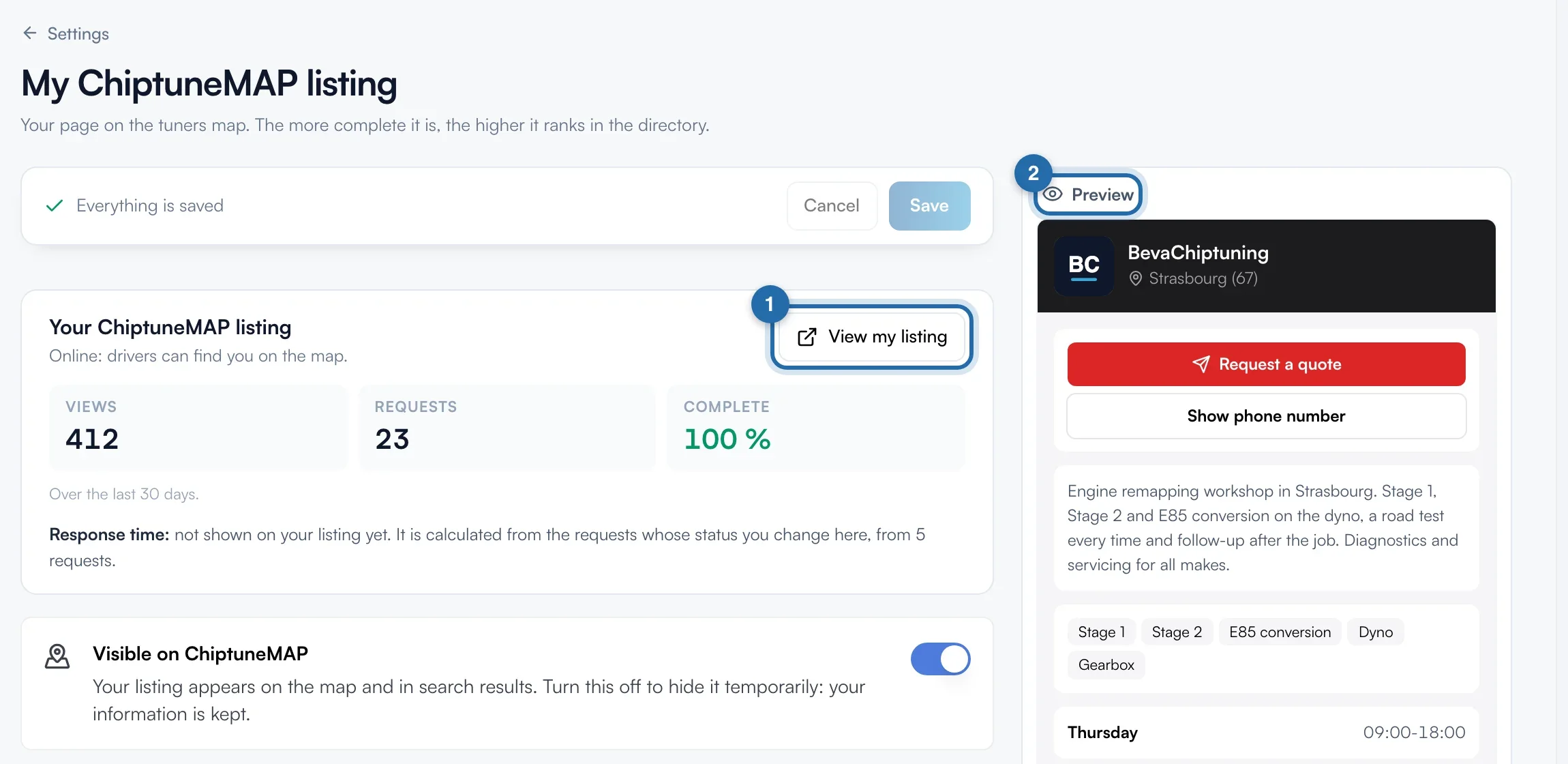
In Settings, open "My ChiptuneMAP listing". At the top, "Your ChiptuneMAP listing" gives the listing status, your "Views", your "Requests" over 30 days and the "Complete" percentage. On the right, the "Preview" follows what you type.
Logo, name and description
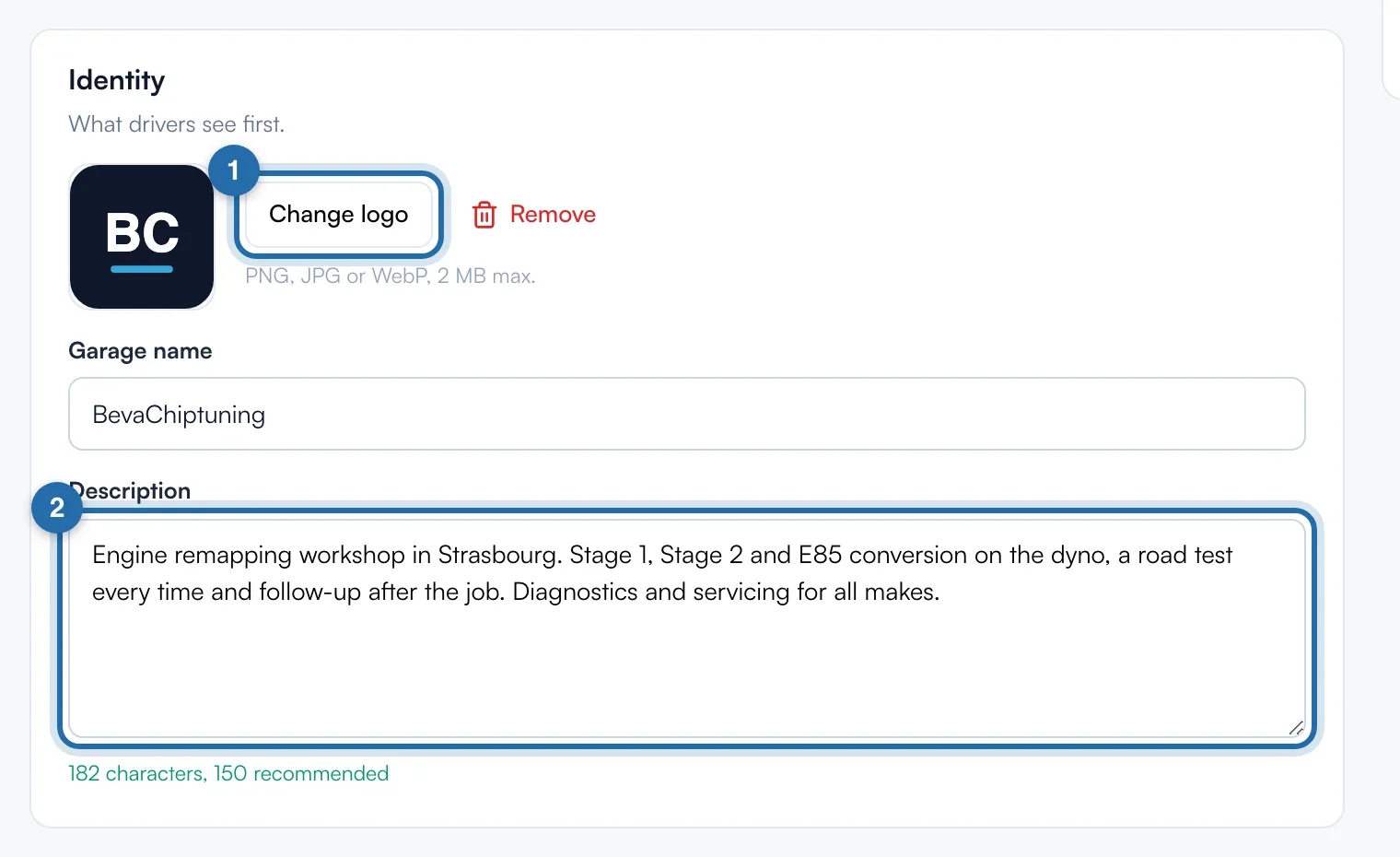
In "Identity", click "Add a logo" (PNG, JPG or WebP, 2 MB max) and check the "Garage name". Write the "Description": at least 80 characters for a complete listing, 150 recommended, 1,200 at most.
Address
In "Address", choose the "Country", type your address in "Search for your address" and click a suggestion: the fields fill in. Postcode and city are required to publish.
Contact
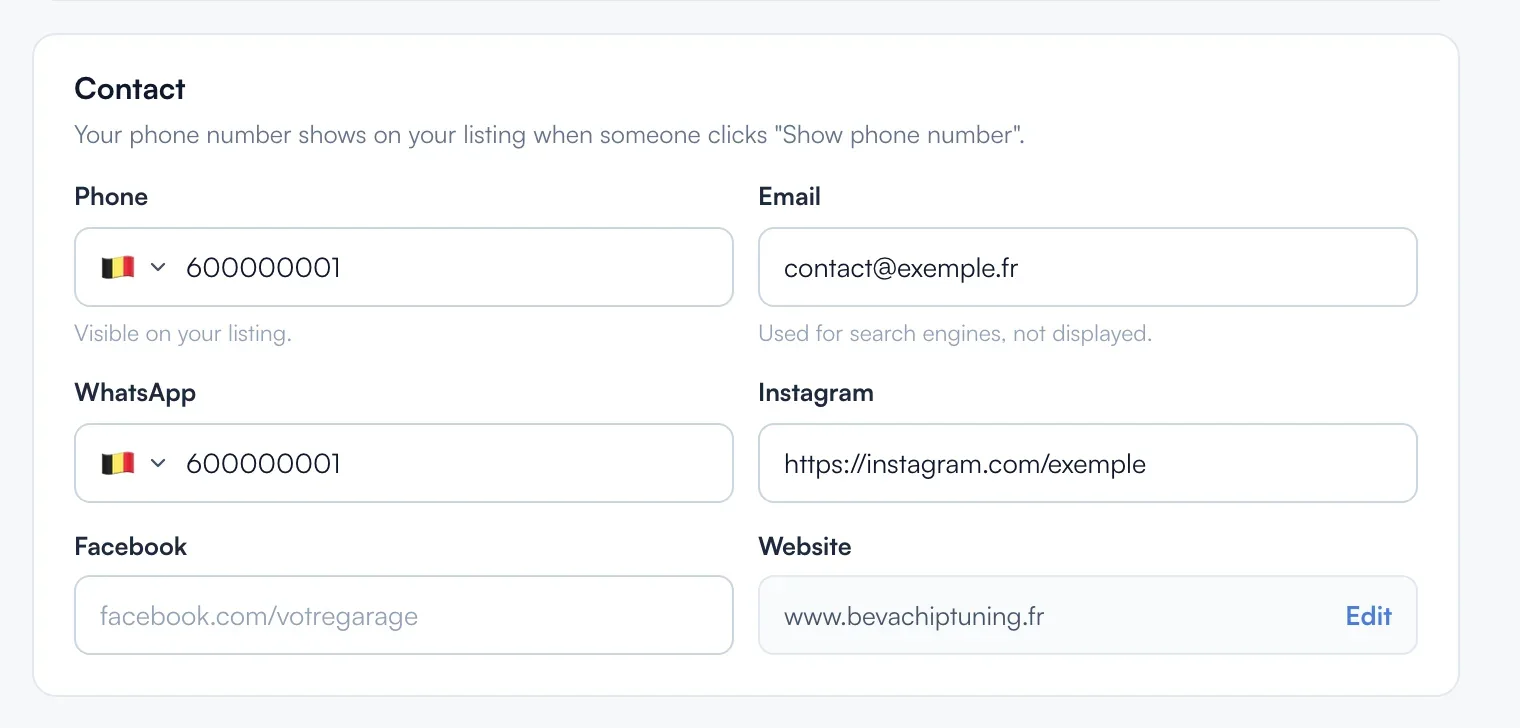
In "Contact", the "Phone" shows when the driver clicks "Show phone number". The "Email" is not shown. WhatsApp, Instagram and Facebook are optional. The website is changed with the "Edit" link.
Services
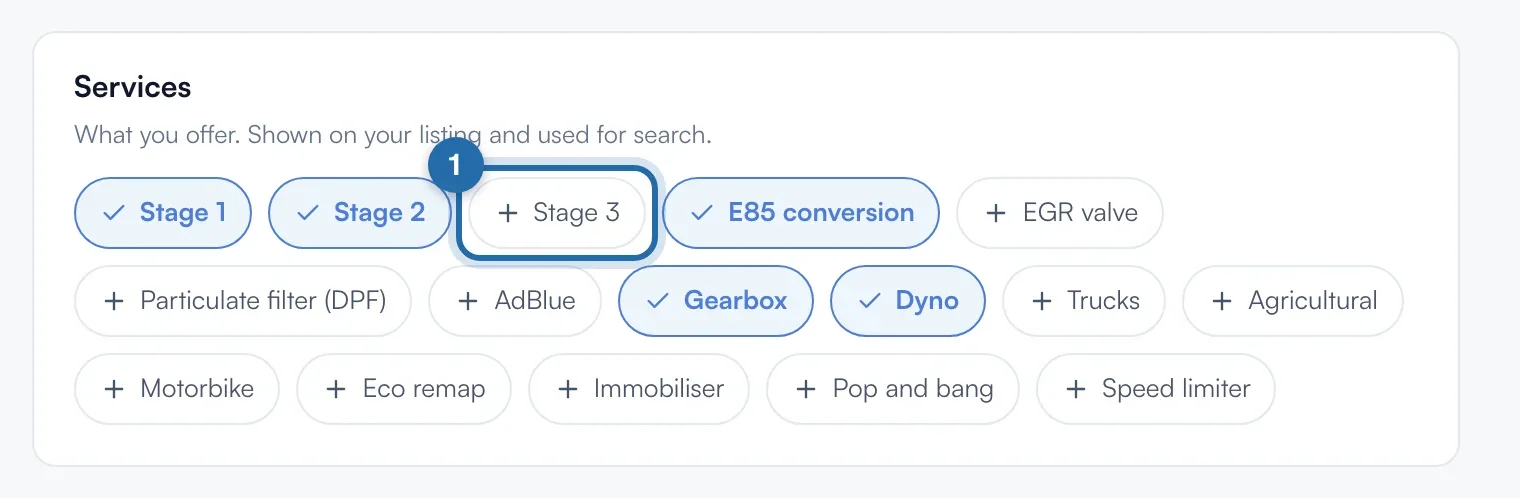
In "Services", click each service you offer, out of 16. Once chosen, it turns blue with a tick. They show on the listing and are used for search.
Listing address
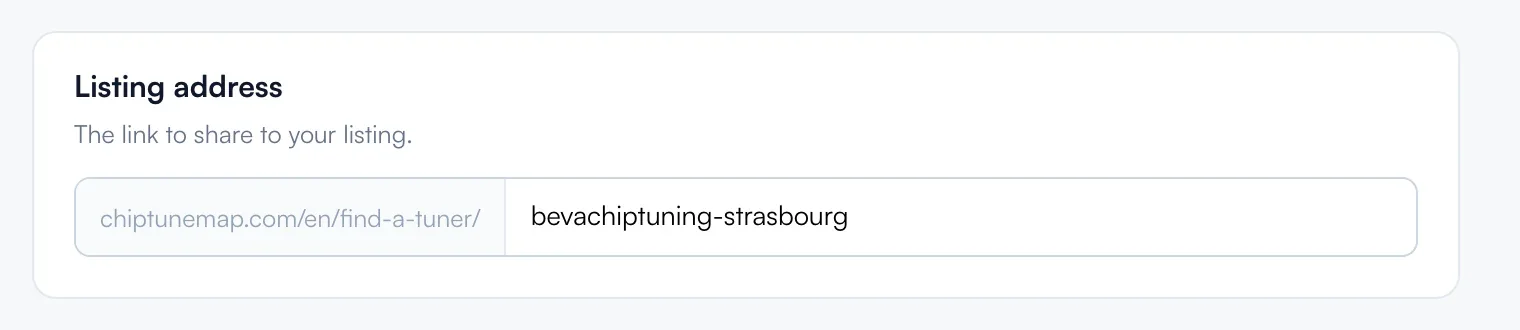
"Listing address" is the end of your listing link, created from the garage name. Only lowercase letters, digits and hyphens are kept, and a message says whether it is available. Old links lead to the new one.
Publish
As soon as a field changes, the top bar shows "Unpublished changes". Click "Save": "Listing published on ChiptuneMAP" the first time, then "Listing updated". "Cancel" goes back to the saved version.
What your customer sees
Once published and visible, your listing appears on the map and in the list on chiptunemap.com. "View my listing" opens it.
If it doesn't work
- The "Complete" percentage is not at 100%.
- Six points count: logo, an 80-character description, address, phone, one service and opening hours. Each missing point is a button below the figures ("+ Add a logo"…) that takes you to the right field. Complete listings appear before the others.
- "Save" shows an error on the address.
- Add the city and postcode: they place your garage on the map. The page takes you straight to the "Address" block.
- I don't see the Workshop photos, Work, Team and Customer reviews blocks.
- They appear after the listing is first published.