
Attract customers
Link page quick setup
Four screens to put your link page online: style, profile and social accounts, blocks shown, going live. Everything can be changed afterwards in the full editor, where each link can also get an icon.
Before you start
- Every account. A visible ChiptuneMAP listing to get the address chiptunepro.com/@your-garage.
- It opens by itself as long as the page has never been saved. After that, in “My link page”, click “Quick setup” at the top.
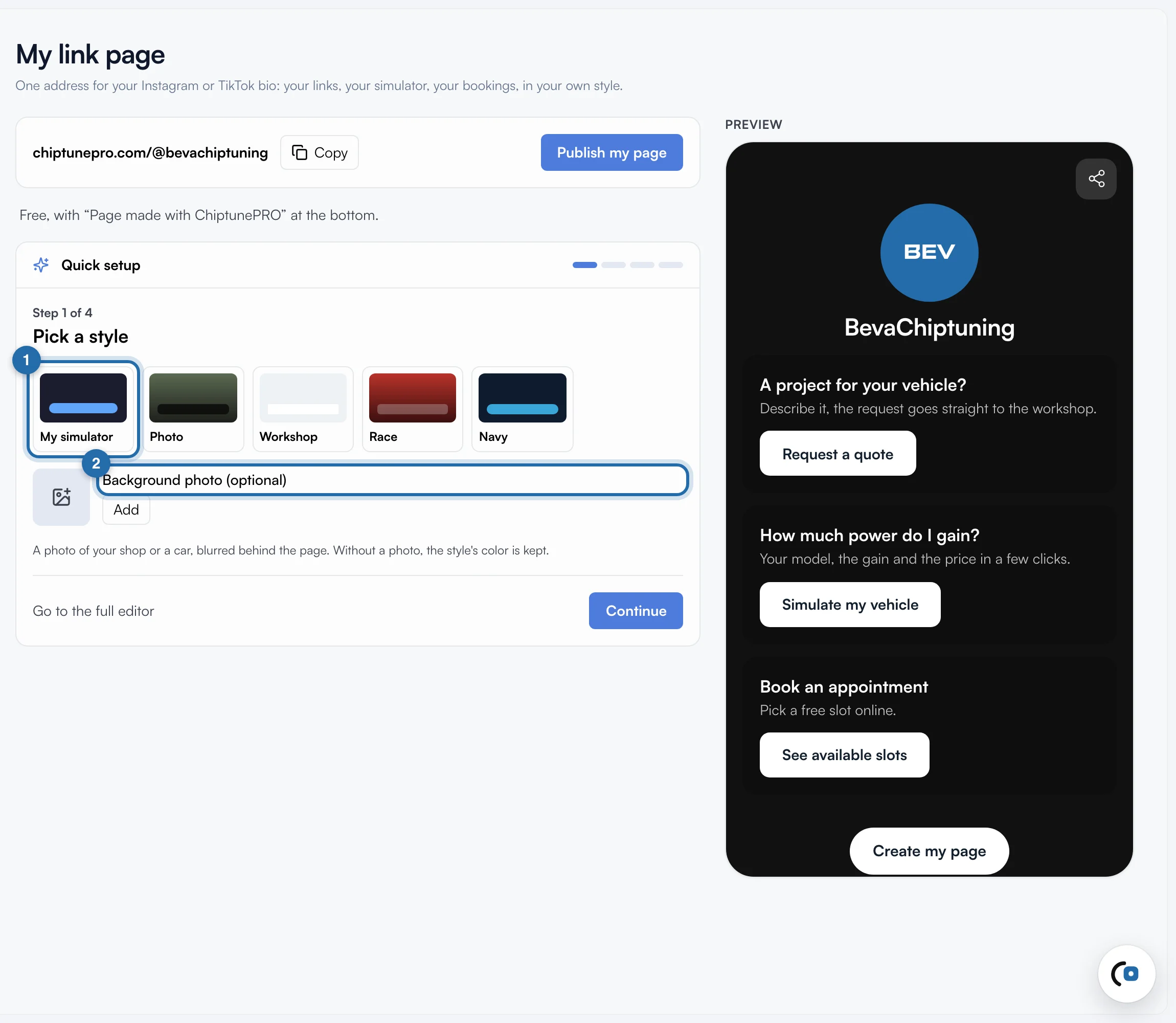
Pick a style
“Step 1 of 4”. Click “My simulator”, “Photo”, “Workshop”, “Race” or “Navy”. “Background photo (optional)” adds a photo of your shop or a car, blurred behind the page. Without a photo, the style's colour stays. The preview on the right changes with each click. Click “Continue”.
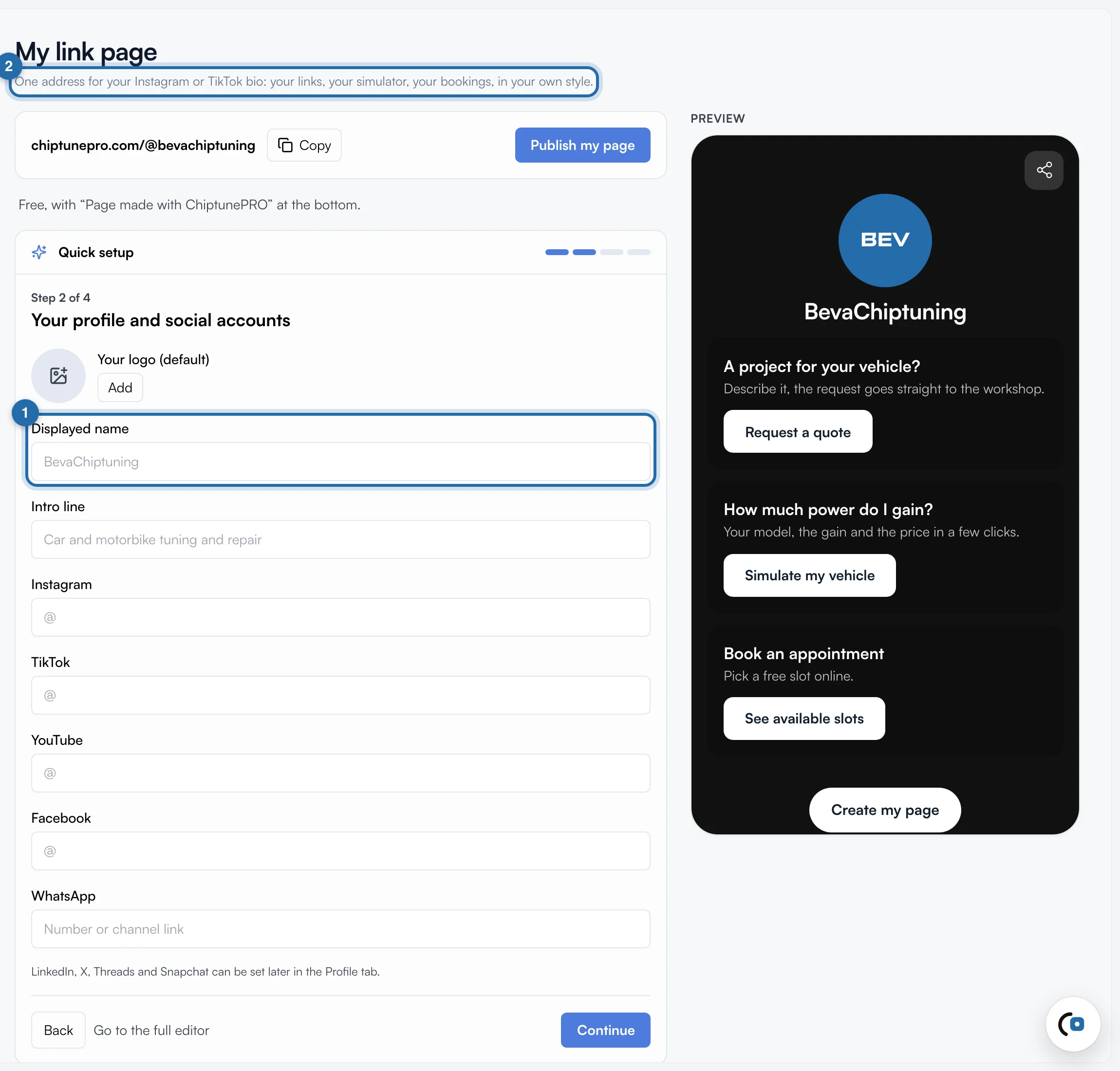
Your profile and social accounts
Picture (your logo by default), “Displayed name” and “Intro line”, then Instagram, TikTok, YouTube, Facebook and WhatsApp: your account name or profile address. LinkedIn, X, Threads and Snapchat can be set later in the “Profile” tab. Click “Continue”.
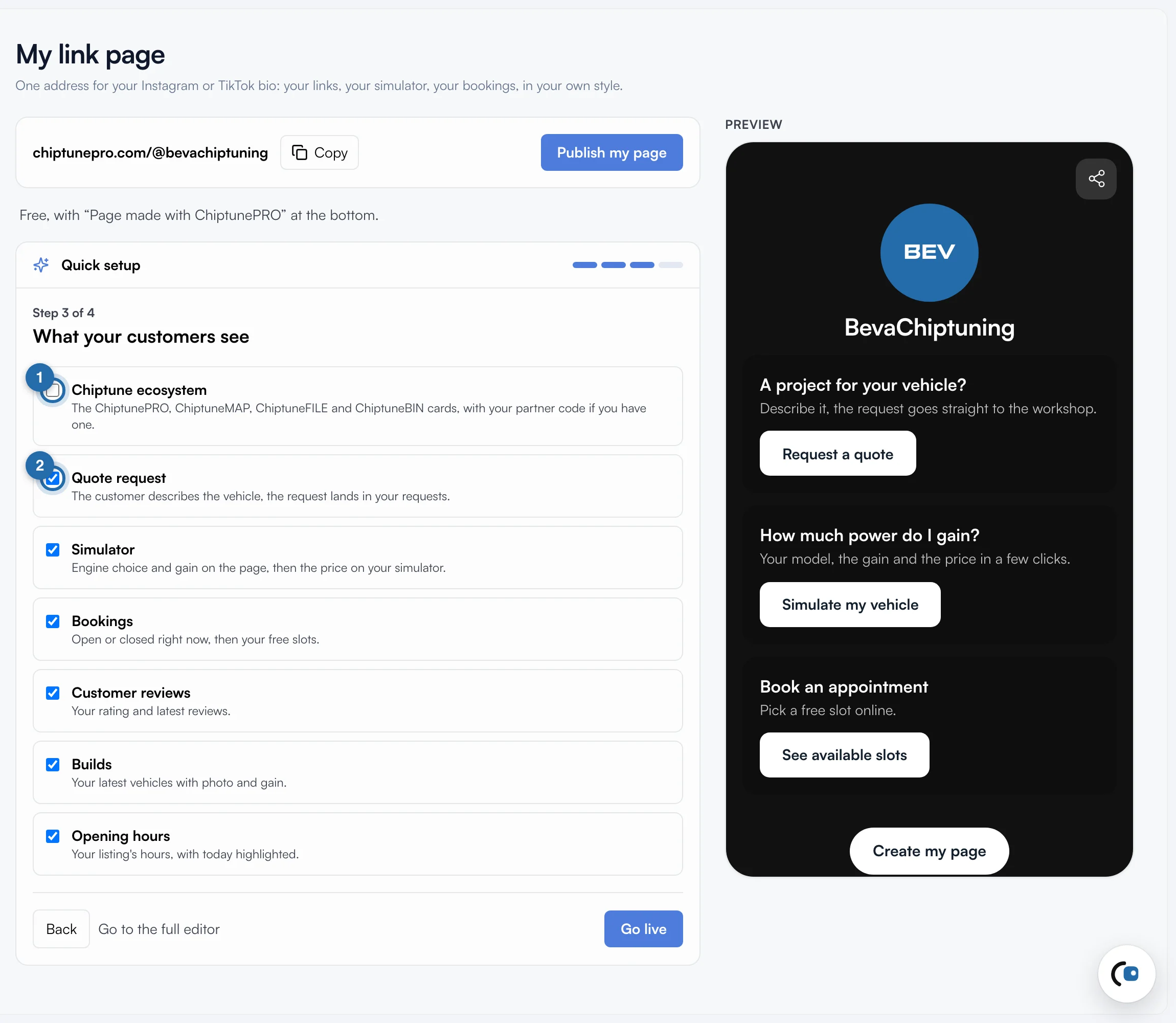
What your customers see
Tick the blocks to show: “Chiptune ecosystem” (ChiptunePRO, ChiptuneMAP, ChiptuneFILE and ChiptuneBIN cards), “Quote request”, “Simulator”, “Bookings”, “Customer reviews”, “Builds” and “Opening hours”. A block with no data (no reviews, no build with a photo, no opening hours) is greyed out and cannot be ticked.
Go live
Click “Go live”: the page is saved. The “Your page is live” screen gives the address with “Copy” and “Open”, and the path in Instagram (Edit profile › Links › Add external link) and TikTok (Edit profile › Website, with a business account).
Continue in the editor
“Continue in the editor” opens the “Style”, “Content” and “Profile” tabs. “Back” returns to the previous screen. “Go to the full editor” leaves before the end without saving: your choices stay on screen, so click “Publish my page” at the top.
Put an icon on a link
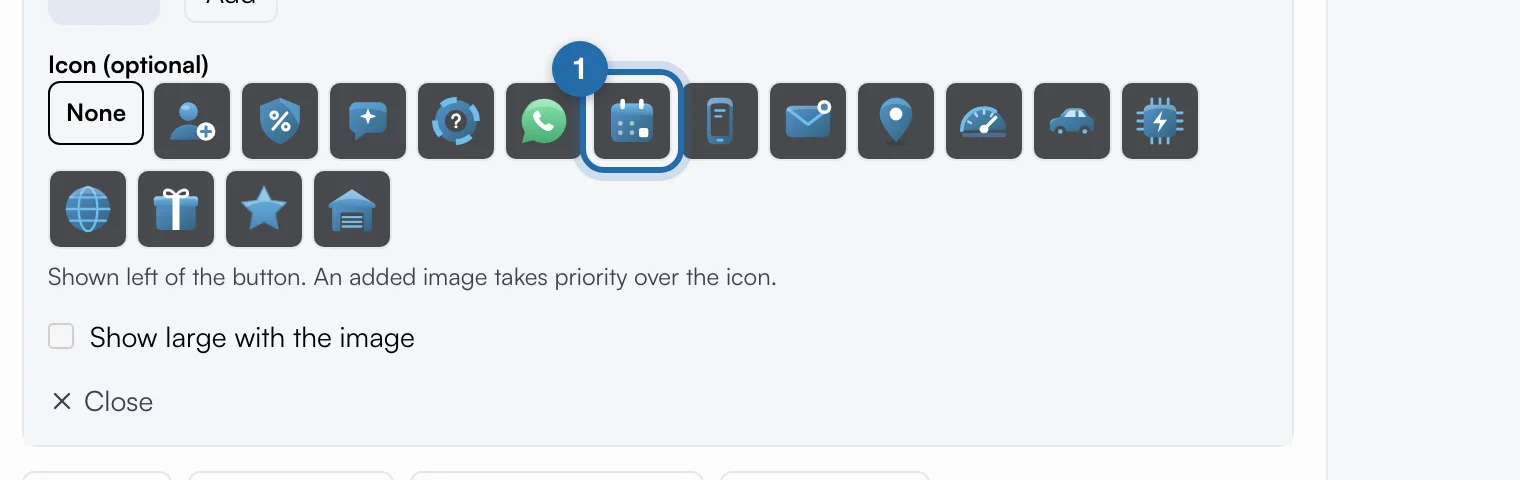
“Content” tab: click “Link”, fill in “Button text” and “Address”. Under “Icon (optional)”, pick one of 16 drawings: Sign up, Partners, What's new, Help, WhatsApp, Booking, Phone, Email, Address, Gauge, Car, ECU, Website, Offer, Reviews, Shop. “None” removes the icon. Click “Save”.
What your customer sees
After “Go live”, chiptunepro.com/@your-garage shows the page as in the preview. A link with an icon shows the drawing to the left of the button.
If it doesn't work
- The quick setup opens on every visit.
- It opens as long as the page has never been saved. Go through to “Go live”, or click “Publish my page” at the top.
- “Customer reviews” or “Builds” cannot be ticked.
- The widget has nothing to show. Link your Google listing or ask for reviews, publish a build with a photo, or add your opening hours to your listing.
- The “Your page is live” screen shows no address.
- Your ChiptuneMAP listing is not visible. Click “My listing” and publish it: the page will take its address.
- My icon does not show.
- An image added to the link takes priority over the icon. Open the link and click “Remove” under “Image (optional)”.