
ChiptuneMAP
Opening hours and lunch break
Set your opening days and hours, with a lunch break, for your listing and your online booking.
Open the Hours section
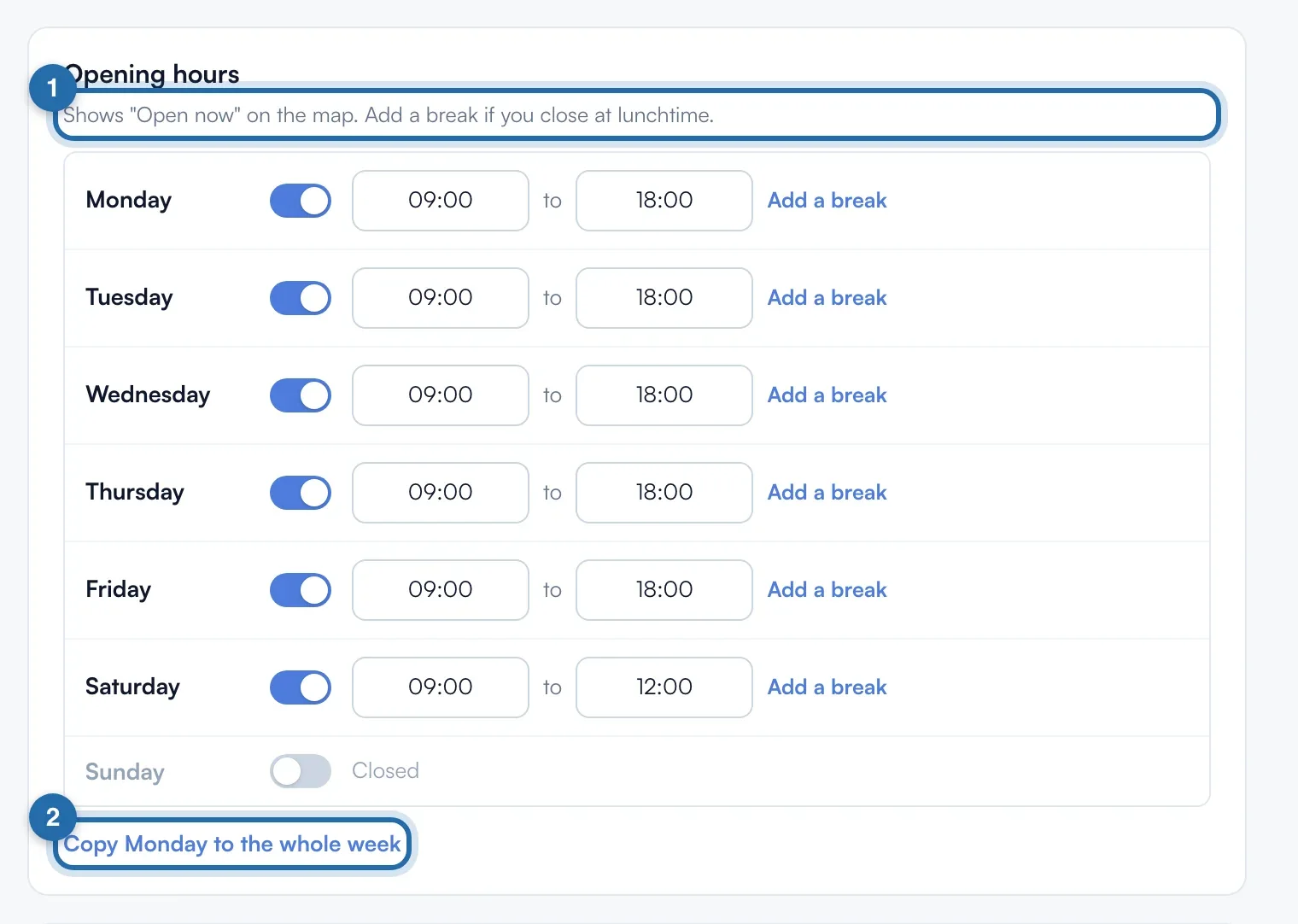
In Settings > My ChiptuneMAP listing, scroll down to "Opening hours". One row per day, Monday to Sunday.
Open a day
Switch on the day's toggle. It opens from 09:00 to 18:00 by default: change the opening and closing time. With the toggle off, the day shows "Closed".
Add a break
Click "Add a break" at the end of the row. The day splits into two slots, 09:00 to 12:00 then 14:00 to 18:00 for a 09:00 to 18:00 day: adjust the four times. The "Remove the break" cross goes back to a single slot.
Copy to the week
When Monday is open, "Copy Monday to the whole week" below the list copies its hours and break to Tuesday through Friday. Saturday and Sunday do not change.
Save
Click "Save" at the top of the page. The preview on the right already shows today's hours.
What your customer sees
On ChiptuneMAP, your listing shows "Open now" or "Closed now" based on these hours, and the "Opening hours" section gives the week. The same hours are used for your online booking slots and your /rdv page.
If it doesn't work
- I edit my hours in Online booking. Are they the same?
- Yes. Booking hours are those of the ChiptuneMAP listing: a change on one side shows on the other. Without a listing, Online booking sends you to this section.
- My listing is not at 100%.
- Hours count as soon as at least one day is open with an opening time.
- Can I set two breaks in a day?
- No, one break per day at most.