
Attract customers
My Google reviews: link and show them
Link your Google profile: your rating and latest reviews show on your ChiptuneMAP listing and on your website.
Before you start
- Pro plan. Menu: "Reviews and offers", then "Google reviews".
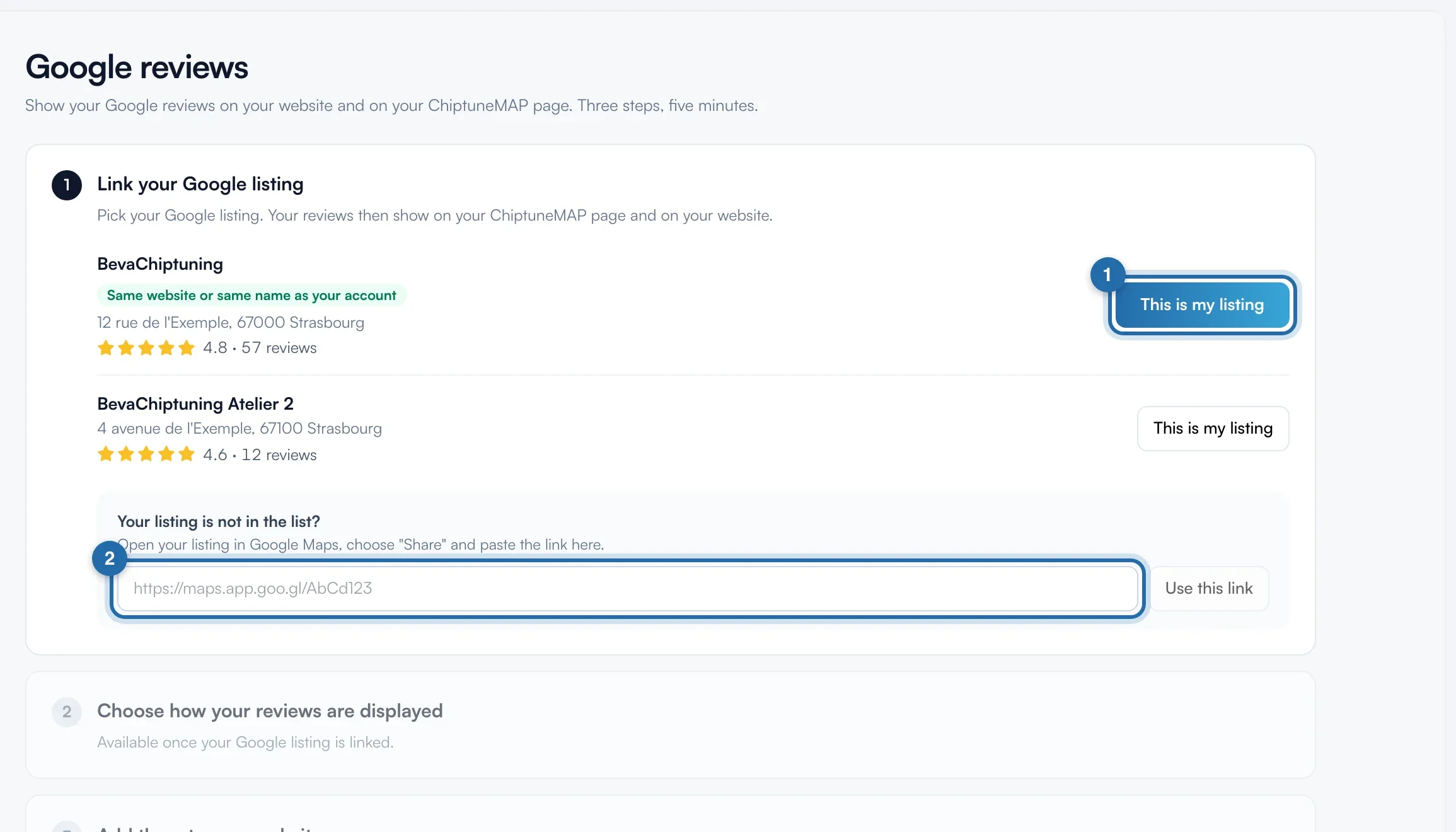
Choose your Google profile
Click "This is my listing" next to your garage. Otherwise, paste the link copied from "Share" in Google Maps and click "Use this link".
Wait for the first fetch
The first fetch takes one to two minutes, and you can leave the page. Then the "Rating", the "Reviews" and those from the "Last 30 days" show.
Update or change profile
Reviews are fetched every Monday. "Refresh now" starts one, once a day. "Change listing" removes the reviews while you choose another one.

Choose the display on your website
Choose "Carousel", "Cards" or "List", a "Minimum rating" and if needed "Reviews with text only". It saves straight away, for your website only.

Add the reviews to your website
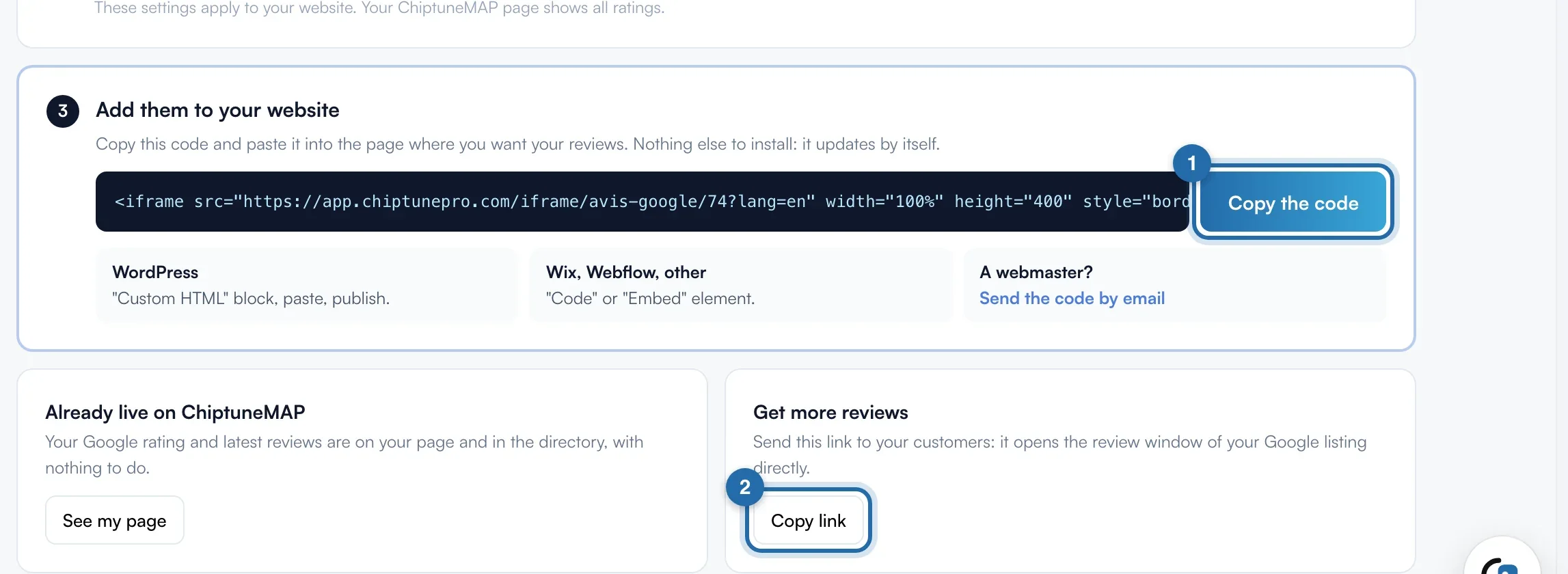
Click "Copy the code" and paste it in the page you want (WordPress: "Custom HTML" block). "Send the code by email" prepares a message for your webmaster.
Ask your customers for reviews
Under "Get more reviews", "Copy link" gives a link that opens the review window of your Google profile directly.
What your customer sees
On your website: your Google rating, the number of reviews, your latest reviews and "Write a review".
If it doesn't work
- I don't have a subscription.
- Paste the Google Maps link and click "Show my reviews": one preview per account. The code needs the Pro plan.
- "Your reviews have not been fetched yet".
- Check the profile, then "Refresh now".
- Some reviews are missing on ChiptuneMAP.
- The "Minimum rating" only applies to your website.