
Getting started
Dark mode, language and currency of the app
The light, dark or system theme is set in the account menu, device by device. The language and the price currency are saved on the account.
Before you start
- No subscription needed.
Choose the theme
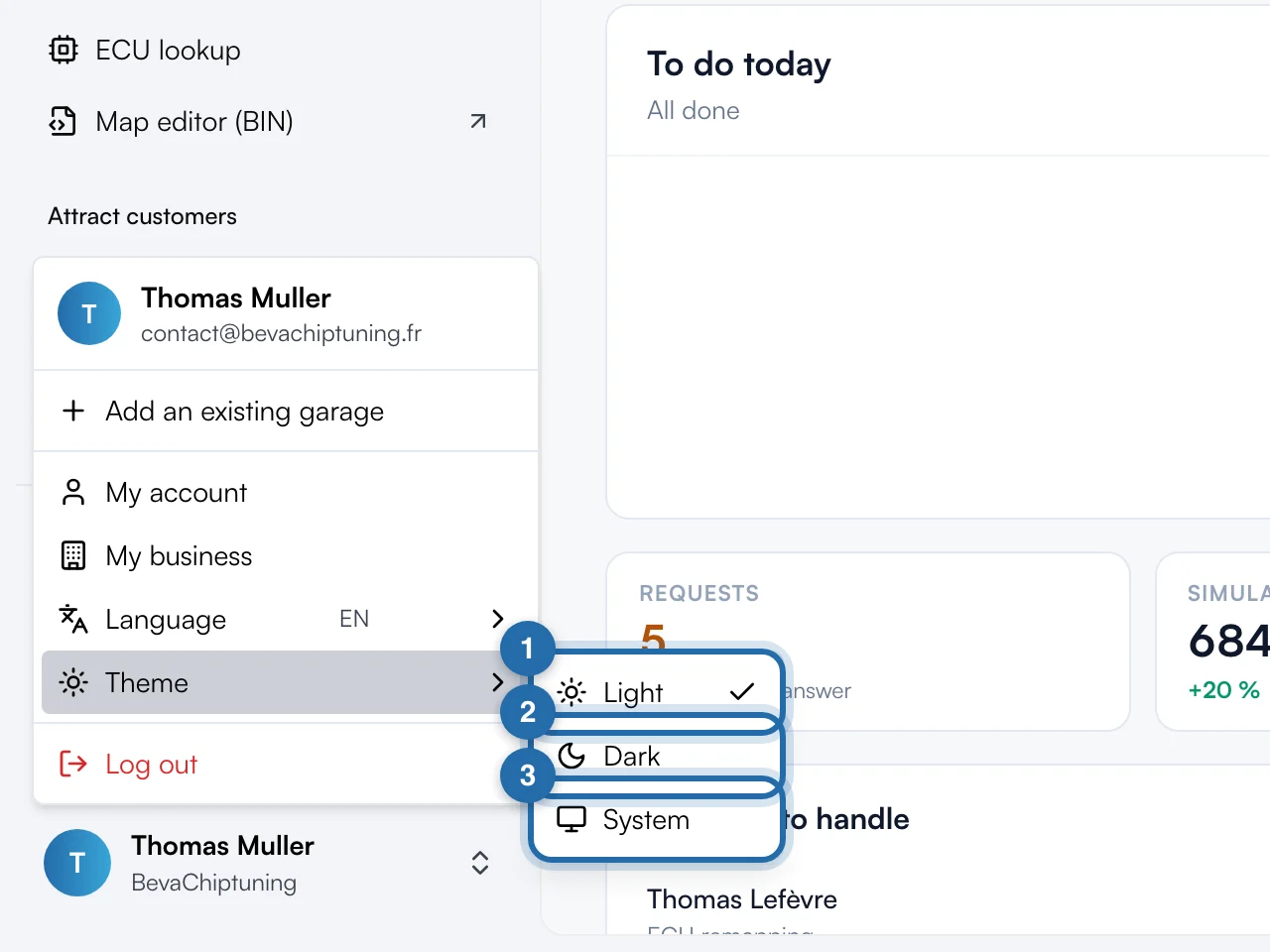
At the bottom left, click your name, then "Theme". Choose "Light", "Dark" or "System". "System" follows the light or dark setting of your computer or phone. A tick marks the chosen theme.
Switch to dark from search
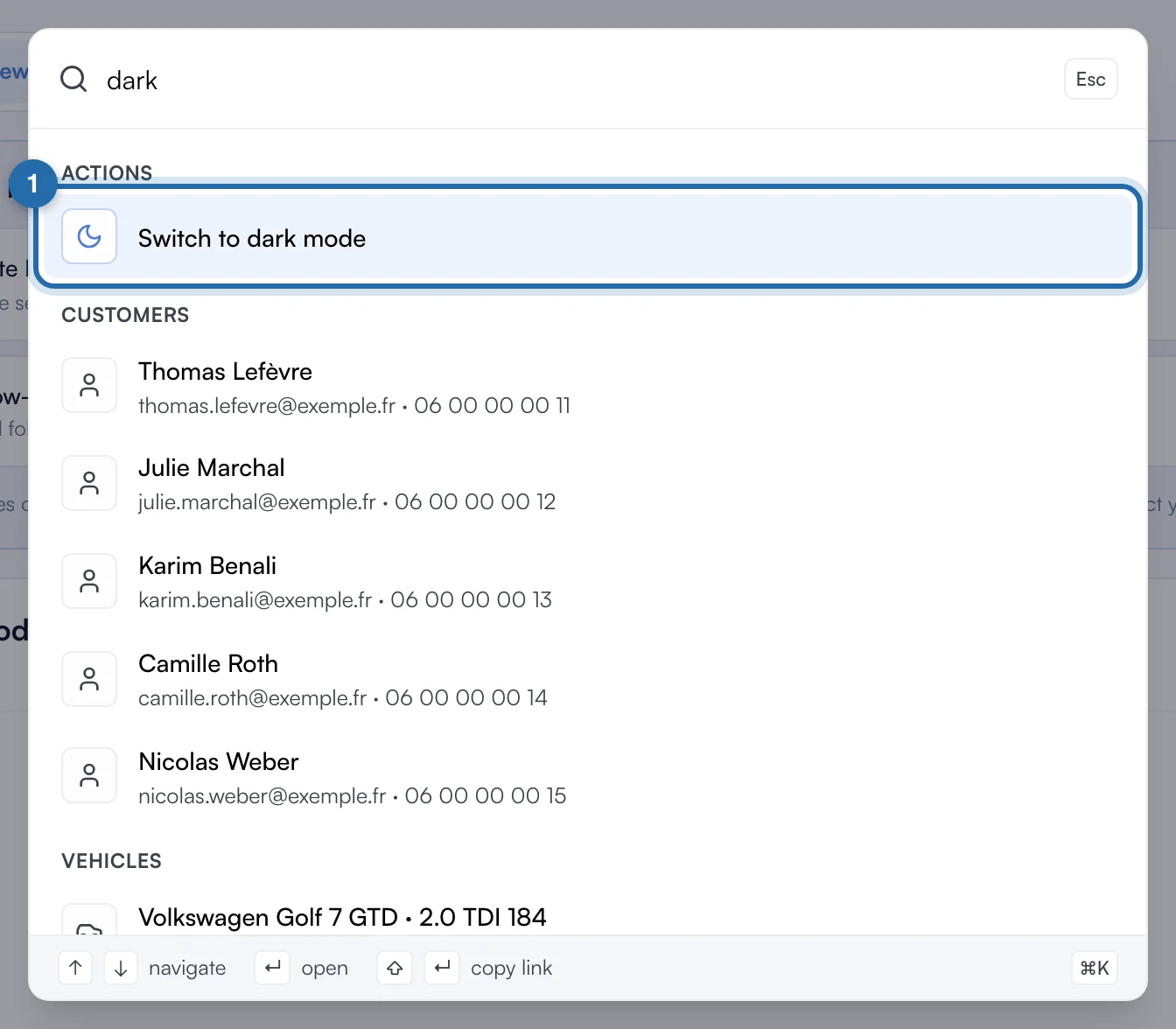
Open search with ⌘K or Ctrl K, type "dark" and press Enter on "Switch to dark mode". In dark mode, the action becomes "Switch to light mode".
What the theme changes
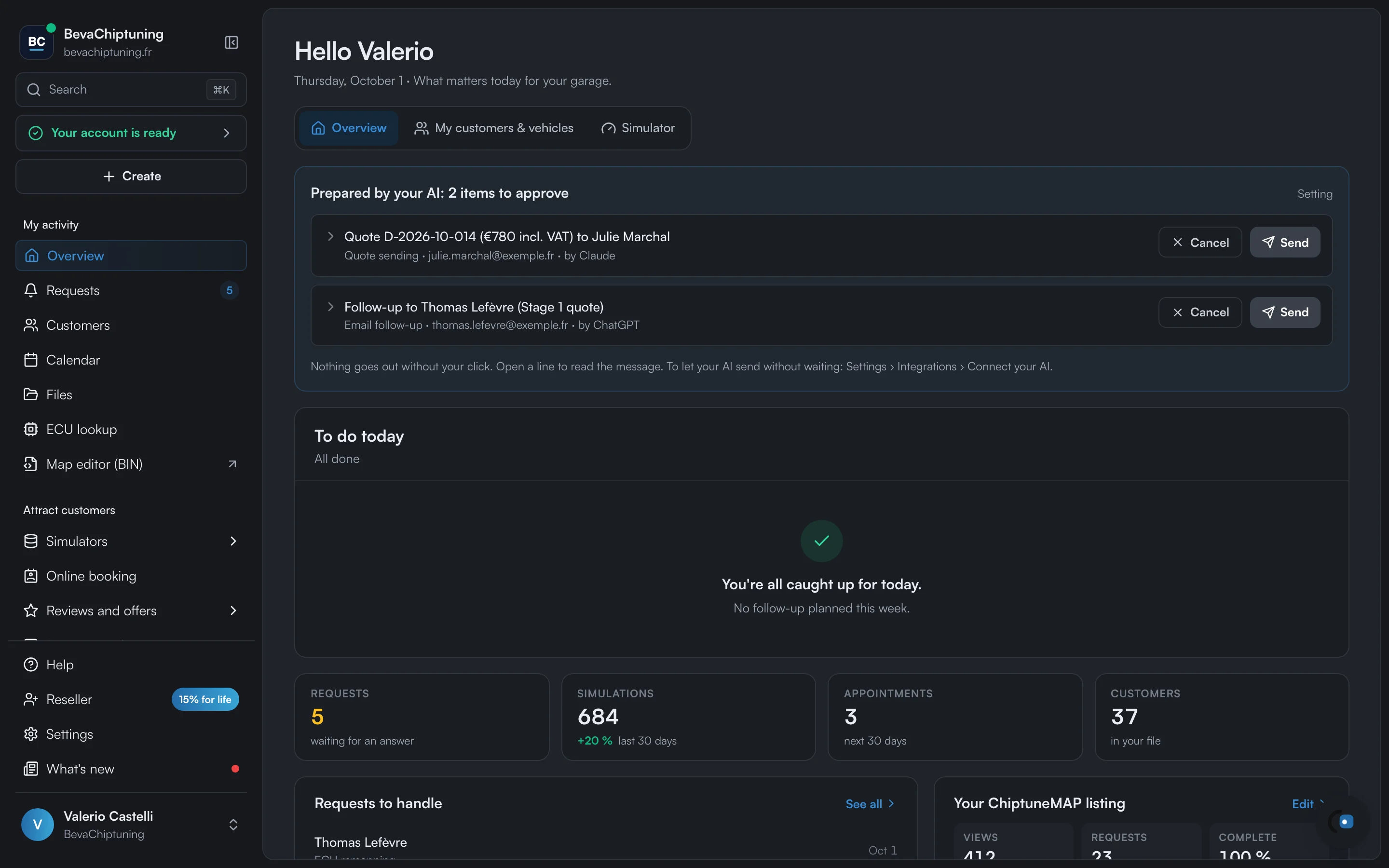
The theme is kept by the browser: each computer and each phone has its own. It only affects how you see the app: your simulator and your ChiptuneMAP listing keep their look for your customers.
Change the language
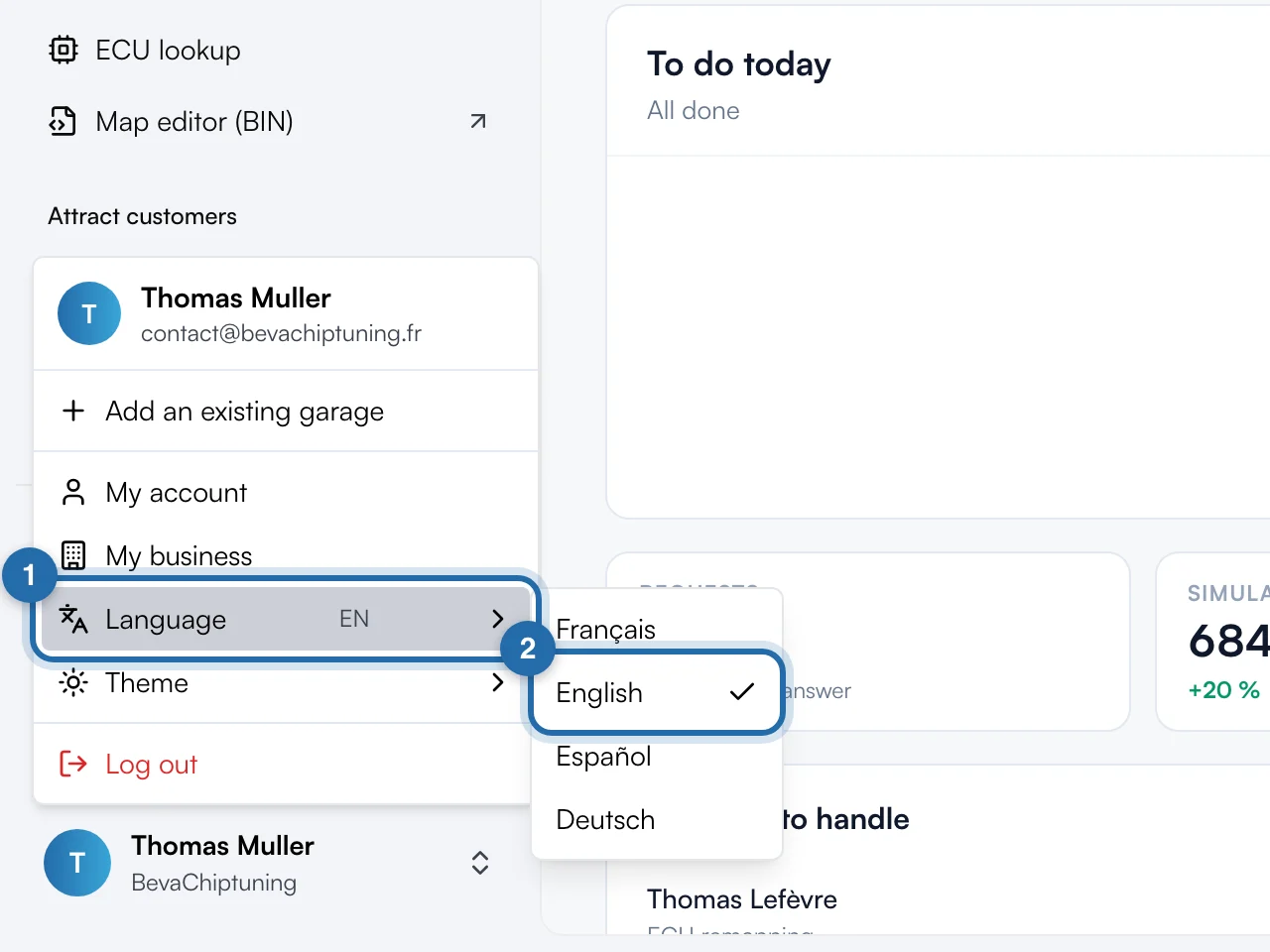
In the same menu, "Language" shows the current language (FR, EN, ES or DE). Hover it and click Français, English, Español or Deutsch. The language is saved on your account: it follows you on your other devices and is used for the emails Chiptune sends you.
Choose the price currency
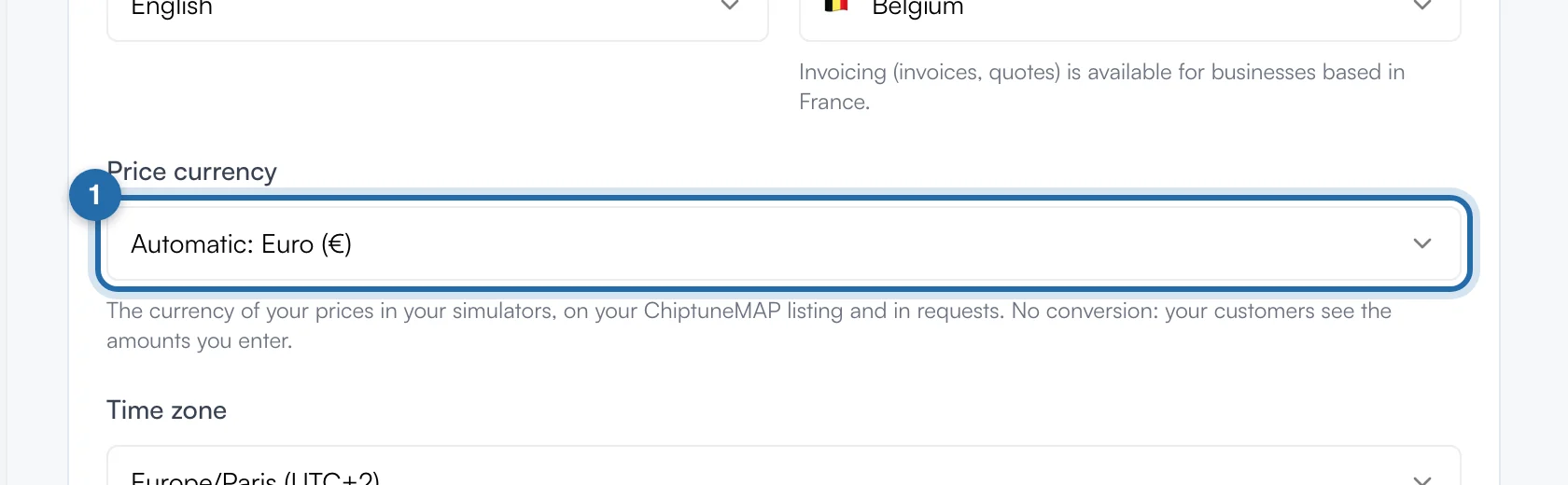
In "Settings" > "My account", "Language and country" card, "Price currency" is set to "Automatic": your country's currency. Choose another one from the list if needed. It applies to your simulators, your ChiptuneMAP listing and requests, with no conversion: your customers see the amounts you enter. "Preferences saved" confirms the choice.
Country and time zone
The same card sets the "Country" and the "Time zone" (see "Choosing the emails I receive and my language"). If you change country with the currency on "Automatic", your prices switch to the new country's currency.
If it doesn't work
- Dark mode doesn't stay.
- The theme is kept by the browser. In a private window, or after the site data is cleared, it goes back to light.
- Do my customers see the app in dark mode?
- No, the theme only changes your view. The simulator colours are set separately (see "Set my colours and the simulator home").
- Does changing the app language change the simulator's?
- The simulator shows in the language set in its code, otherwise in your account's language (see "Show the simulator in another language").
- My prices changed currency.
- On "Automatic", the currency follows the account's country. Choose the currency you want in "Price currency".