
Putting the tools on my website
Show the simulator in another language
Your tools show in the language set in their code, otherwise in your account language, never in the visitor's browser language.
Before you start
- The tool's code already pasted on your website.
Find the language in the code
The code copied from the "Integration" tab ends with ?lang= followed by your account language, for example ?lang=en. Open "Height, language, several pages…" below the code for a reminder.
Change it on a page
In the code pasted on your website, replace lang=en with lang=fr, lang=es or lang=de. Only these 4 languages exist. Save the page: the simulator, the quote request and booking switch to that language.
One page per language
For a website in several languages, paste the same code on each version of the page, with the right lang value. The declared website stays the same.
Change the default language
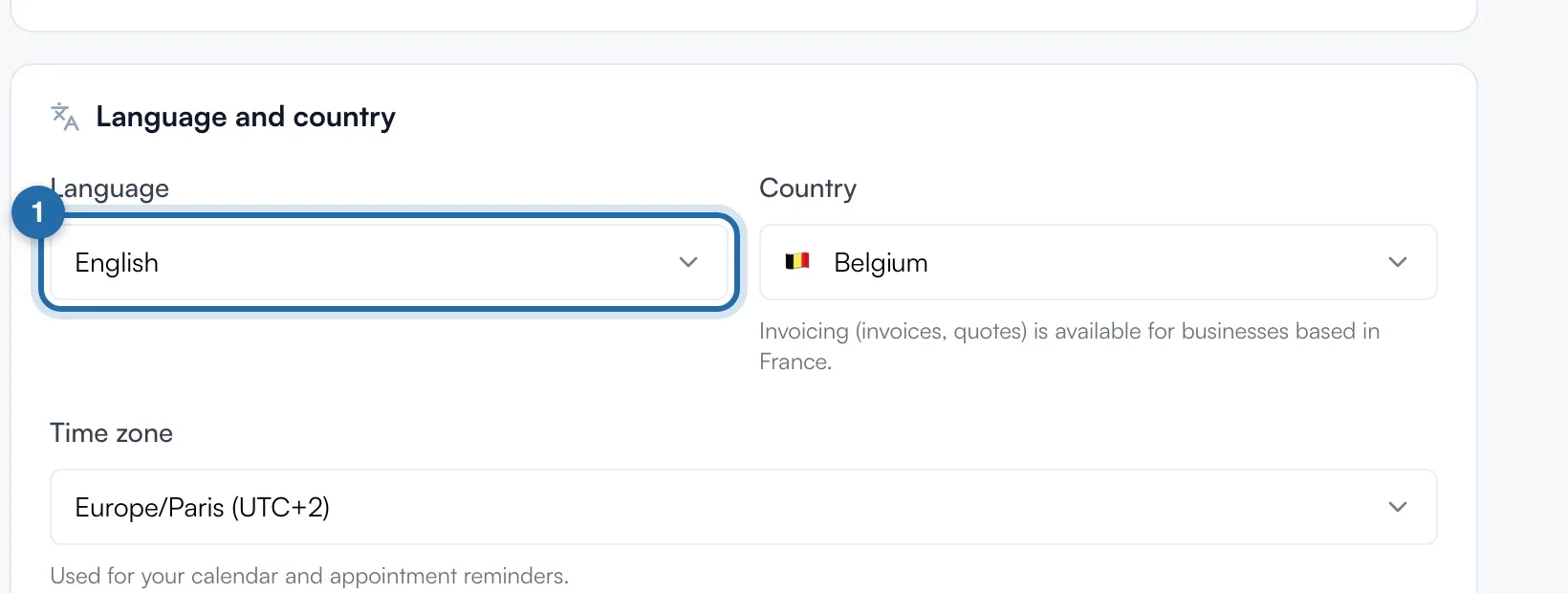
Without lang in the code, the tool uses your account language. It is set in "Settings", "My account", "Language and country" block, "Language" menu. This choice also changes the language of ChiptunePRO.
What your customer sees
The visitor sees texts, buttons and confirmation emails in the chosen language. Your custom texts (titles, service names) stay as you wrote them.
If it doesn't work
- I changed my account language, my website did not change.
- The pasted code already contains ?lang=. Change the value in the code, or copy the code again from the "Integration" tab.
- Which tools does it work for?
- The same lang parameter exists in the codes for the power simulator, the E85 simulator, online booking and Google reviews.