
Simulators
Set my colours and the simulator home
The "Appearance" tab sets the theme, colours, shapes, home screen and your contact details, with a live preview.
Choose a theme
In "Power simulator", "Appearance" tab, click a theme. It applies and saves straight away: ""…" theme applied to your simulator." 8 themes are shown, "See all 20 themes" shows the others.
Set the home screen
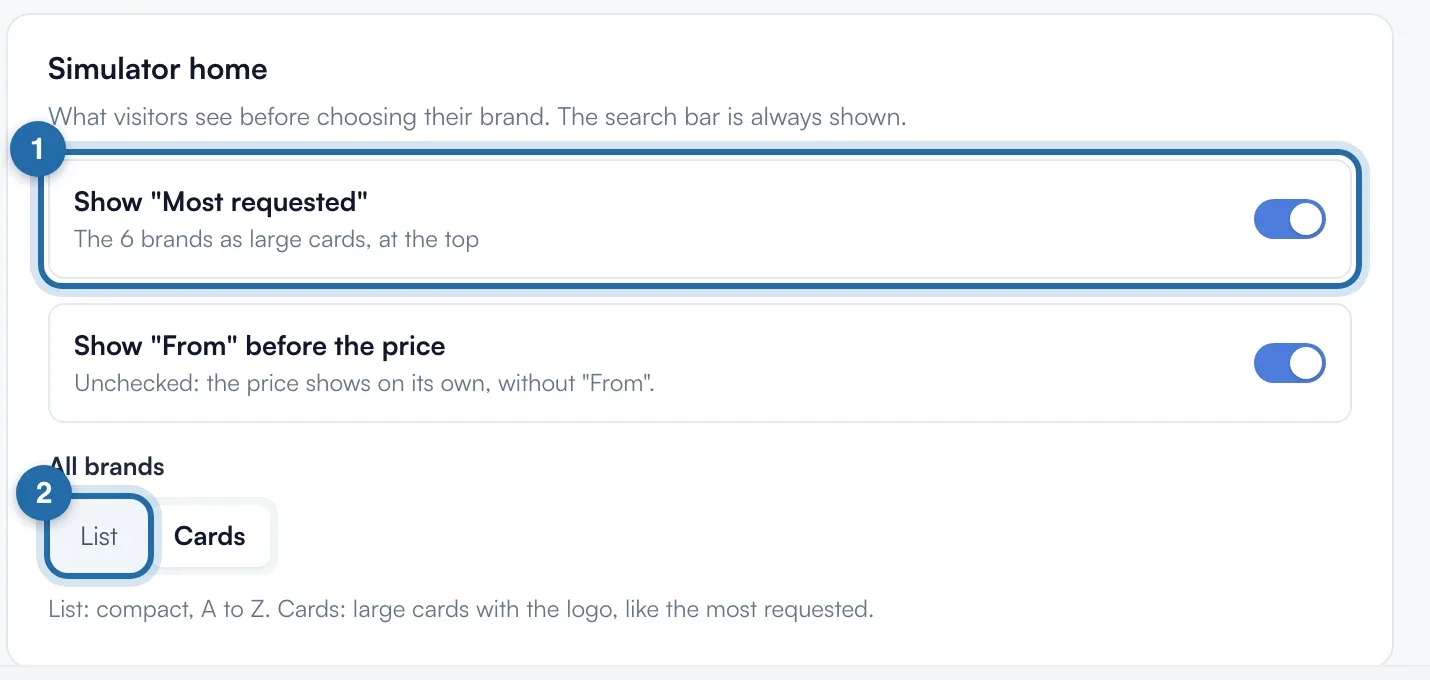
In "Simulator home", "Show "Most requested"" puts 6 makes as large cards at the top. "All brands" chooses "List" (compact, A to Z) or "Cards" (with the logo). The search bar is always shown.
Adjust colours and shapes
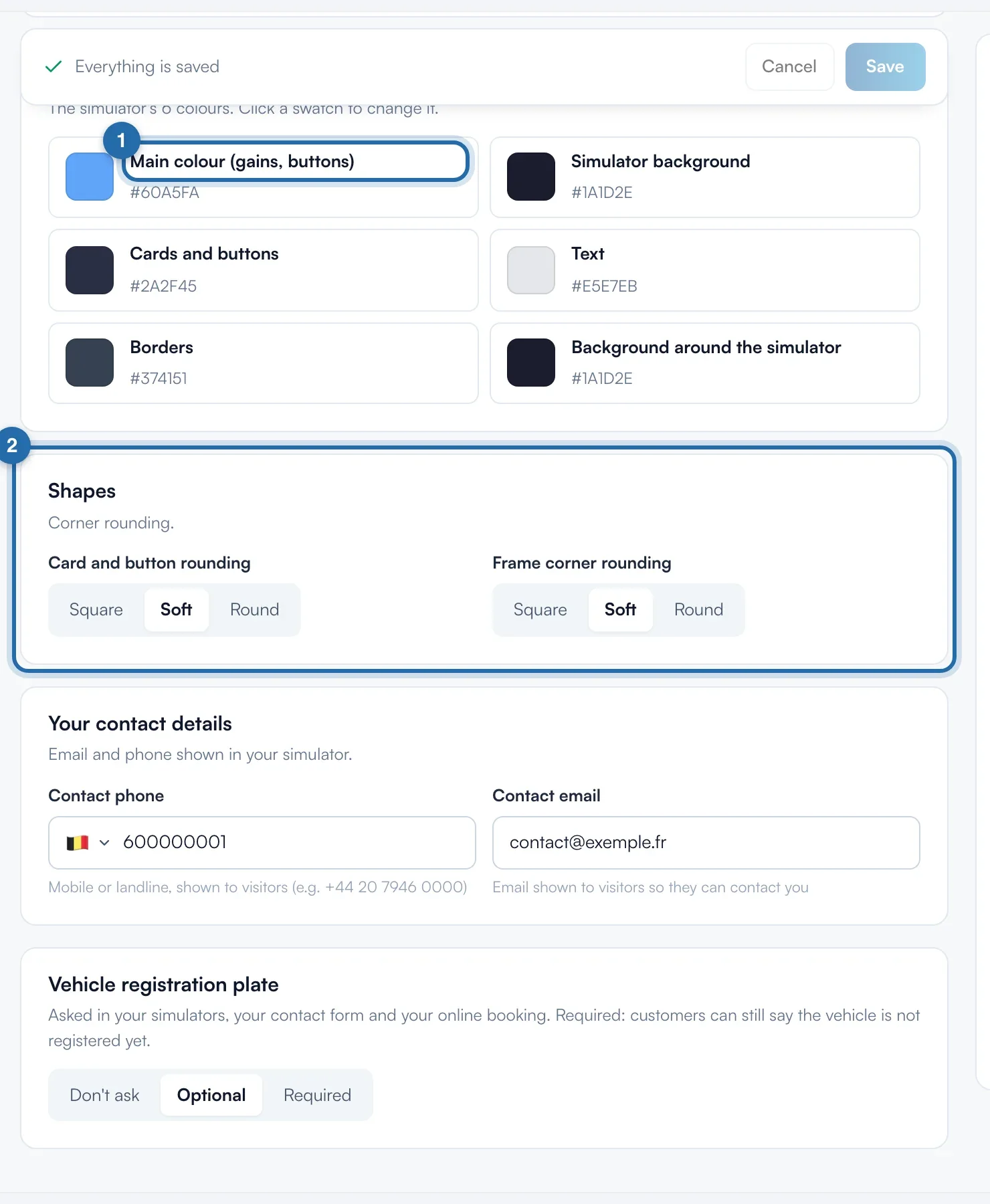
"Your colours" groups the 6 colours: "Main colour (gains, buttons)", "Simulator background", "Cards and buttons", "Text", "Borders", "Background around the simulator". Click a swatch to change it. "Shapes" sets "Card and button rounding" and "Frame corner rounding": "Square", "Soft" or "Round".
Enter your contact details
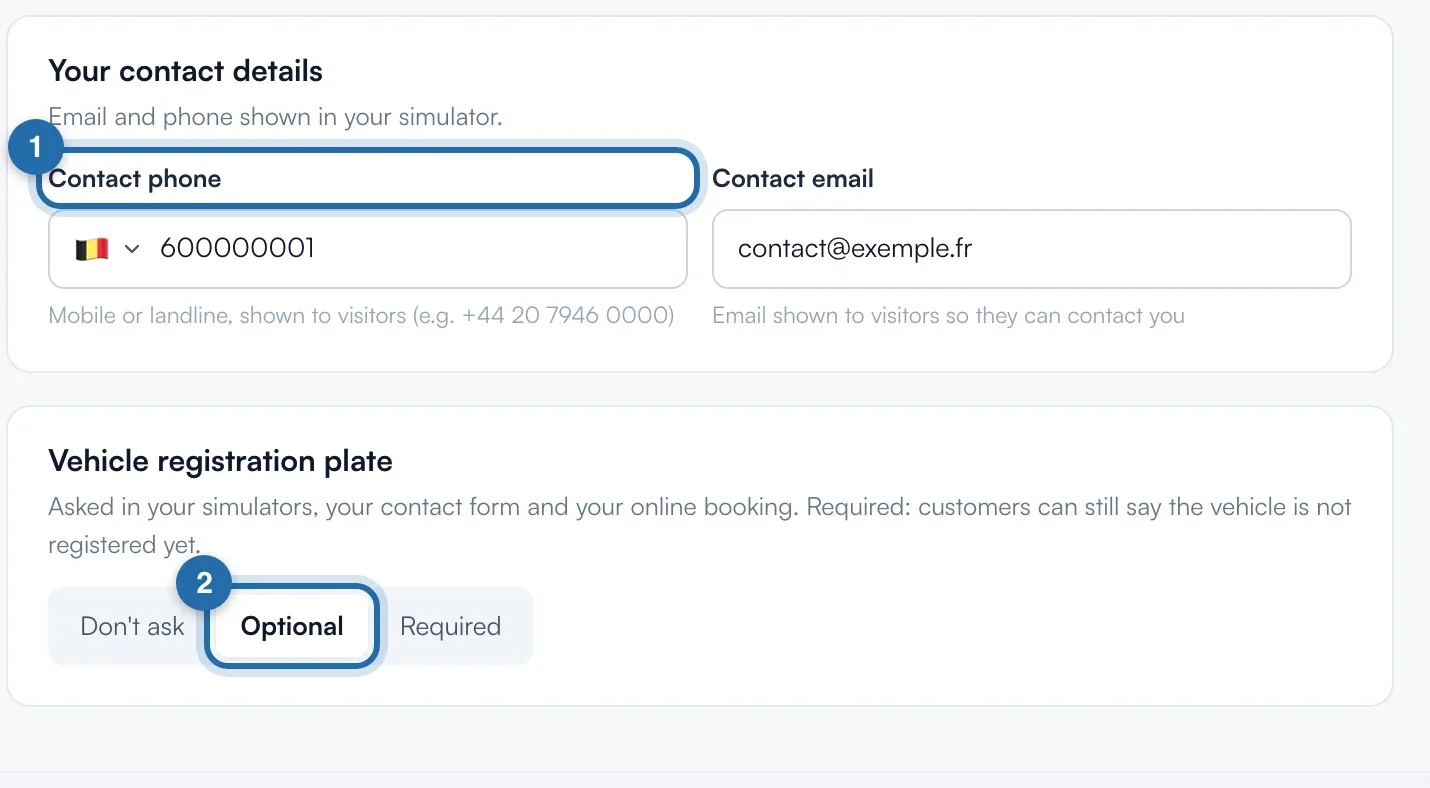
Fill in "Contact phone" and "Contact email", shown to visitors. An invalid format blocks saving. "Vehicle registration plate" ("Don't ask", "Optional", "Required") saves on click and applies to your simulators, your contact form and your online booking.
Save
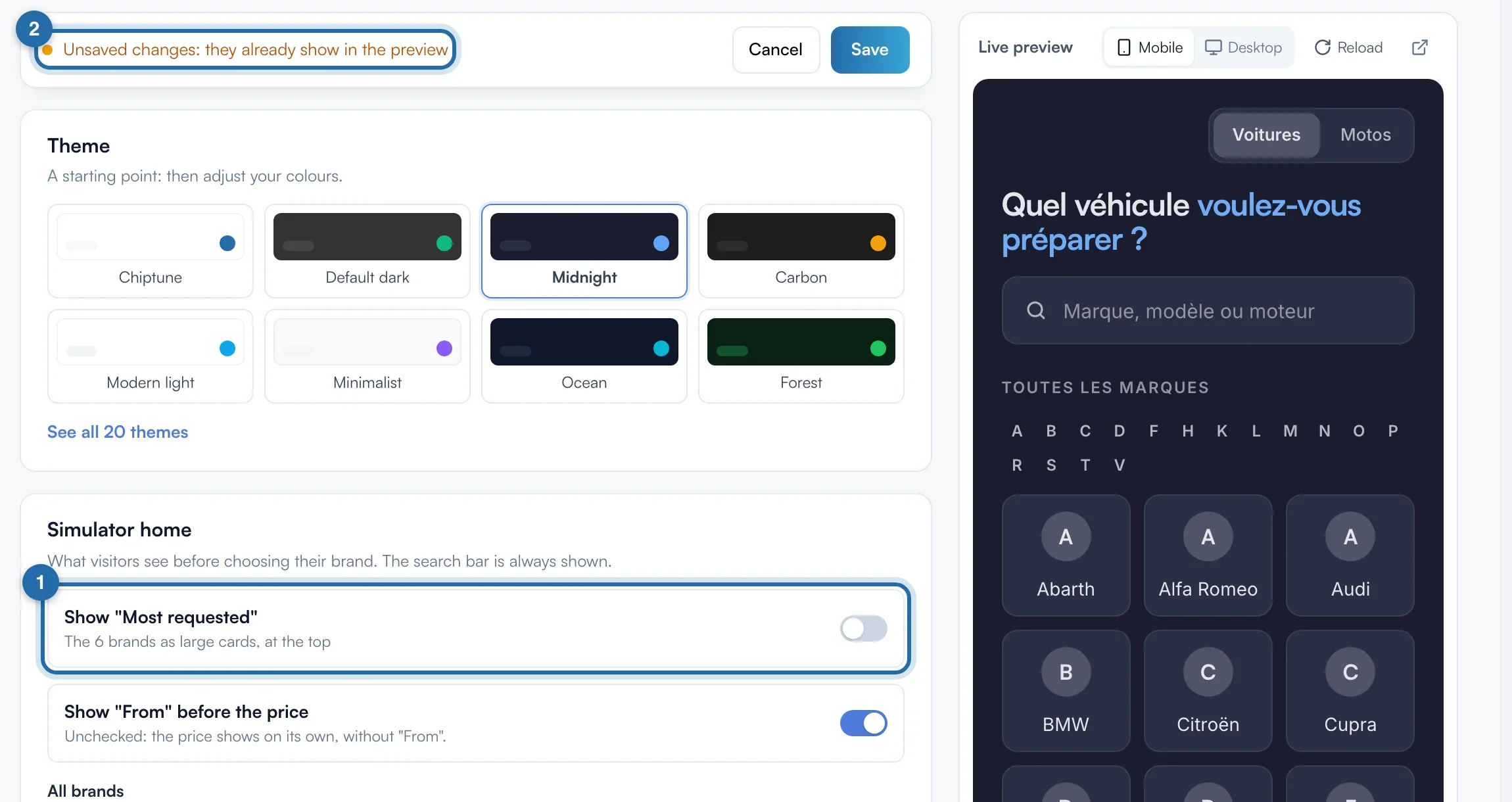
Each change shows first in the "Live preview" on the right. The top bar reads "Unsaved changes: they already show in the preview". Click "Save" to put them on your website, or "Cancel" to go back to the saved settings.
What your customer sees
The visitor sees the simulator in your colours, with the home screen you chose. Nothing changes on your website before "Save", except a theme, saved on click. The code already on your website follows your settings, nothing to redo.
If it doesn't work
- I clicked a theme by mistake.
- The theme is already saved. Click your previous theme, or set your colours again then "Save". The "History" does not cover appearance.
- My contact form and the E85 simulator have other colours.
- In their "Appearance" tab, choose "Same as the tuning simulator": they will follow every change.