
Simulators
What the customer sees in the simulator, screen by screen
Your visitor's path through the remapping simulator, with the words they read on each screen. Useful to guide them on the phone or to understand a request you received.
Before you start
- The simulator placed on your website, on your ChiptuneMAP listing, or opened full page through its direct link app.chiptunepro.com/simulateur/your-address.
- For the settings, read "How the remapping simulator works". This article details the visitor side.
The home screen
The customer reads "Which vehicle do you want to tune?". They see the makes under "Most requested", then "All brands" sorted by letter. If you offer several vehicle types, tabs separate them ("Cars", "Motorbikes"...).
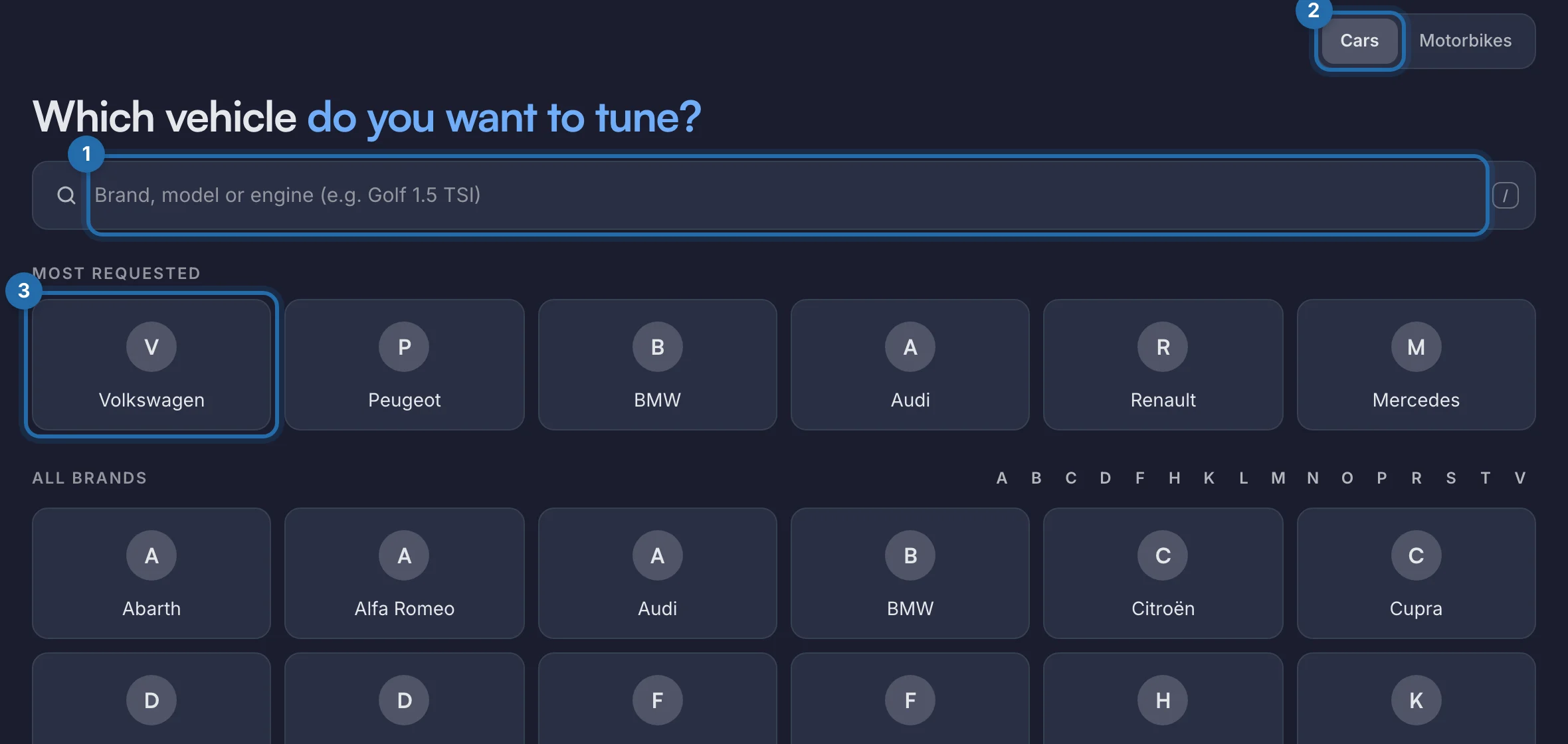
Direct search
In the "Brand, model or engine (e.g. Golf 1.5 TSI)" field, they type a few letters. The list shows the engines found with the "Stage 1 gain" column. A click on an engine opens its result straight away.
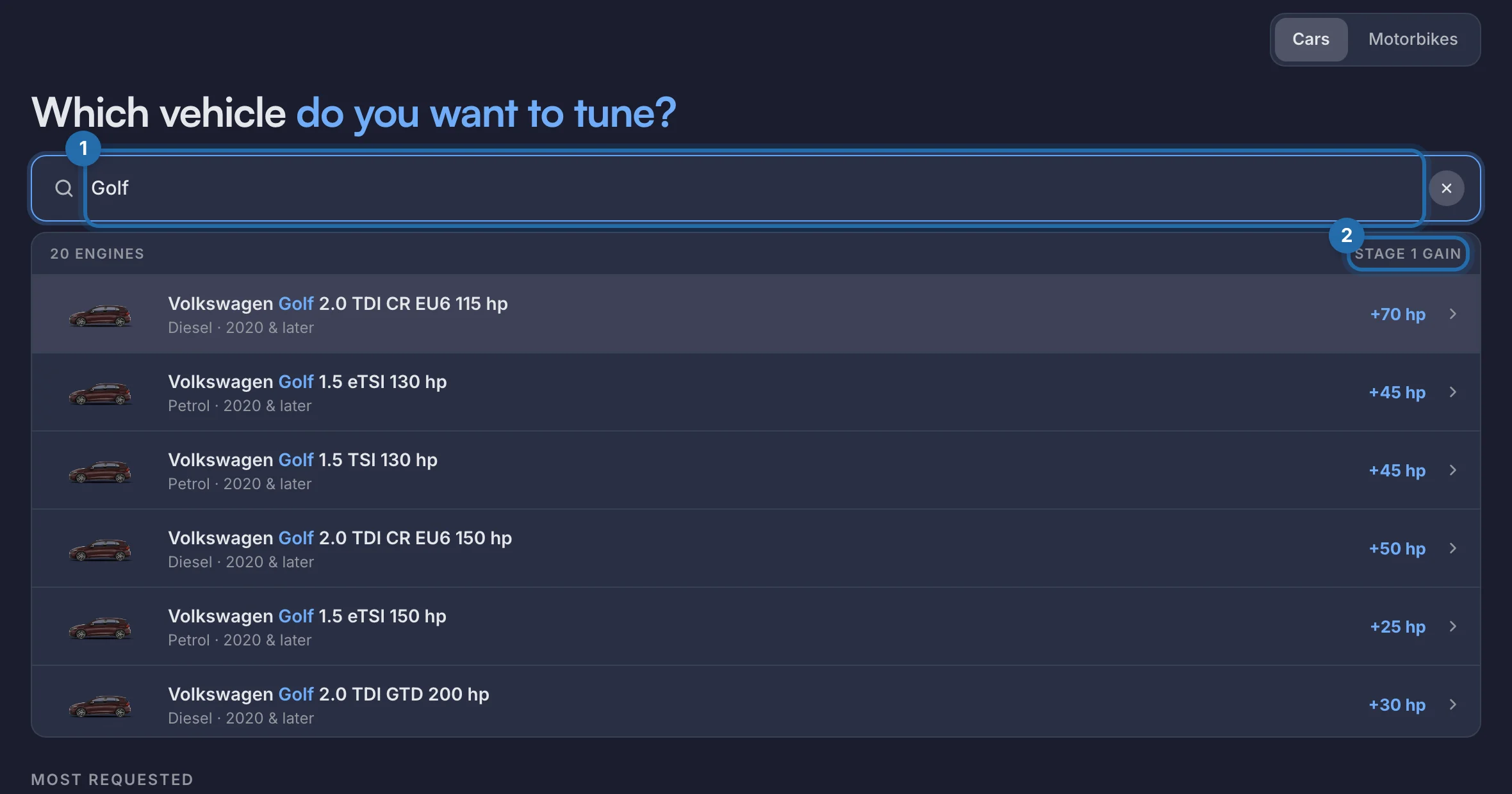
Make, model, engine
Without the search, they click their make, their model ("Choose the model"), then their engine ("Choose your engine."). Engines are grouped by years and can be filtered by "Fuel". Older years are folded behind "Show the 3 older years". "Edit" takes them back to the vehicle choice.
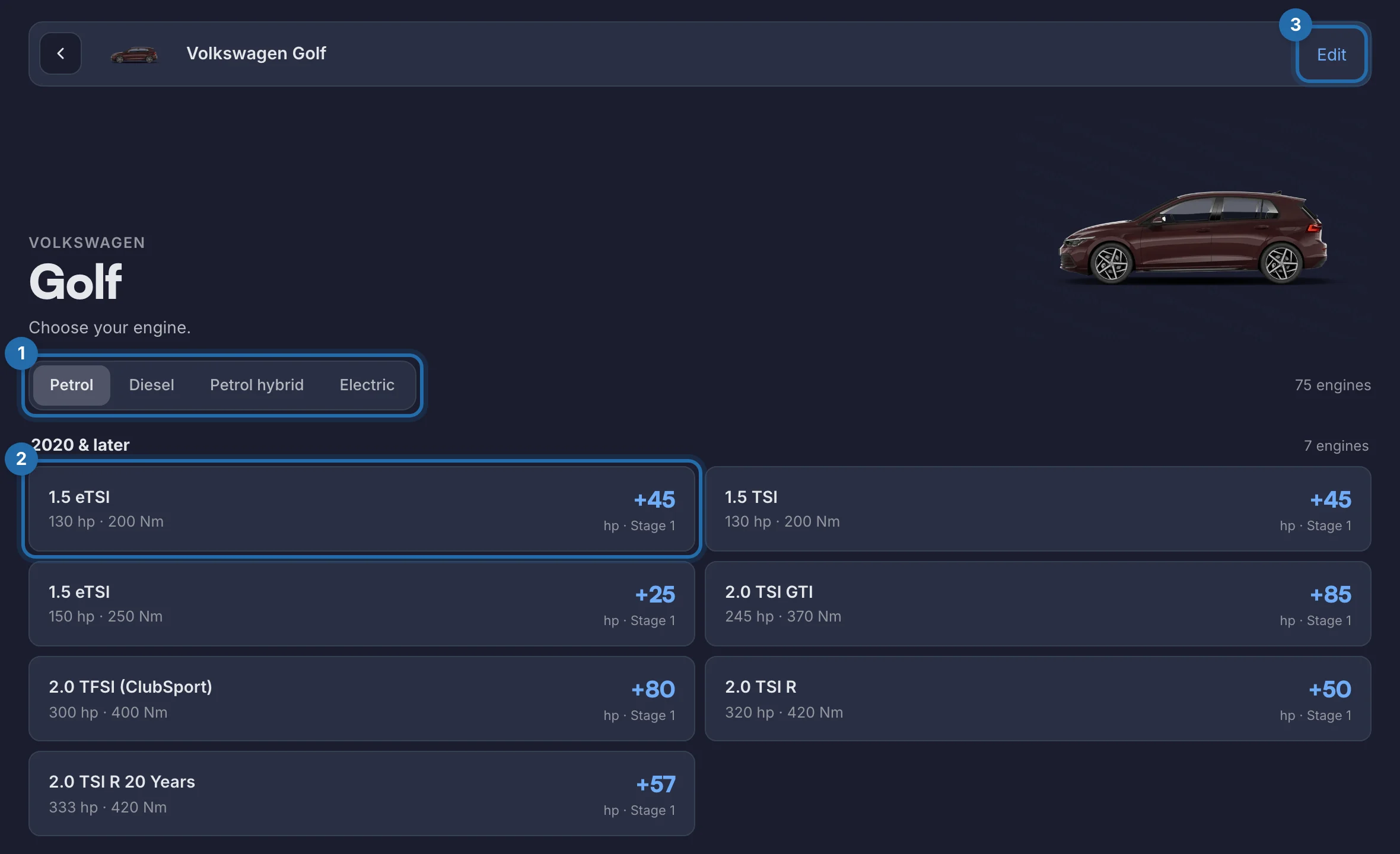
The result
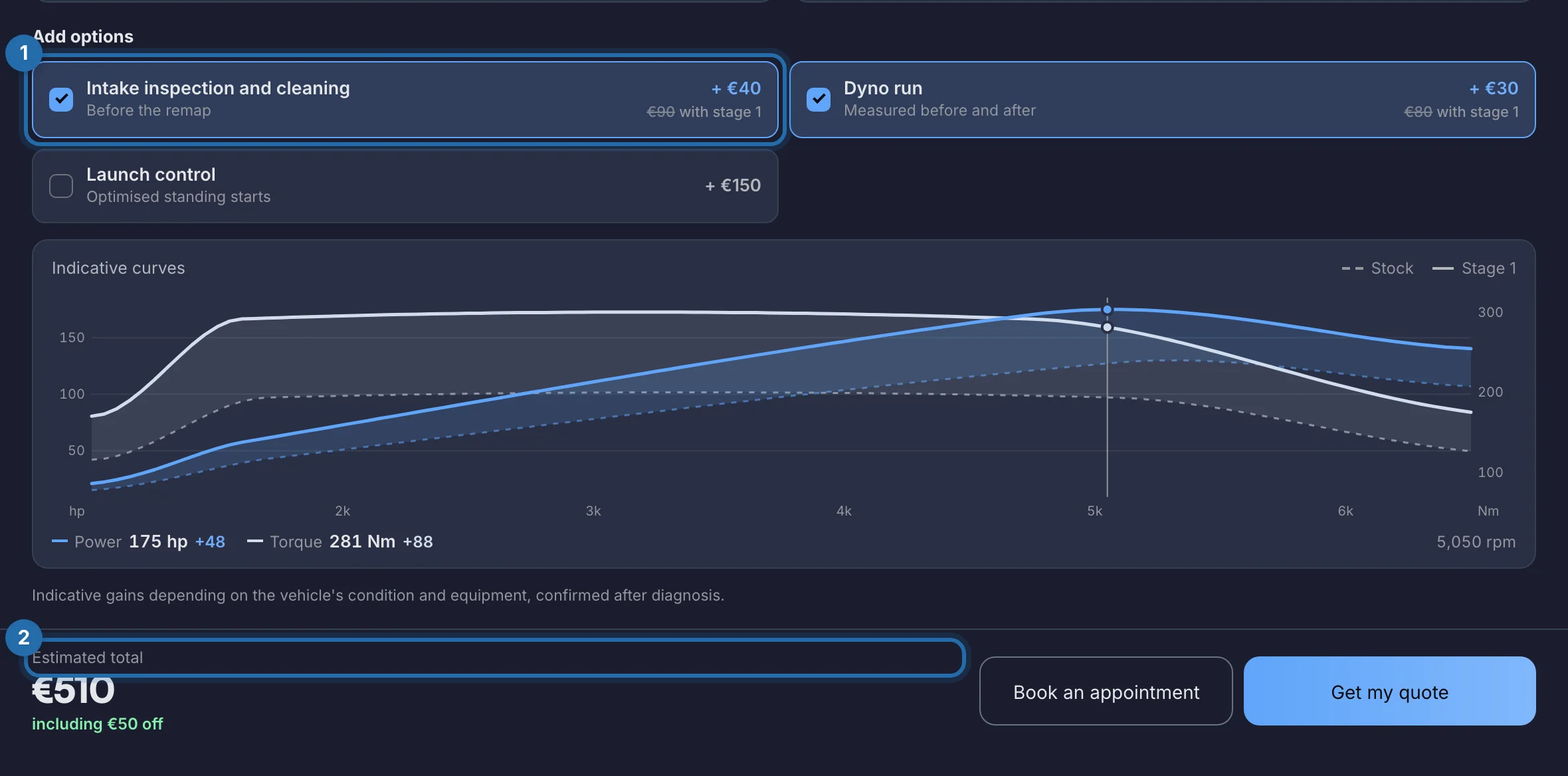
Under "Tuning stage", one tab per level offered (Stage 1, Stage 2, E85...) with the gain in hp, and "Options only". For the chosen level: stock power and torque and after the remap, "A word from the garage" if you wrote one, and the "Indicative curves". The sentence "Indicative gains depending on the vehicle's condition and equipment, confirmed after diagnosis." is always shown.
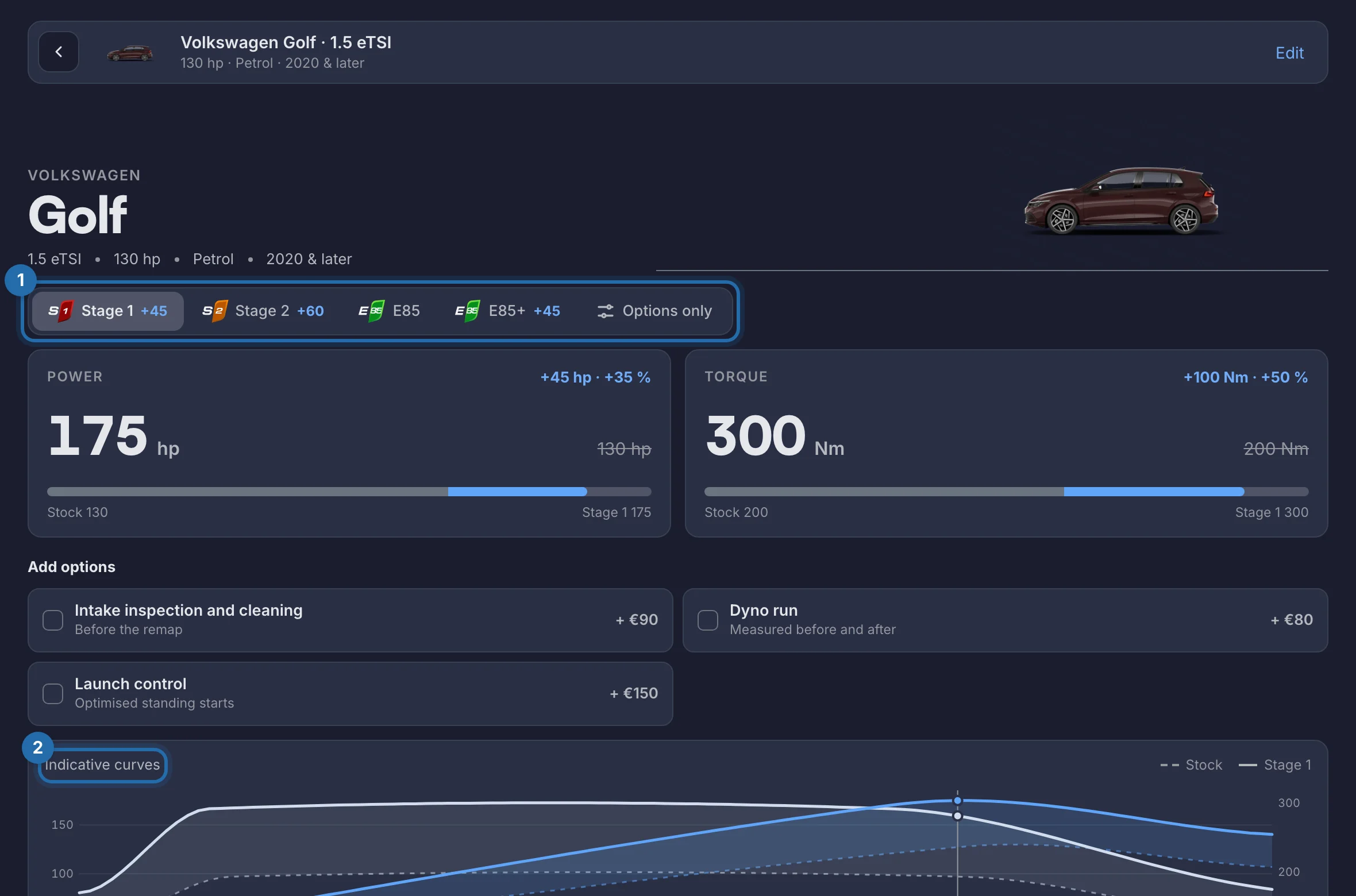
Options and total
Under "Add options", each option shows its price: an amount ("+ €150"), "Free", "Included" when it comes with a bundle, or "On quote". At the bottom, the "Estimated total" updates, with "including €50 off" when a combo discount applies. An on-quote option changes the line to "Estimated total, excluding on-quote options".
The buttons below the result
By default "Get my quote" and "Book an appointment", or the labels chosen in the "Display" tab. "Book an appointment" only shows when online booking is on and the chosen level can be booked online. It opens booking inside the simulator: service already chosen, vehicle filled in, price taken from the total. "Back to the result" goes back.

The quote form
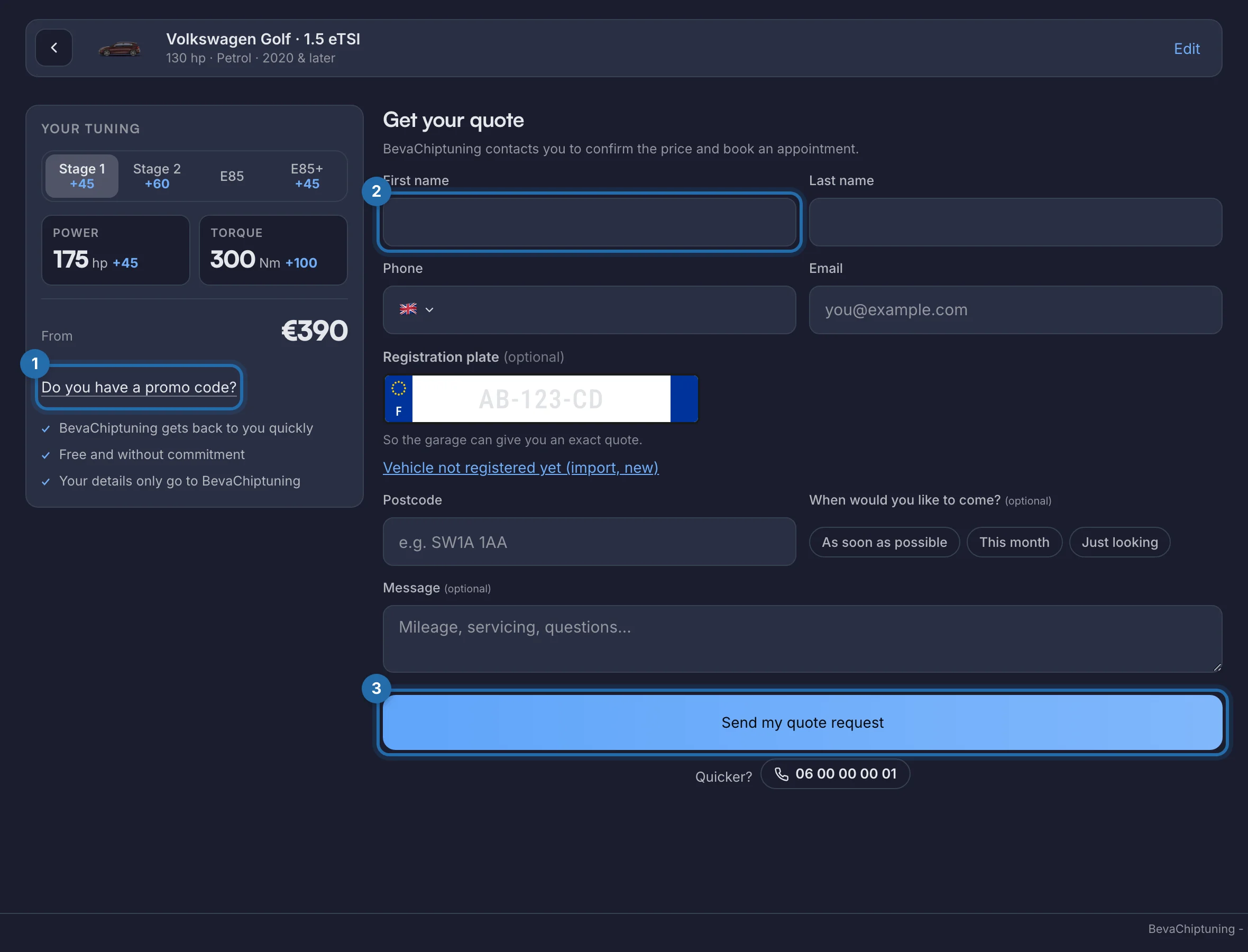
"Your tuning" recalls the vehicle, the level (which can be changed with the tabs) and the total. The "Do you have a promo code?" link opens the code field. Under "Get your quote", the customer fills in "First name", "Last name", "Phone", "Email" and "Postcode", all required, plus the plate if you ask for it. "When would you like to come?" ("As soon as possible", "This month", "Just looking") and "Message" are optional. They click "Send my quote request". Below the button, "Quicker?" shows your phone number.
After sending
They read "Request sent" and "BevaChiptuning has received your request for the Volkswagen Golf 2.0 TDI (Stage 1).", then the next two steps: you call them back on the number given, then you confirm the price and suggest an appointment. "See my result again" and "Try another vehicle" restart the path. No email is sent to them.
What your customer sees
The request arrives in "Requests" and by email, titled with the make and model. It contains the vehicle, the level and its gains, the options, the discount or bundle, the estimated total, the promo code and when they would like to come.
If it doesn't work
- The customer reads "Simulator temporarily unavailable".
- With "[your garage]'s simulator is not available at the moment", your discovery period has ended without a subscription. With "Please contact the garage directly…", the website showing the simulator is not declared in "Settings", "My websites".
- "Book an appointment" does not show.
- Online booking is off, the button is turned off in "Display", or the chosen level is not linked to any online booking.
- The customer reads "Too many simulator loads from your connection".
- The simulator limits repeated loads from the same connection. Trying again a few minutes later is enough.
- The customer cannot find their engine.
- The engine is missing from the database, or you hid it. See "Choosing the vehicles displayed", or add it with your own vehicles.
- Your phone number does not show below the form.
- During the discovery period, the simulator shows neither your phone number nor your WhatsApp.