
Requests and appointments
What the customer sees when they book an appointment
The booking path on the customer's side: service, slot, contact details, questions and deposit. It is the same on your app.chiptunepro.com/rdv page, on your website and from the simulator.
Before you start
- Online booking turned on ("Online booking", "Services and hours" tab, "On" switch) and at least one visible service.
- For a deposit: Visibility or Pro subscription, and deposits turned on.
Where the customer lands
On your app.chiptunepro.com/rdv/your-address page, the header shows your logo, your name, your town and "Open until 18:00" or "Closed, opens tomorrow at 09:00". At the bottom: "Call", WhatsApp and "Directions", with your address and opening hours, if your ChiptuneMAP listing is claimed and visible. On your website, the form shows without header or footer. Three bars at the top show the step.
Choosing the service
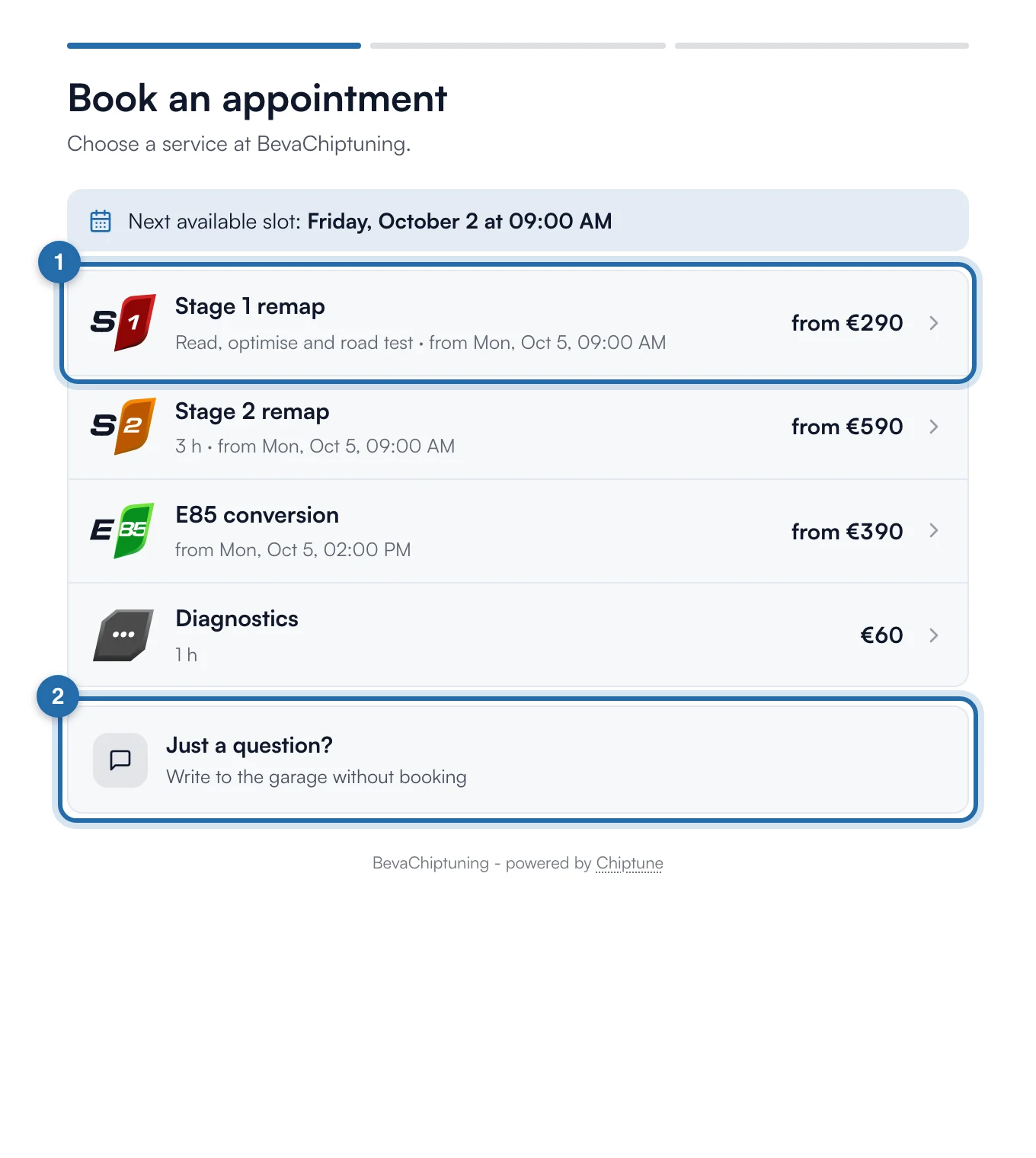
Under "Book an appointment", each service shows its price (fixed price, "from €290" or "On quote"), its duration and its first free slot, for example "From tomorrow 09:00". Above 6 services, a "Search: stage, E85, DPF..." field appears. At the bottom, "Just a question?" lets them write without booking: first name, phone or email, message, then "Send".
Day and time
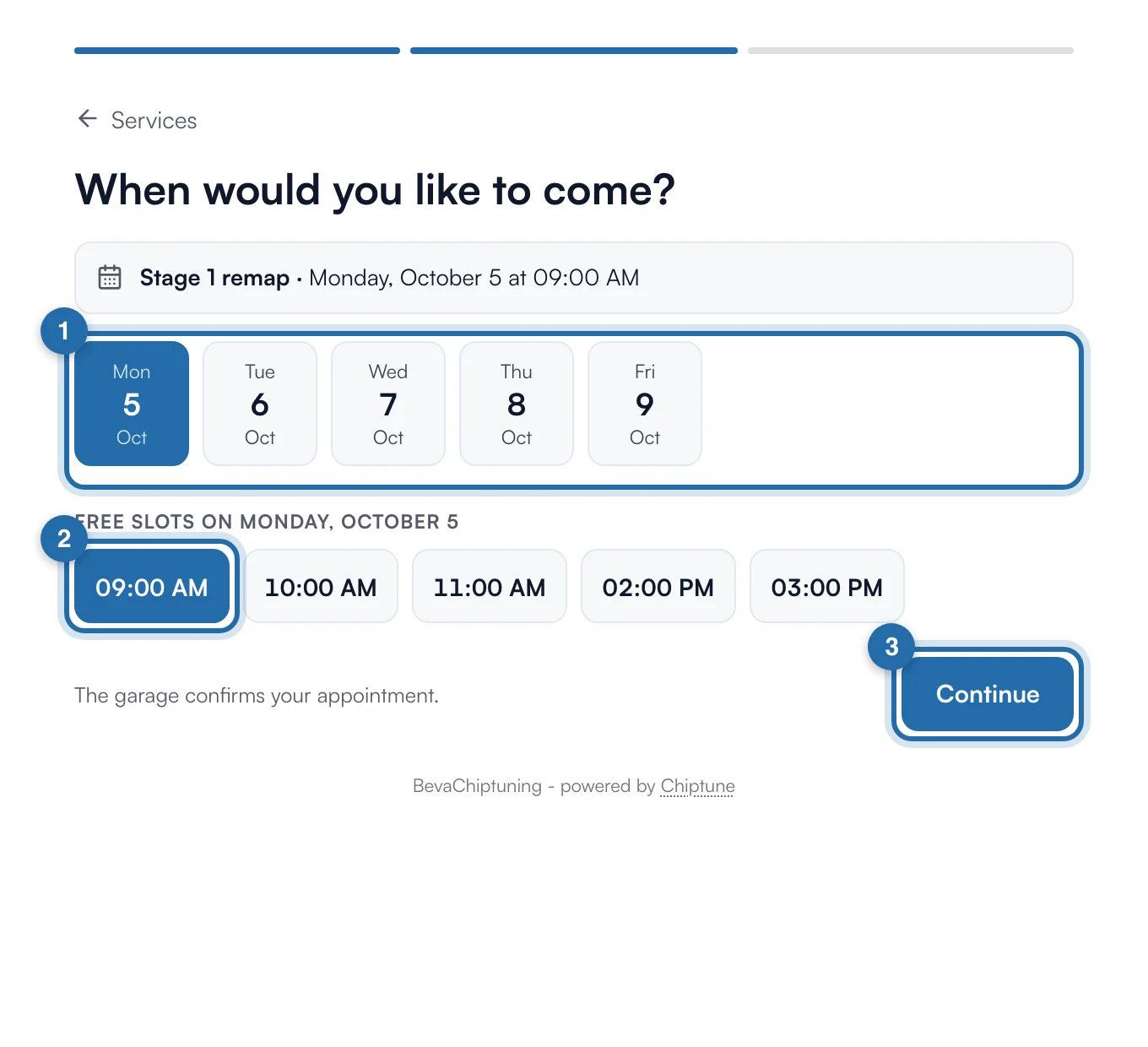
The title is "When would you like to come?", or "When will you drop off the vehicle?" for a service of 8 hours or more. The customer scrolls through the free days, then clicks a time. Above 8 slots, they are grouped into "Morning", "Afternoon" and "Evening". For a drop-off, the "Pick-up" line gives when they collect the vehicle, according to your setting. They click "Continue".
Contact details
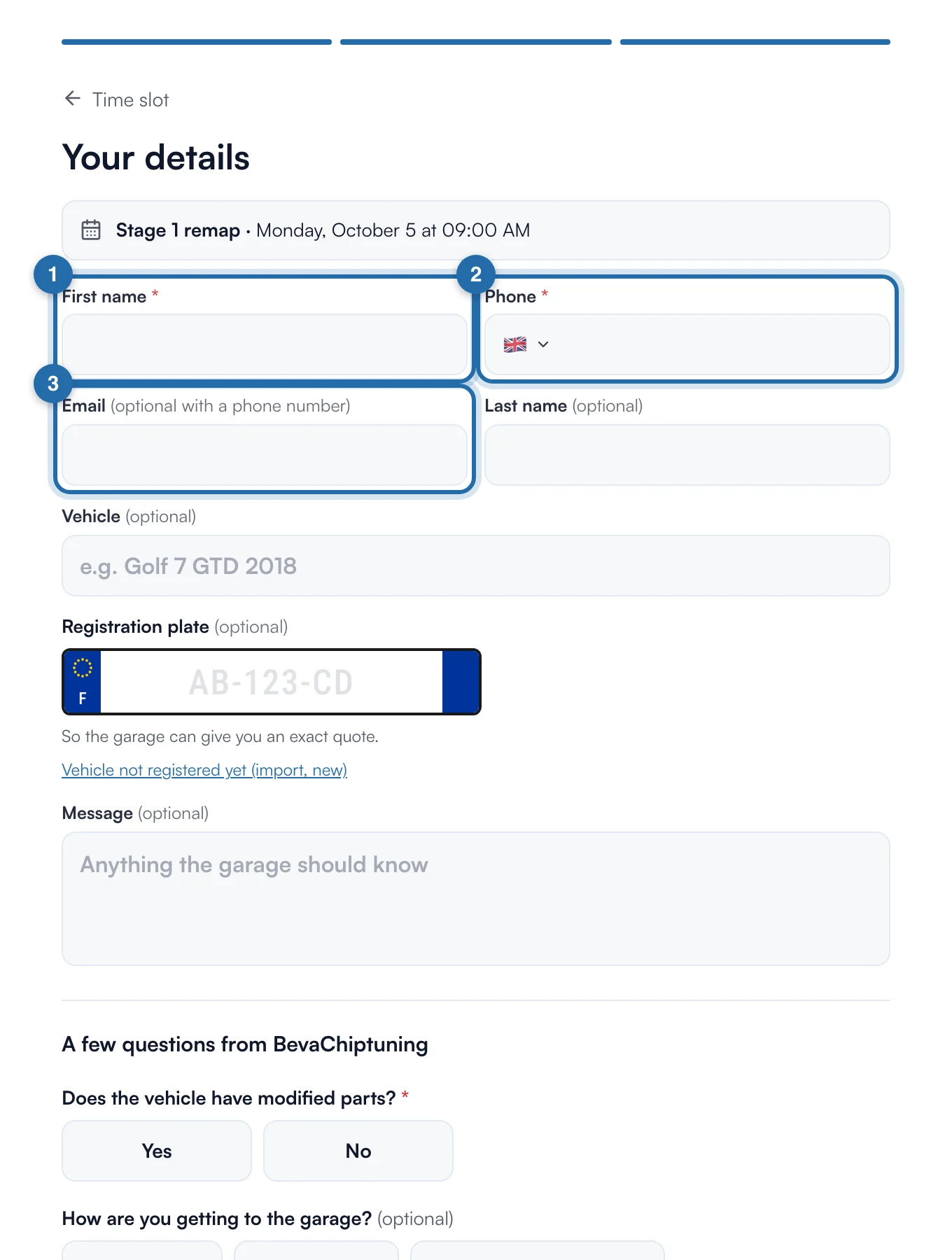
Under "Your details", "First name" is required, with a "Phone" or an "Email" ("optional with a phone number"). "Last name", "Vehicle" (for example "Golf 7 GTD 2018") and "Message" are optional. The plate shows if you ask for it, and the promo code field if an offer is running. Coming from the simulator, the customer finds their vehicle already filled in.
Your questions
If you created some, the "A few questions from" block followed by your garage name comes next: yes or no, choice from a list or free text. If a required answer is missing, the customer reads "Answer the required questions." and the booking is not sent.
The deposit
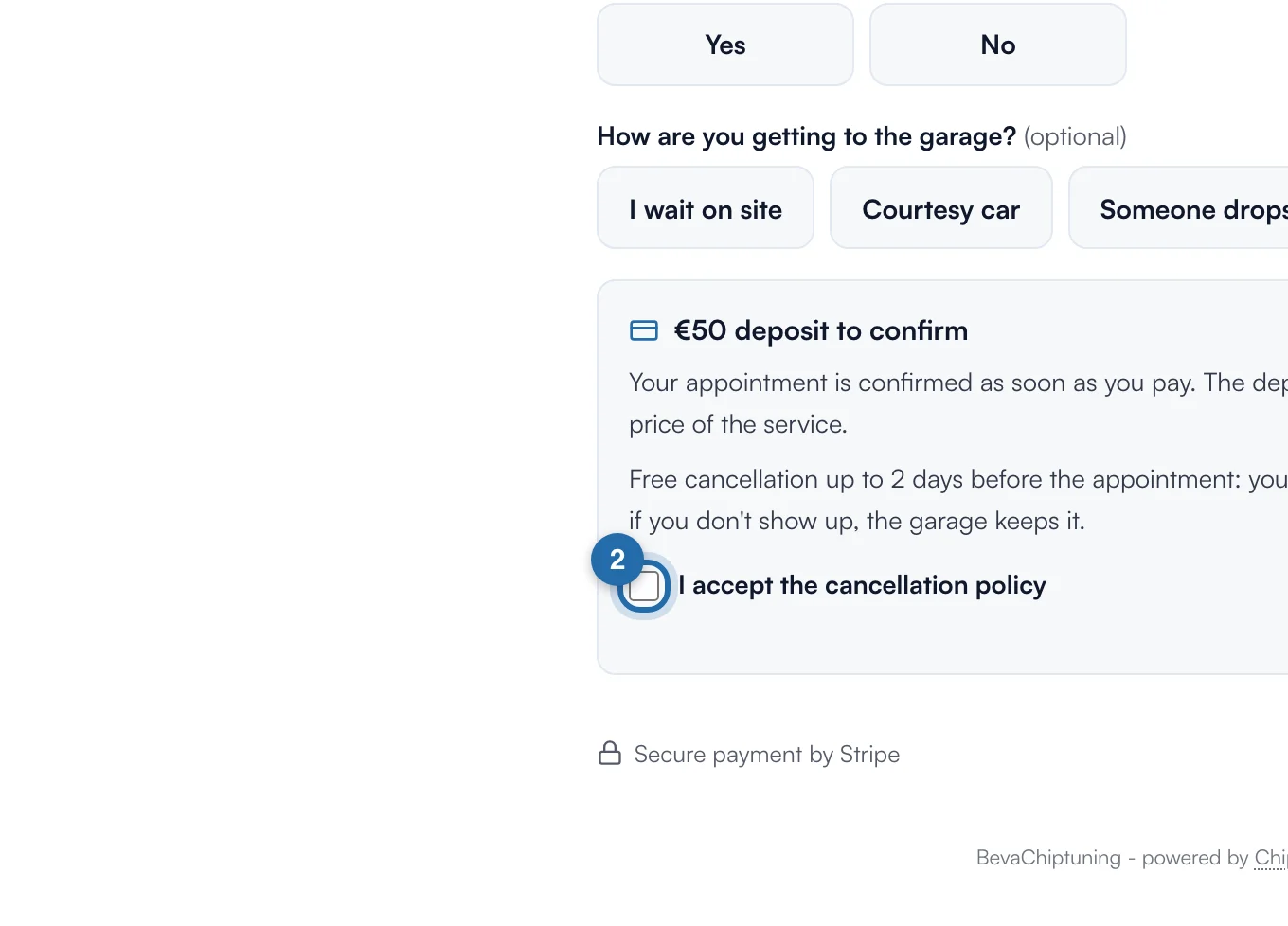
If you ask for a deposit for this service, the "€50 deposit to confirm" box shows with your cancellation terms. The email becomes required. The customer ticks "I accept the cancellation policy" and the button becomes "Pay the €50 deposit". What follows is described in the article on paying the deposit.
Sending
Without a deposit, they click "Request this slot" and read "Request sent", with the service, the date and "BevaChiptuning will confirm your appointment shortly.". No email is sent to them: they wait for your answer. "New request" starts a new booking.
What your customer sees
The booking arrives in "Requests" and by email, with the service in the title, the date, the vehicle, the plate, the answers to your questions and the promo code. The slot is blocked straight away; if you decline, it is freed.
If it doesn't work
- The customer only sees "Your question".
- Online booking is off, or no service is visible. Set the switch to "On" and check that your services are not hidden.
- The customer reads "No free slot at the moment".
- No free day is left in the bookable period. Check your opening hours, the "Minimum notice", "Bookable up to", the daily maximum and your blocked periods.
- The customer reads "No free slot left that day".
- The day is full, or another customer has just taken the time. The list reloads: they pick another time or another day.
- "Enter a phone number or an email so the garage can answer."
- The customer filled in neither phone nor email. With a deposit, the email is required: it receives the confirmation and the link to manage the appointment.
- The customer received no email.
- Without a deposit, that is normal: the booking is a request. Call or write to them once you have accepted it.