
Simulators
Choosing the vehicles displayed
The "Display" tab sets the brands, vehicle types and featured brands of your simulator.
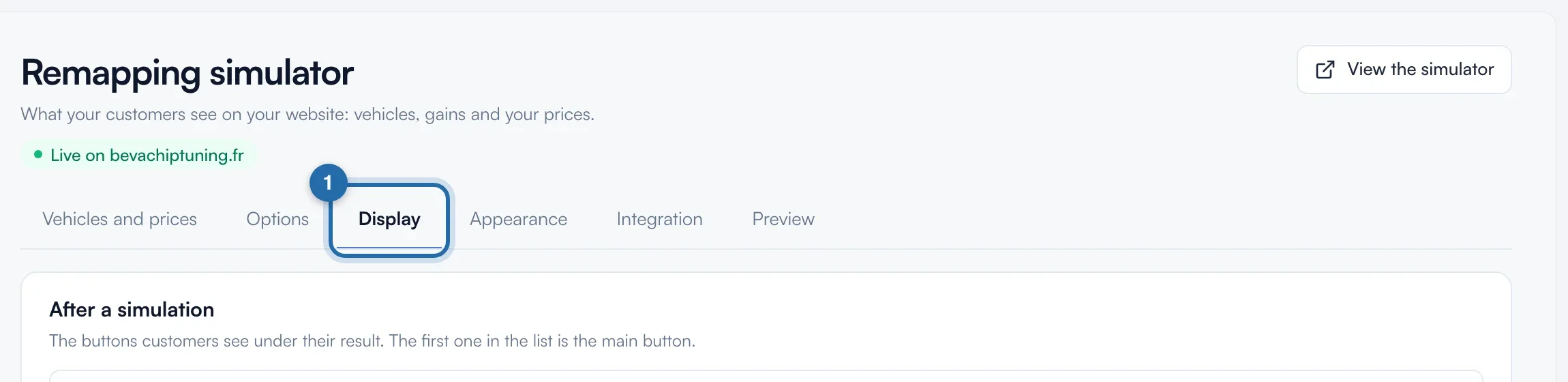
Open the "Display" tab
In "Simulators", "Power simulator", click the "Display" tab. The first block, "After a simulation", sets the buttons under the result; the vehicle settings are below.
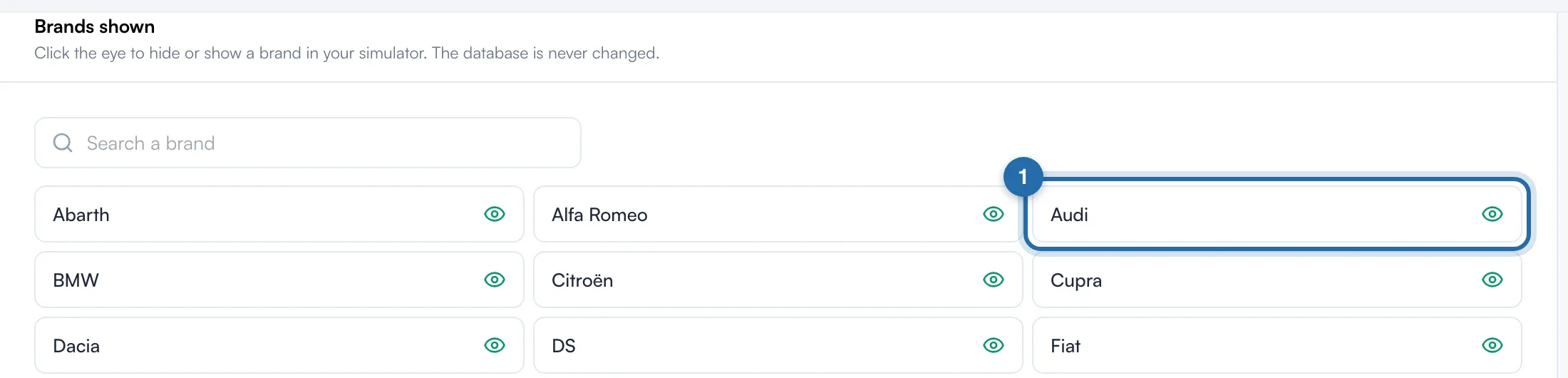
Hide a brand
In "Brands shown", click a brand: the green eye is crossed out and the brand disappears from your simulator. A second click shows it again. 24 brands are listed; find the others with "Search a brand". For a specific model or engine, go through "Vehicles and prices".
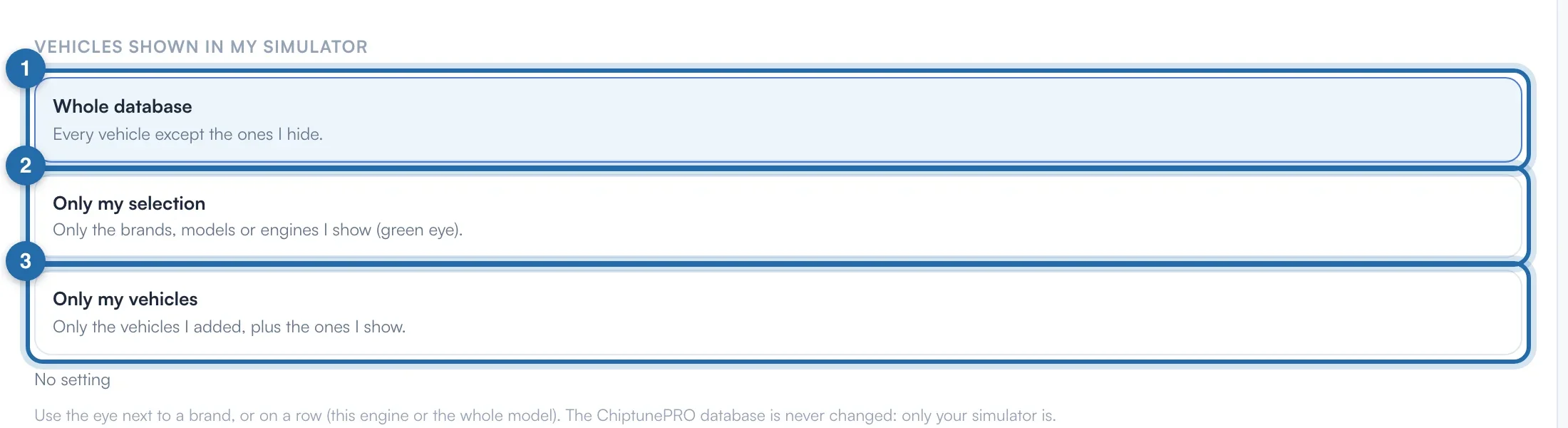
Choose the display mode
In "Vehicles shown in my simulator", choose "Whole database" (everything except what you hide), "Only my selection" (only what you show, green eye) or "Only my vehicles" (your added vehicles, plus those you show). The choice saves on click. The counter shows your settings, and "Show everything again" clears them.
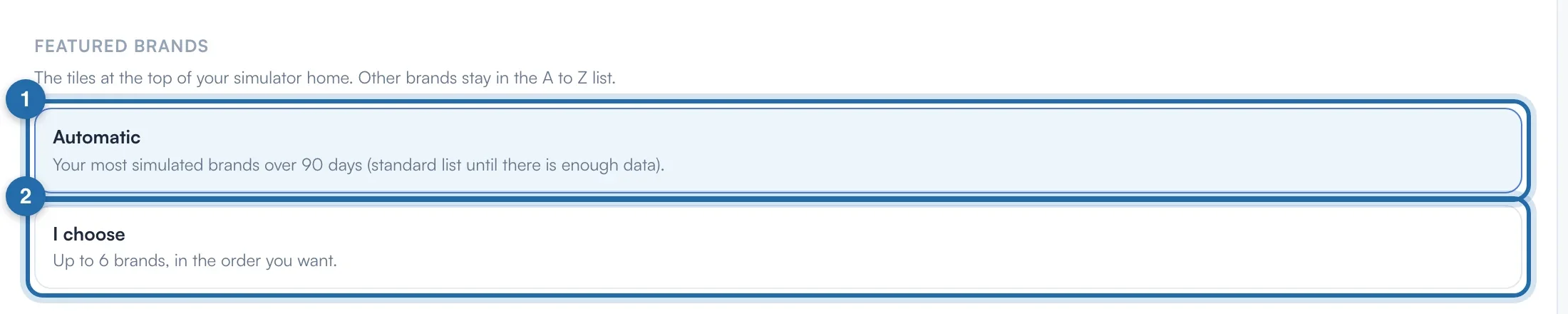
Set the featured brands
In "Featured brands", keep "Automatic" (the brands most simulated on your simulator over 90 days) or take "I choose": up to 6 brands with "+ Add a brand", ordered with "Move up" and removed with "Remove".
Hide a vehicle type
In "By vehicle type", click "Cars", "Motorbikes", "Agricultural", "Trucks", "Construction" or "Jet ski" to hide or show it again. A hidden type hides all its brands. The counter (6 / 6) gives the visible types.
What your customer sees
The visitor only sees the types, brands, models and engines shown. Featured brands form the large tiles at the top of the home screen, the others stay in the A to Z list. Your changes appear on your website within about 1 minute.
If it doesn't work
- I chose "Only my selection" and my simulator is almost empty.
- In this mode, only what you show with the green eye appears. Show the brands you want, or go back to "Whole database".
- A hidden brand comes back for one model.
- A model or engine shown separately in "Vehicles and prices" stays visible. Click "Show everything again" to start from scratch.
- The "This is fine" button appears at the bottom.
- It completes the "Choose the vehicles shown" step of the guide while keeping your current setting.