
Attract customers
What the customer sees of an offer: promo code or contest
The offer pop-up on your website or through its direct link, the code email, then the code entered in the simulator. For a contest: entering, confirming by email and the draw.
Before you start
- Pro plan, and an offer running in "Reviews and offers", "Offers".
Where the customer sees the offer
On your website, the pop-up opens according to your setting: after a few seconds, on scroll, on exit or on a click on the tab. Through the direct link (app.chiptunepro.com/offre/ followed by your account number), the same offer shows full page, without a close button. When a promo code and a contest are both running, the link shows the promo code; add ?type=contest for the contest. The colours follow your simulator's appearance.
The promo code pop-up
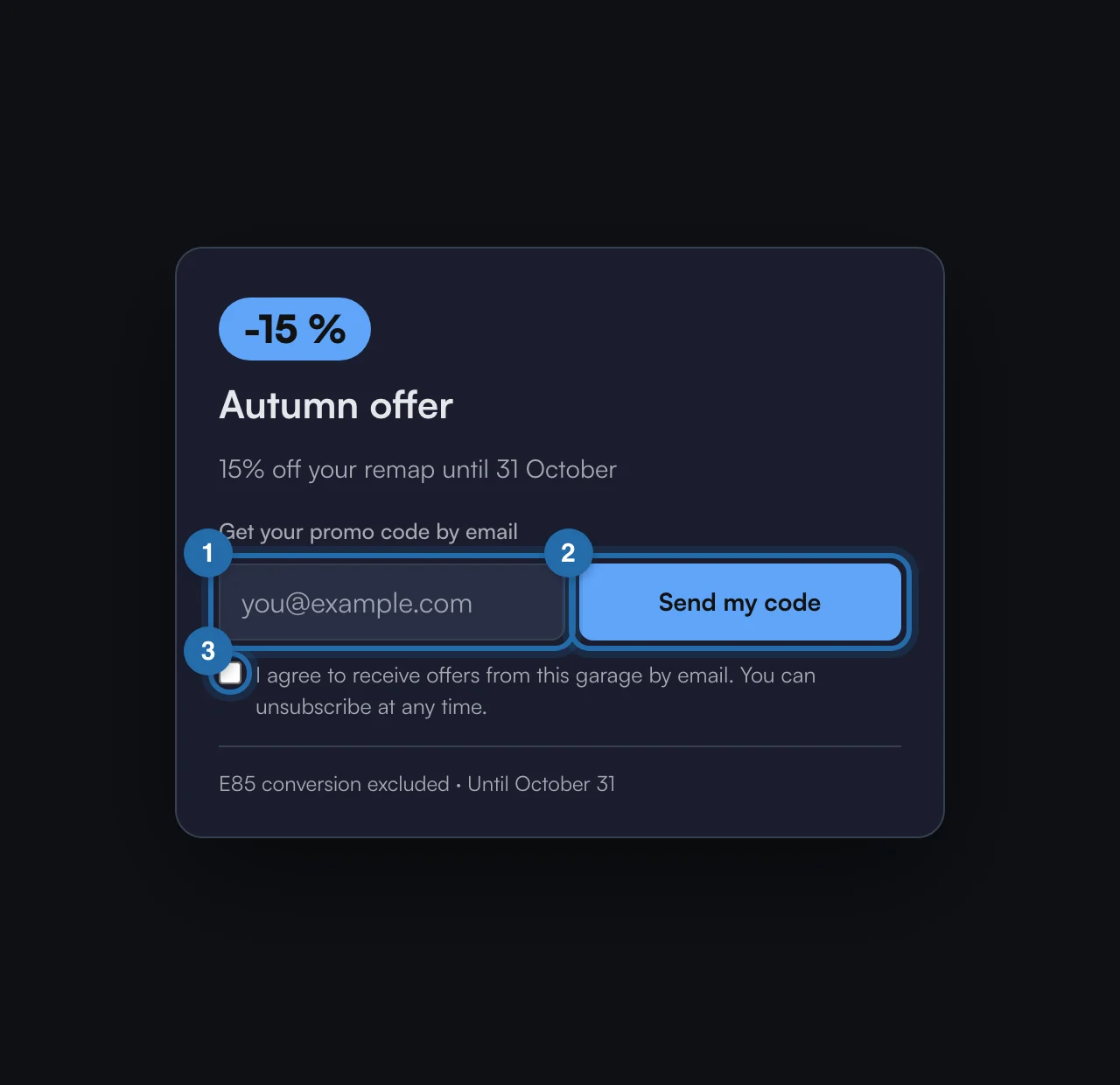
In large print, the discount (for example "-15%"), then the offer name and description. The customer types their email under "Get your promo code by email" and clicks "Send my code". The box "I agree to receive offers from this garage by email. You can unsubscribe at any time." is optional. At the bottom: your terms and "Until" followed by the end date.
The code email
The customer reads "On its way: your code is coming by email.". The email, sent in your garage's name, gives a personal single-use code, the discount, the deadline and your terms. If they ask again with the same address, the same code goes out, at most once every 10 minutes. A code already used is not sent again.
The code in the simulator
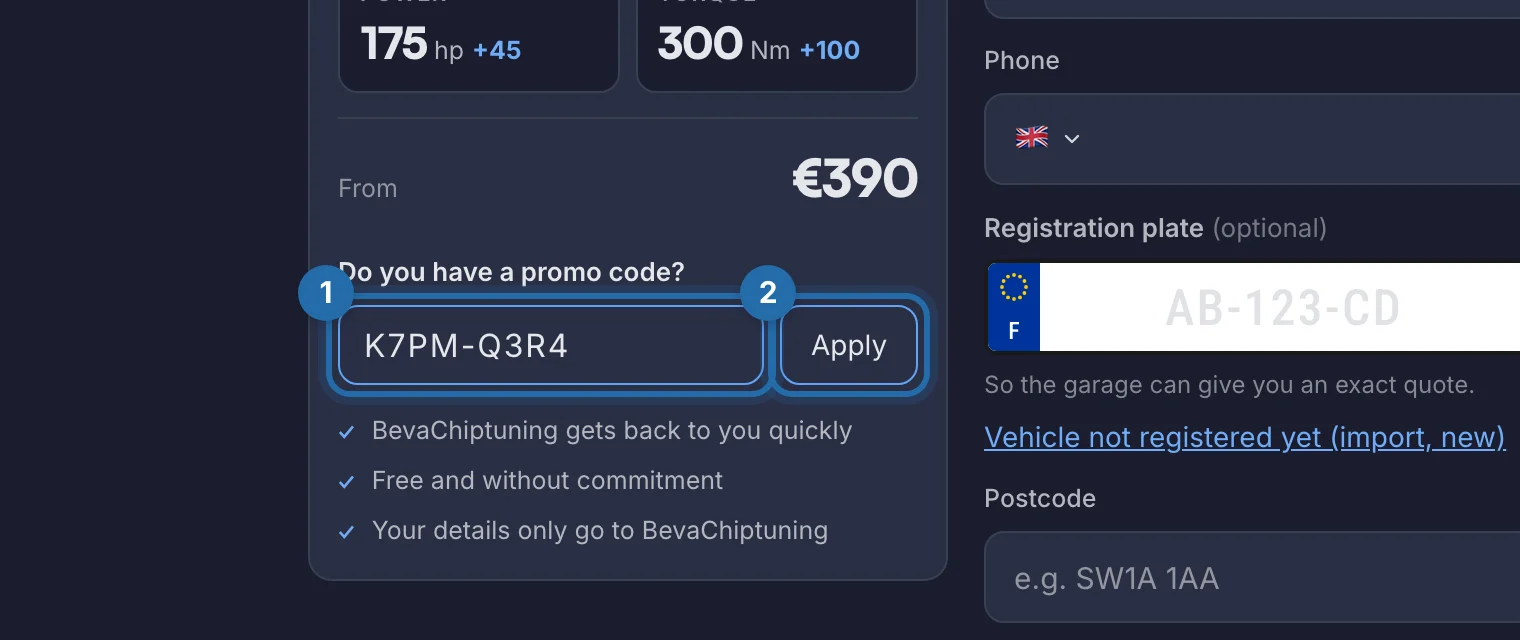
In the simulator's quote form, below the total, the customer clicks "Do you have a promo code?", types the code and clicks "Apply". When the discount can be calculated, they read "Code applied: €45 off." and the new total; otherwise "Code accepted", with the discount "applied by the garage on your quote". The booking form has the same field while a promo code is running. Your "Code to share" is entered in the same place.
When the code is refused
The customer may read "This code is not valid or has already been used.", "This code does not apply to this service." (for example an excluded E85 conversion), "This code cannot be combined with the discount already applied." or "The minimum amount for this offer has not been reached.". To send their request without a discount, they empty the field.
The contest pop-up
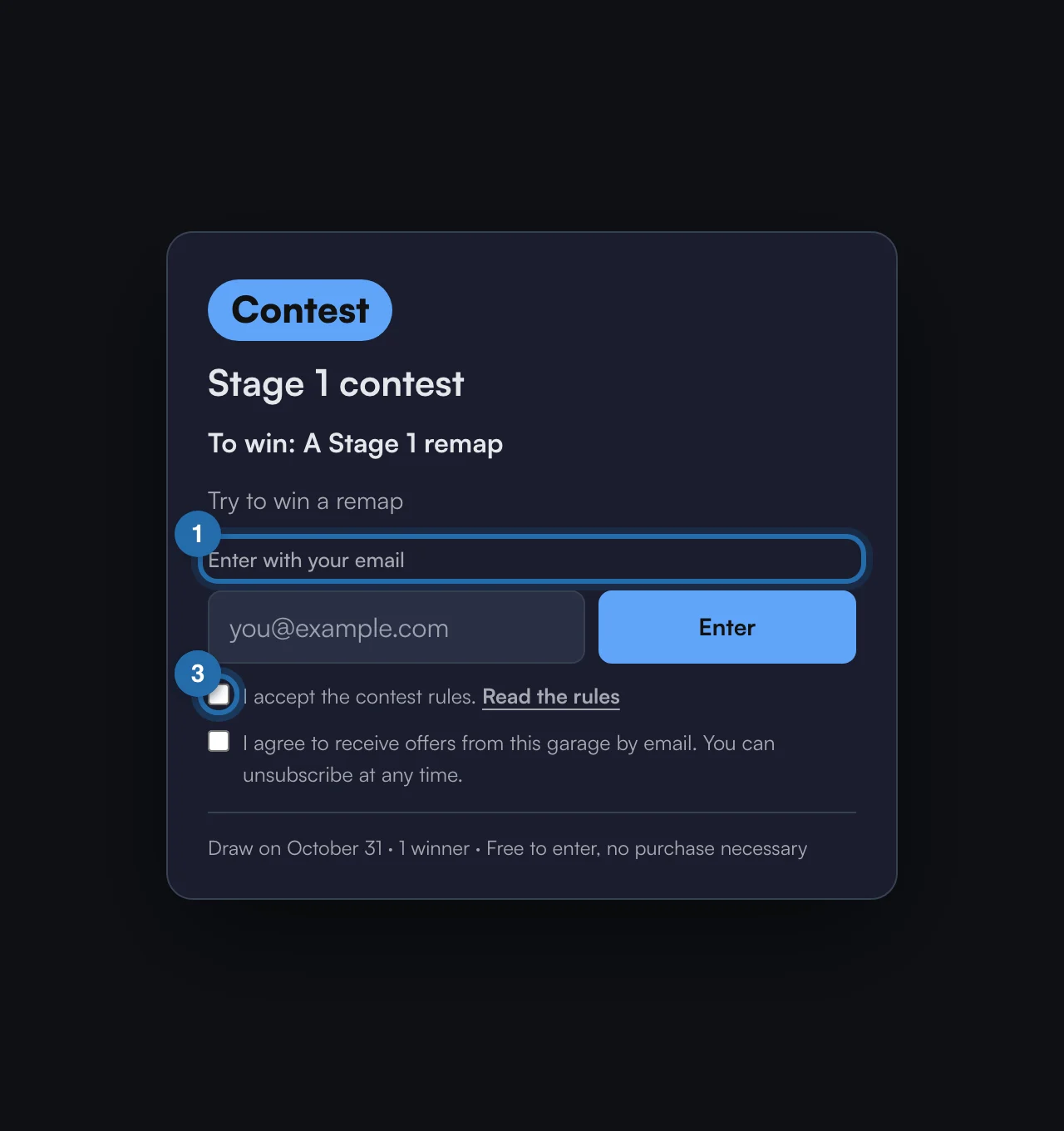
The "Contest" badge, the title and "To win:" followed by the prize. The customer types their email under "Enter with your email", ticks "I accept the contest rules." (required, "Read the rules" shows them) and clicks "Enter". At the bottom: "Draw on" followed by the date, the number of winners and "Free to enter, no purchase necessary".
Confirmation and draw
They read "Almost done: confirm your entry." and receive an email with the "Confirm my entry" button. Only confirmed entries go into the draw. The winner receives "Congratulations, you won!" and replies to that email to arrange the prize with you.
What your customer sees
Each email left shows in the offer's "Show sign-ups", with where it came from. A request sent with a code arrives in "Requests" with the code and the discount: you apply it on the quote. Emails to the customer carry the "Stop receiving offers from" link followed by your garage name.
If it doesn't work
- The direct link shows "No offer at the moment.".
- No offer of that type is running: it is a draft or has ended, or the link asks for a contest (?type=contest) while only a promo code is active.
- The customer did not receive their code.
- Ask them to check their spam folder. They can ask again with the same address: the code goes out again, at most once every 10 minutes.
- The pop-up does not open on my website.
- Check that the install code is pasted on your website and that an offer is running. The direct link lets you test without the website.
- An entrant is not in the draw.
- They did not click "Confirm my entry" in the email: only confirmed entries count.