
Putting the tools on my website
On my website: the status of your tools and their code
"On my website" lists the 5 tools you can show on your website, tells you which ones are already there and gives their code. Without a website, the page becomes "My links to share".
Before you start
- Page open to all accounts.
- "See the code" and "Send to my webmaster" require a subscription.
Open the page
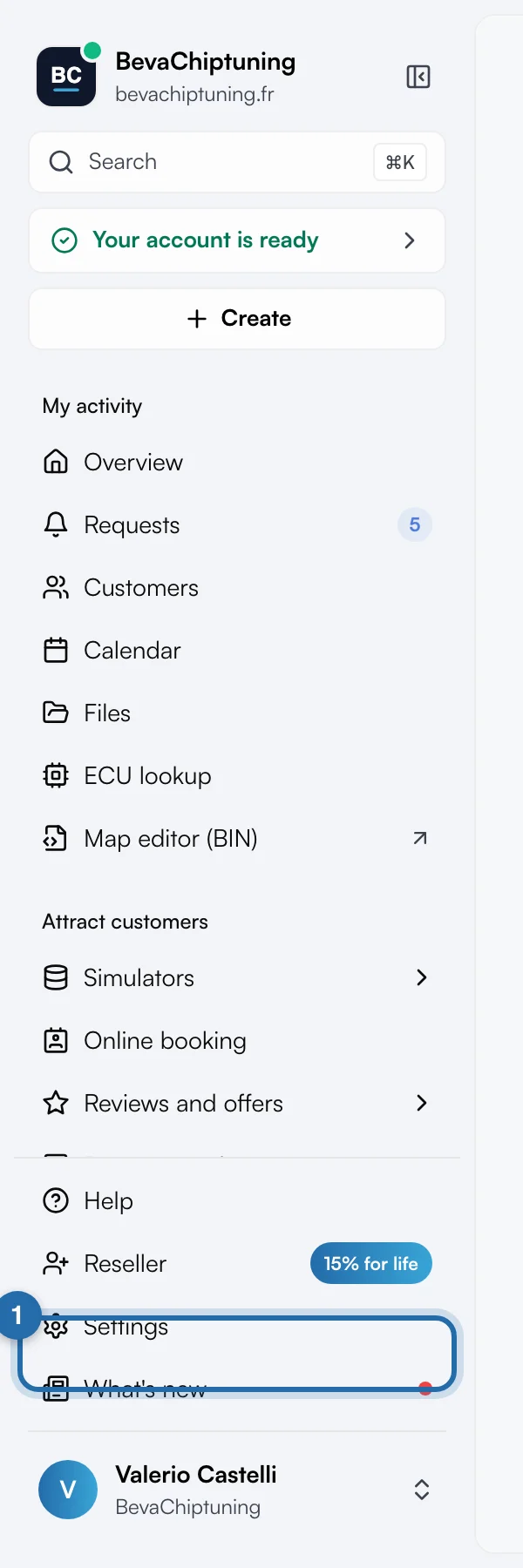
In the left menu, under "Attract customers", click "On my website". Without a declared website, the entry is called "My links to share".
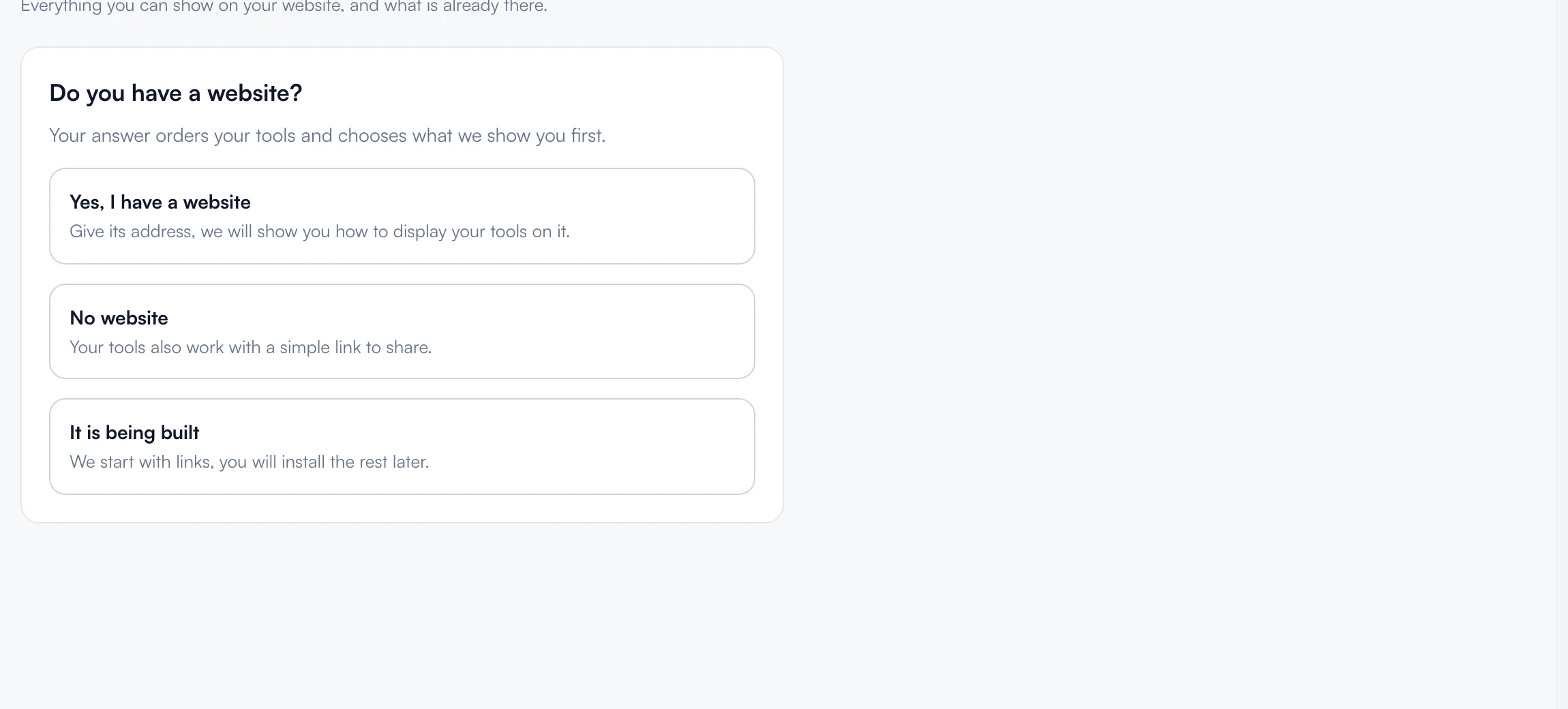
Answer the question
On the first visit, the page asks "Do you have a website?". "Yes, I have a website" opens "My websites" to add its address. "No website" and "It is being built" show your links to share. The answer also arranges the menu and Quick start.
Read the status of each tool
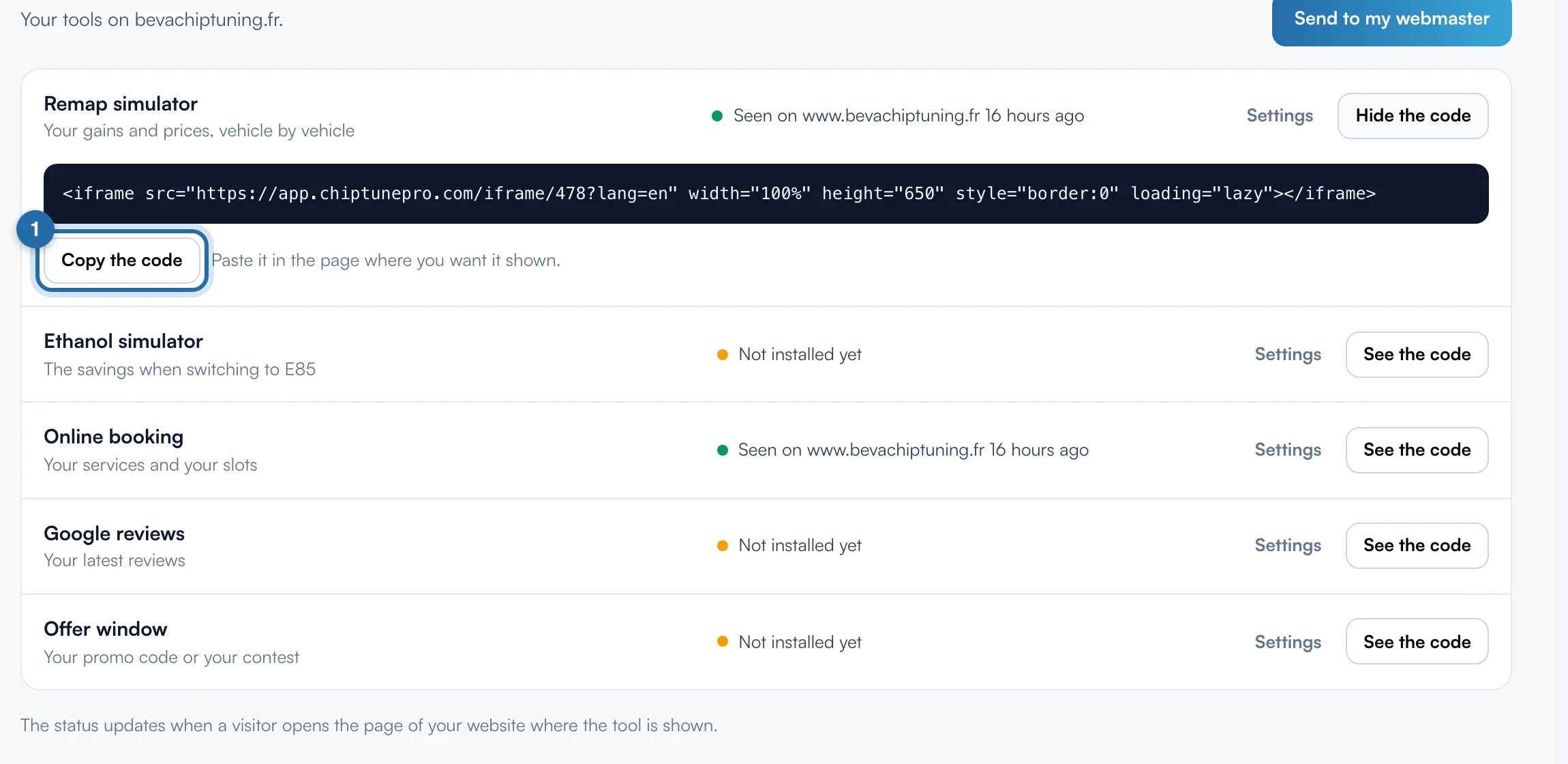
One row per tool: "Remap simulator", "Ethanol simulator", "Online booking", "Google reviews" and "Offer window". A green dot and "Seen on" followed by the website and the date: the tool has appeared on your website. An orange dot and "Not installed yet": it has never been seen there.
Copy a tool's code
Click "See the code": the code shows under the row. Click "Copy the code", then paste it into the page of your website where the tool should appear. "Settings" opens the tool's page, with its options and its WordPress and Wix guides.
Send the codes to your webmaster
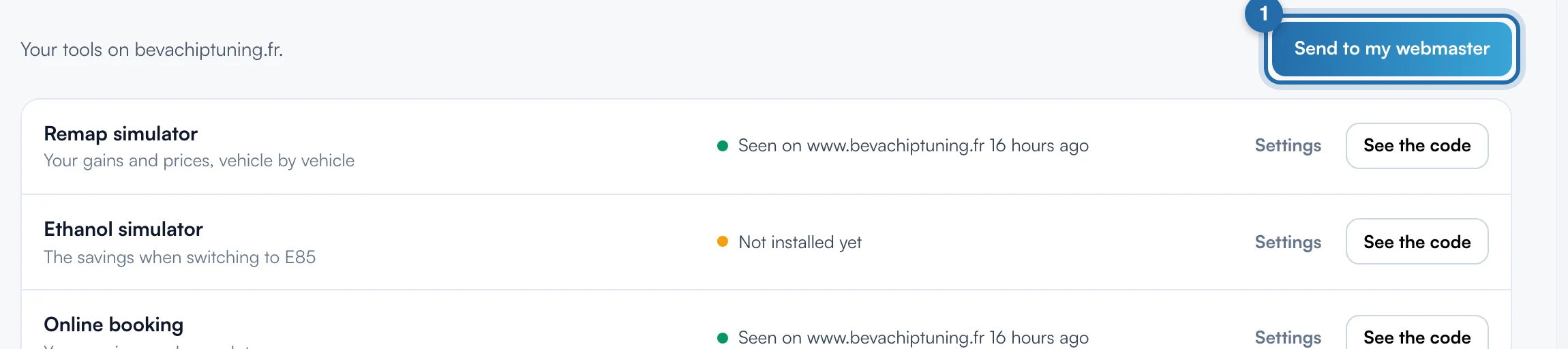
Click "Send to my webmaster", at the top right. Your email app opens an email "ChiptunePRO tools to add on" followed by your website, with the codes of the 5 tools. Add your webmaster's address and send.
Your direct links
Further down, "Your direct links" gives the link and QR code of your ChiptuneMAP listing, your online booking, your full-page simulator and your current offer, for Instagram, your Google profile or the counter.
If it doesn't work
- A tool stays on "Not installed yet" although the code is pasted.
- The status changes when a visitor opens the page of your website where the tool is shown. Open it yourself, then reload "On my website". Views inside ChiptunePRO, in the preview or through a direct link do not count.
- I don't see "See the code".
- The button requires a subscription. Click "Settings" to open the tool's page.
- I answered "No website" but I have one.
- At the bottom of "My links to share", click "Declare my website" and save its address in "My websites". The page becomes "On my website" again.
- "Send to my webmaster" opens nothing.
- The button opens the email app installed on your computer. Without one, copy the codes one by one with "See the code" and paste them into your email.
- "Seen on" shows another address than my website.
- It is the last website where the tool appeared, for example a test copy or another of your websites.