
Requests and appointments
Customer follow-up: "To do today", follow-ups and reviews
The "To do today" card lists, in order, the requests to handle, the quotes and invoices to follow up, the reviews to ask for and the projects to publish. Each follow-up is logged in the customer's card, with the date of the next one.
Before you start
- All plans. The card is at the top of "Overview", the first page in the menu.
- Follow-ups cover the quotes you sent and the overdue invoices of your customers, plus the callbacks you logged.
Read the card
Rows are grouped: "Requests to handle", "Left before paying", "Overdue invoices", "Quotes to follow up", "Quotes to close", "Callbacks due", "Reviews to ask for", "Projects to publish". The "All", "Follow-ups", "Requests" and "Reviews and projects" filters narrow the list. At the top right, the counter shows what is done today. "Planned this week", at the bottom, lists the follow-ups of the next days.
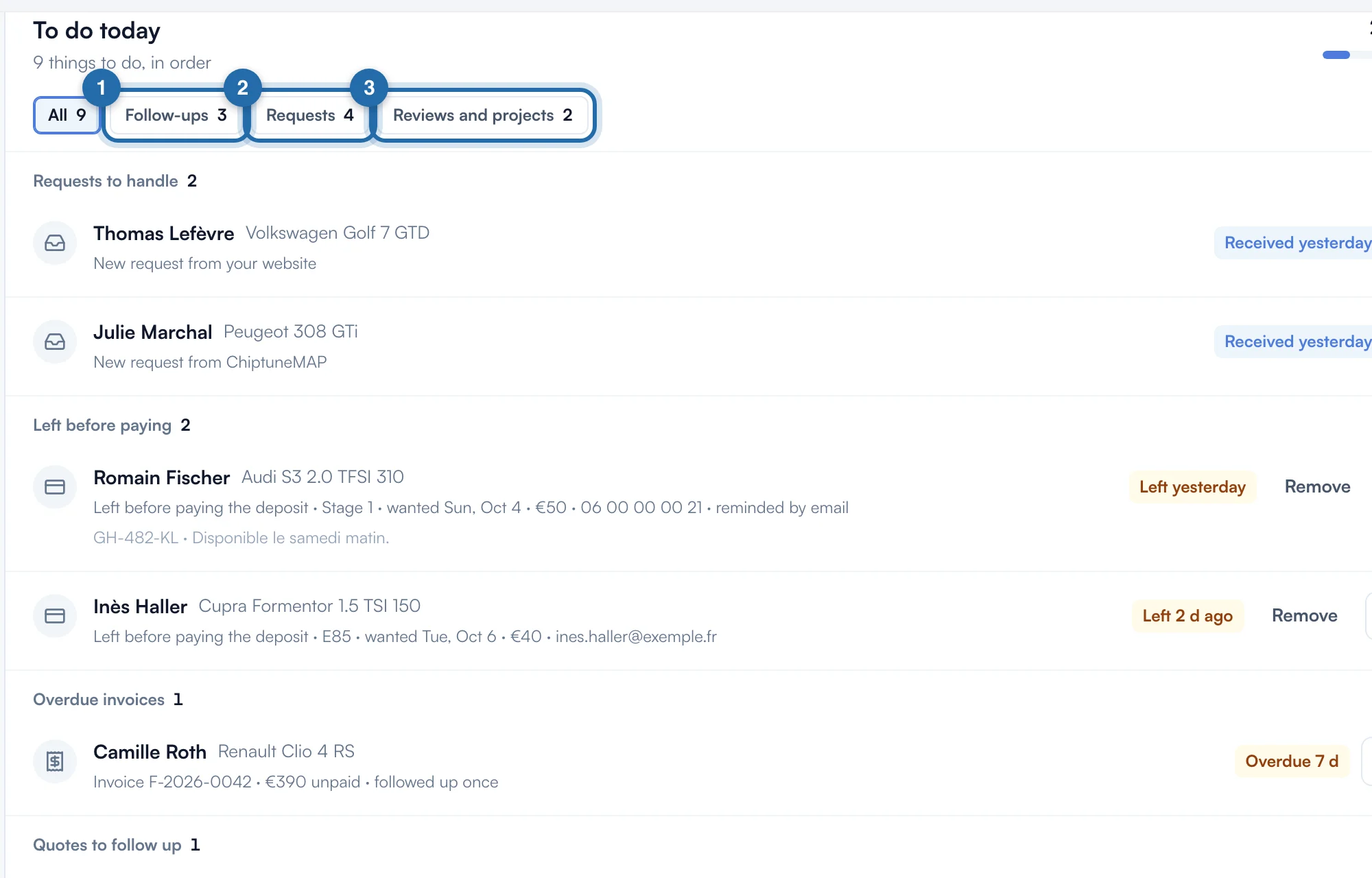
When a row appears
A sent quote with no answer appears 3 days after it was sent. An invoice appears as soon as its due date has passed. "Interested" shows when the customer opened the quote more than once. A customer served in the last 45 days (invoice paid or request "Completed") appears in "Reviews to ask for" if they have an email or a phone number. A row disappears once handled.
Follow up
Click "Follow up", then choose "Phone", "WhatsApp", "Text" or "Email". The message is already written and you can edit it. WhatsApp and Text open ready to send. The email is sent from ChiptunePRO in your garage's name, and you will know if the customer opens it.
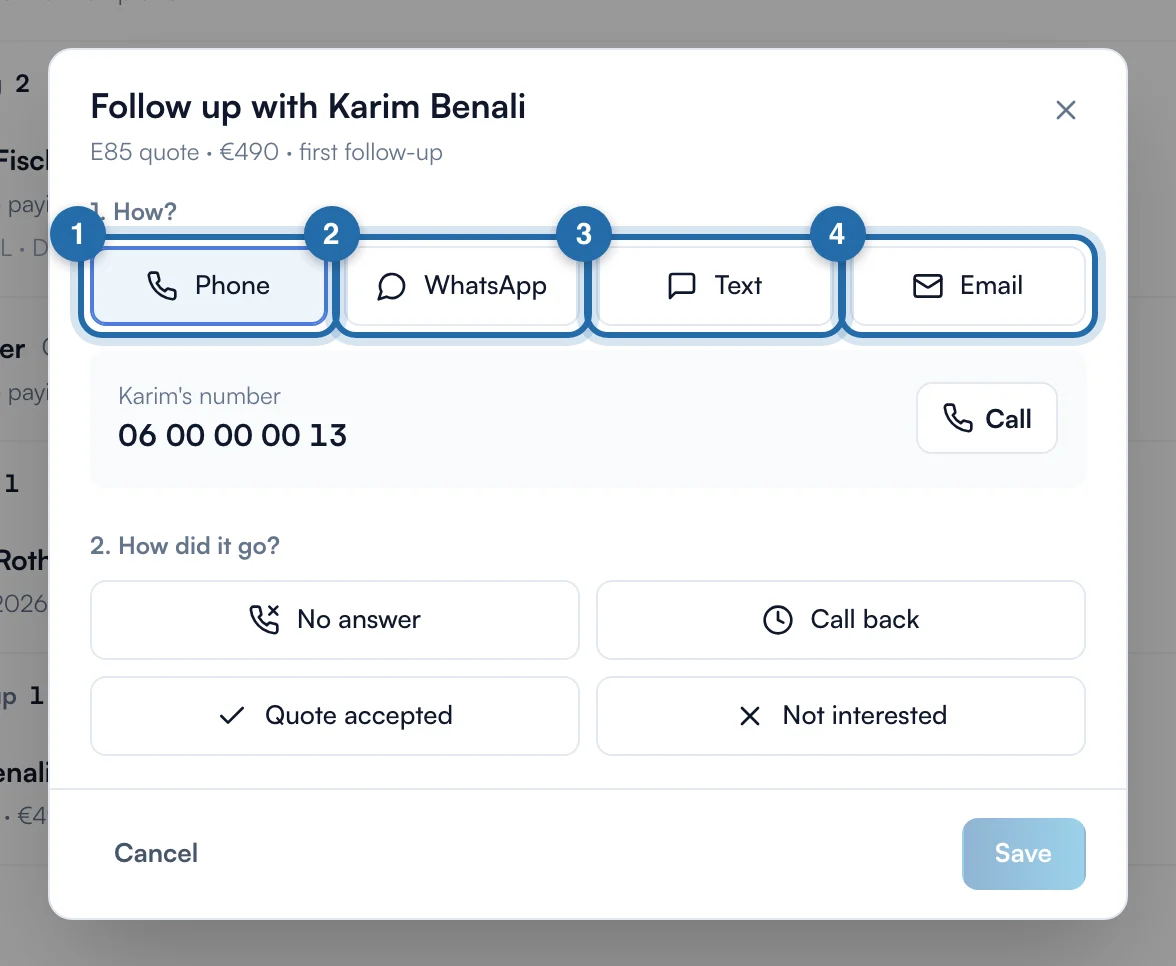
Log the outcome and the next follow-up
Choose how it went. For a quote: "No answer", "Call back", "Quote accepted" or "Not interested". For an invoice: "No answer", "Payment promised" or "It's paid". By email, "Waiting for a reply" sends the message. The next follow-up is suggested in 3 days the first time, then in 1 week, or on the date picked with "Other date". Confirm with the button at the bottom.
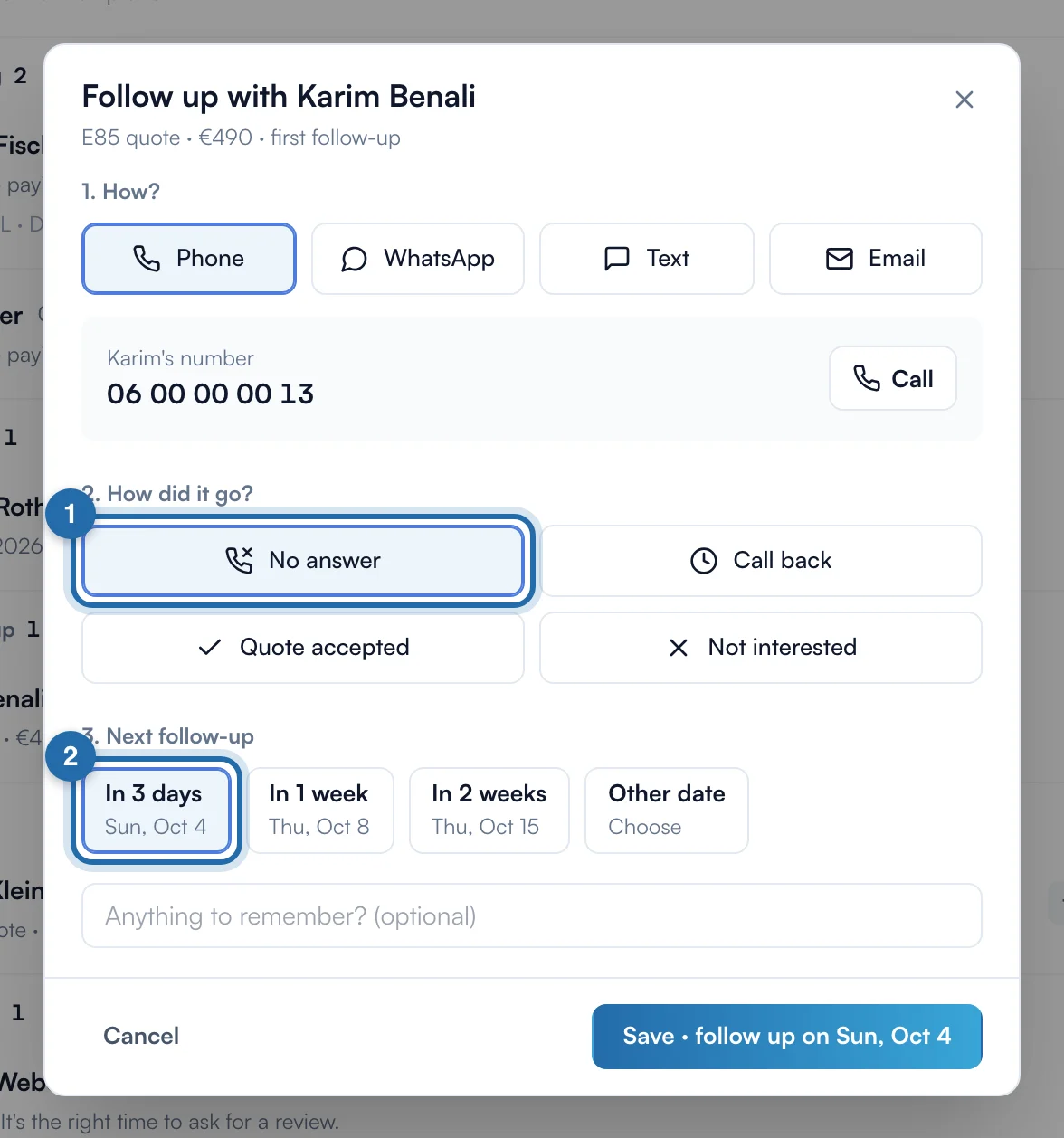
Close a quote as lost
After 3 follow-ups with no answer, the quote moves to "Quotes to close". Click "Close as lost": no more follow-ups for this quote. "Follow up anyway" opens the follow-up window again.

Ask for a review
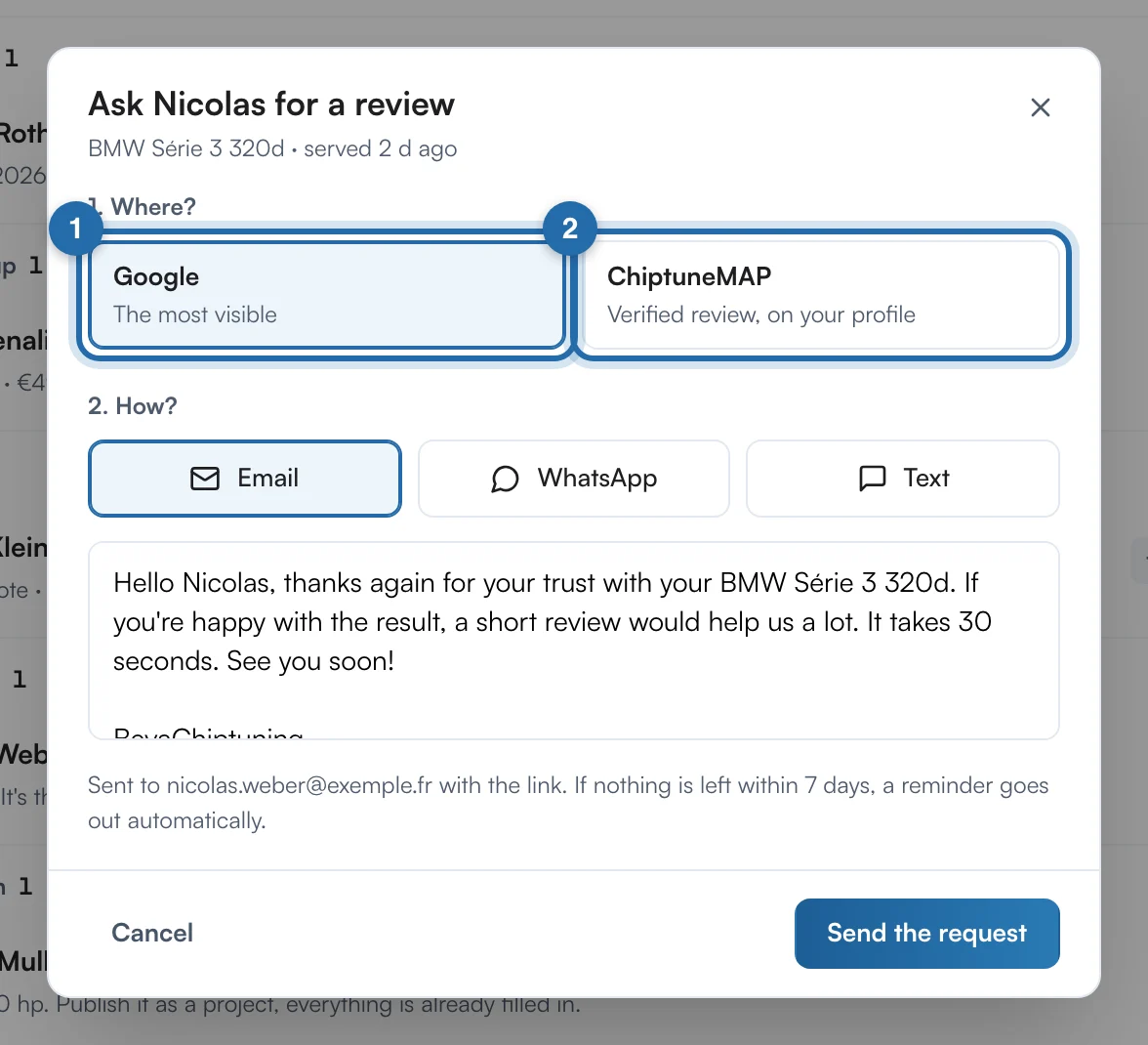
On a "Reviews to ask for" row, click "Ask for a review". Choose Google, if your Google listing is linked, or ChiptuneMAP, only for customers who came through a request marked "Completed". Send by email, WhatsApp or text. By email, a reminder goes out automatically 7 days later if the customer has not left anything.
Publish the project
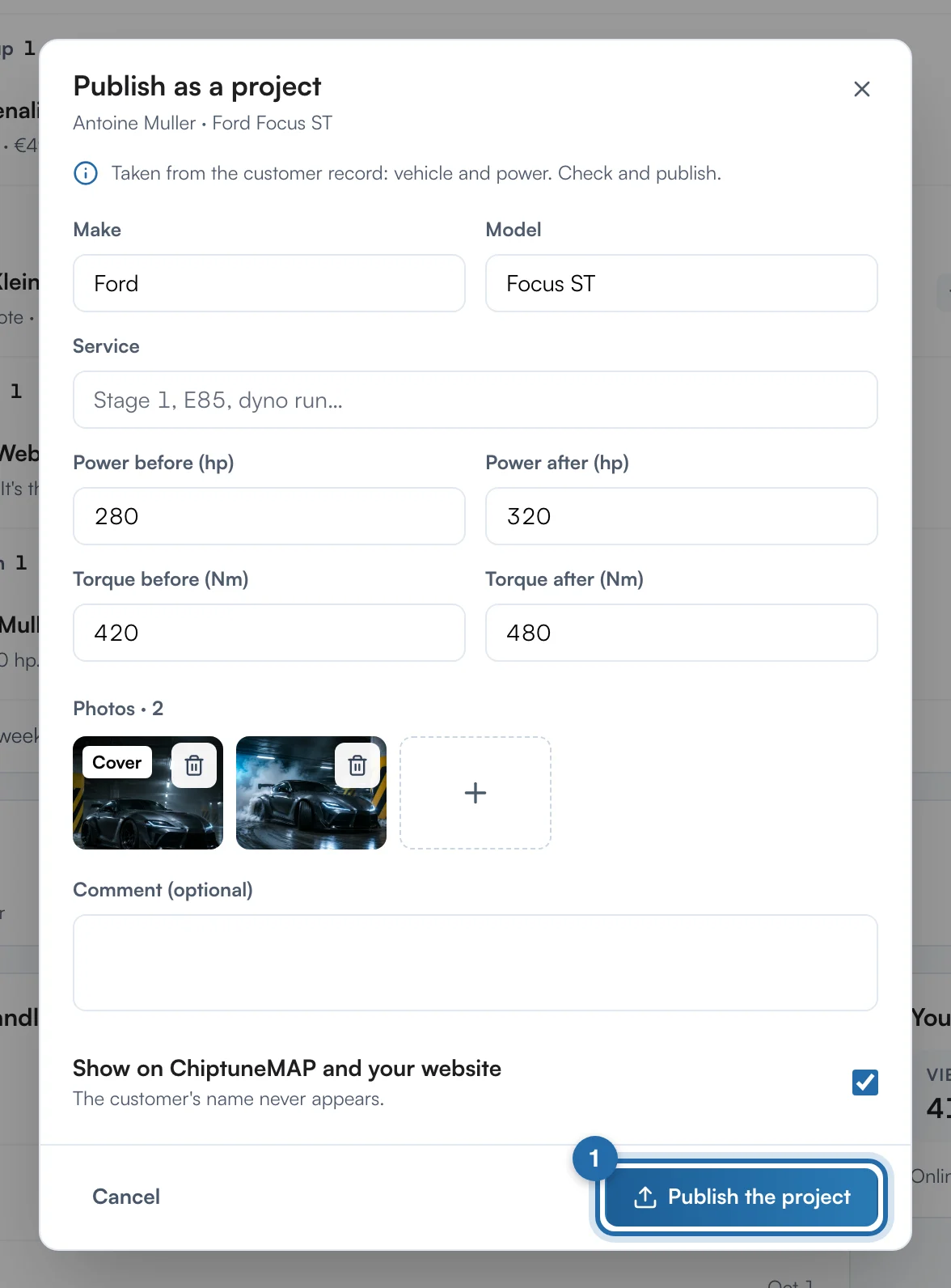
The "Projects to publish" row appears when photos of the vehicle are added to the customer's card. Click "Publish": vehicle and power before and after come from the card. Check, then click "Publish the project". It shows on ChiptuneMAP and on your website, without the customer's name.
Follow a customer in their card and in Customers
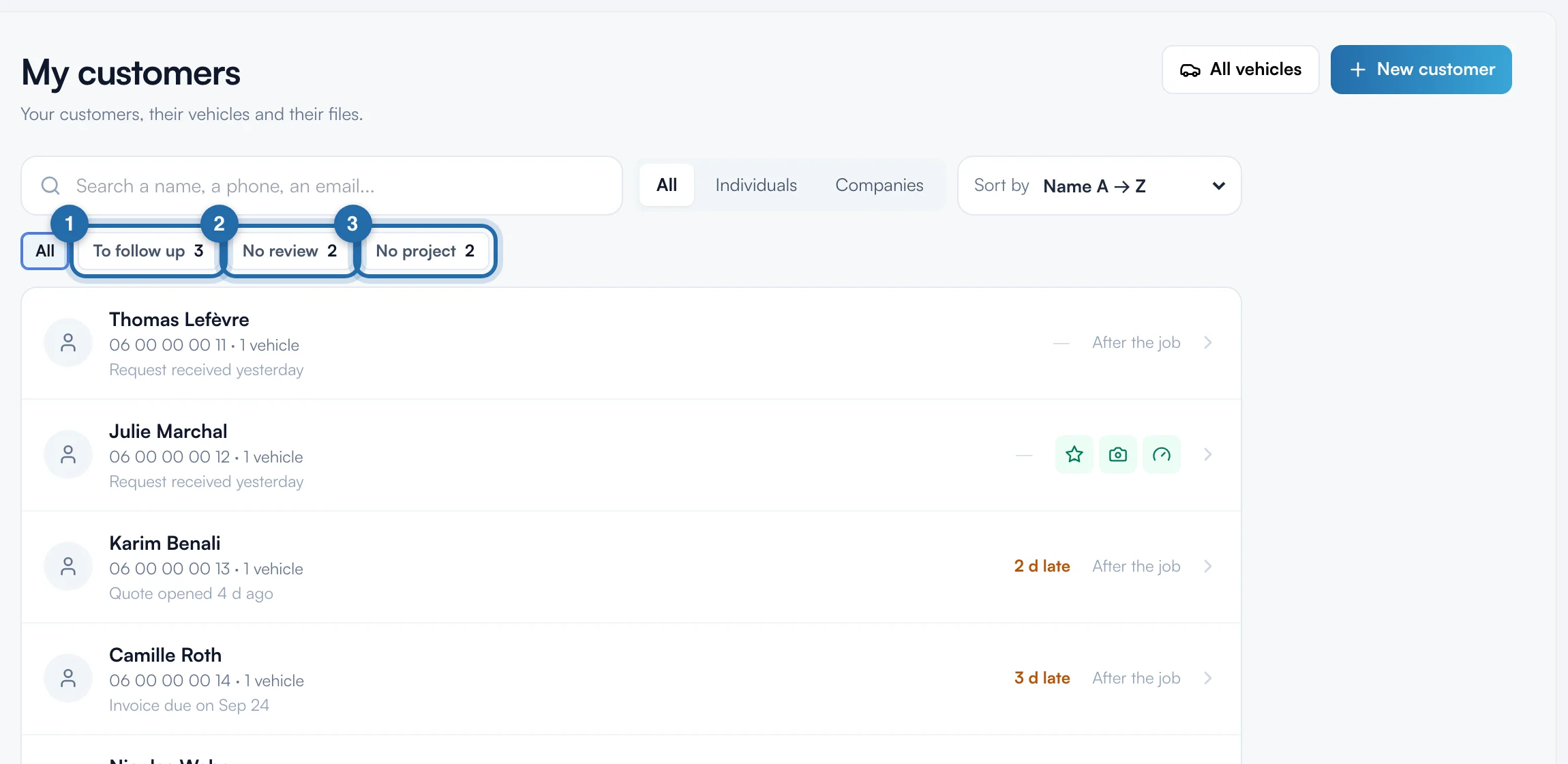
A customer's card shows the current quote or invoice, the number of follow-ups and the next date; "Change date" also lets you choose "Stop following up". Below: "What this customer brings you" (review, photos, project) and the "History", where "Log a contact" adds a call or a visit. In "Customers", the "To follow up", "No review" and "No project" filters sort the list.
What your customer sees
Follow-ups and review requests by email are sent in your garage's name. If the customer clicks "Reply", the answer goes to the email address of your ChiptunePRO account.
If it doesn't work
- A quote does not appear in the follow-ups.
- It must be a quote sent to a customer in your list, with no answer for 3 days. It no longer appears if you chose "Stop following up" for this customer, until the next quote or invoice.
- My requests no longer appear in the card.
- "I reply from my mailbox" is turned on below the Requests list: requests are no longer flagged as to handle. Turn it off to see them again.
- "Email limit reached for today".
- ChiptunePRO sends at most 30 follow-up and review request emails per day and per garage. Use WhatsApp or text, or try again tomorrow.
- The customer left a Google review, but they stay in "Reviews to ask for".
- Google does not notify ChiptunePRO. In the customer's card, click "They left it".