
Customers, vehicles and files
Adding a customer and their vehicle
Create the record of a private customer or a company, then add their vehicle from your vehicle database.
Before you start
- "Customers" > "My customers" menu. Without the Pro plan (Discovery, Visibility): 5 customers and 5 vehicles at most. The Pro plan makes them unlimited.
Create the customer
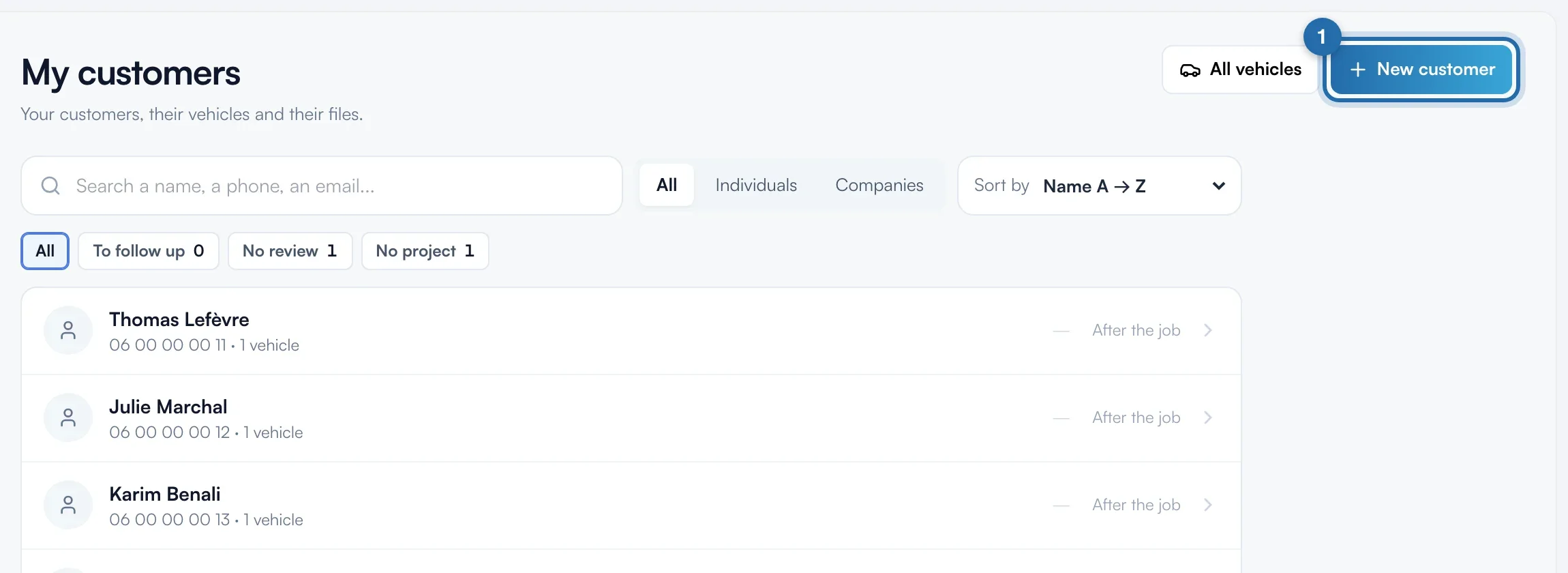
At the top right of "My customers", click "New customer". The menu's "Create" button, then "Client", opens the same window.
Individual or company
Choose "Individual" (first and last name required) or "Company". For a company in France, type at least 3 letters in "Company name": the business directory suggests companies, and one click fills in the SIRET and the address. The SIRET must be 14 digits. Outside France, the field becomes "Company number (optional)".
Contact details and notes
Fill in "Phone", "Email" and "Address" (optional), and "Notes" for anything to remember. Click "Create customer": their record opens on the right.
Open the customer record
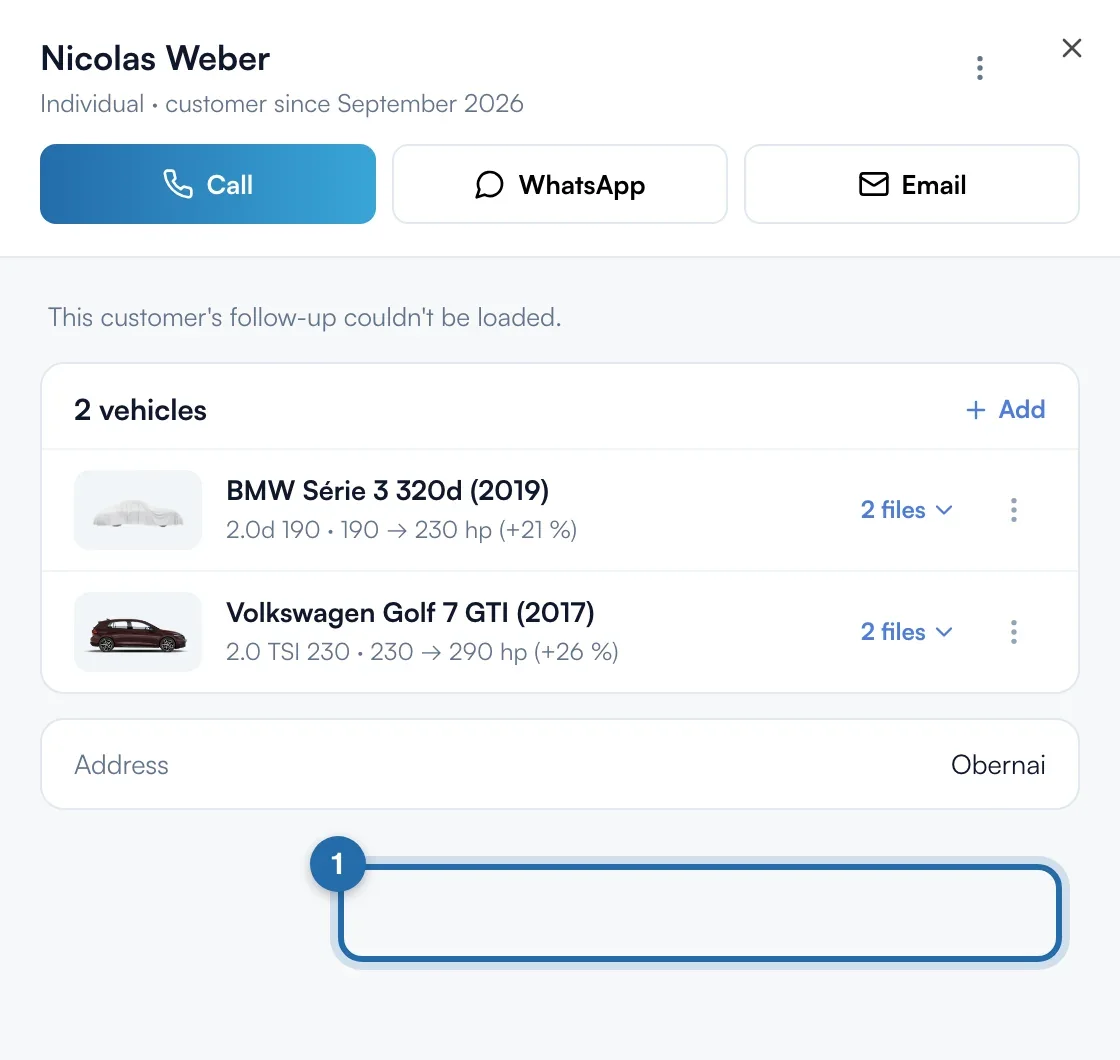
Clicking a customer in the list opens their record: "Call", "WhatsApp", "Email", their vehicles with power before and after, their files, then "Quotes and invoices". The ⋮ menu at the top offers "Edit" and "Delete".
Add the vehicle
In the vehicles block, click "Add". Choose "Make", "Model", "Years" and "Engine" from your vehicle database. Power and torque fill in with your pricing; "Prefill with" lets you take Stage 2 or E85. A vehicle missing from the database is entered with "Enter it manually".
Plate and power
"Registration" is optional: choose the country on the blue band of the plate. Check "Stock" and "After remap" (in hp) and the torque values (in Nm): the app refuses a power after remap lower than stock. "Engine and gearbox codes" opens if needed. Click "Add vehicle".
What your customer sees
The customer receives nothing when their record is created.
If it doesn't work
- "5-customer limit reached with your plan."
- Without the Pro plan, 5 customers and 5 vehicles at most. A banner at the top of the list shows the count and the "Go unlimited" link.
- I can't find my model in the lists.
- Click "Enter it manually" under the lists, then fill in make, model, year and engine.
- What happens to a deleted customer?
- Their vehicles and those vehicles' files are deleted for good. Their quotes and invoices stay, with their name.