
Requests and appointments
Ask for the vehicle registration
Choose whether the customer gives their vehicle's plate in your simulators and online booking.
Before you start
- Open "Online booking" > "Appearance". The same setting exists in "Remapping" > "Appearance" and "E85 ethanol" > "Settings".
Choose the mode
In "Vehicle registration plate", click "Don't ask" (the field does not appear), "Optional" (the default) or "Required" (the request is not sent without a plate).
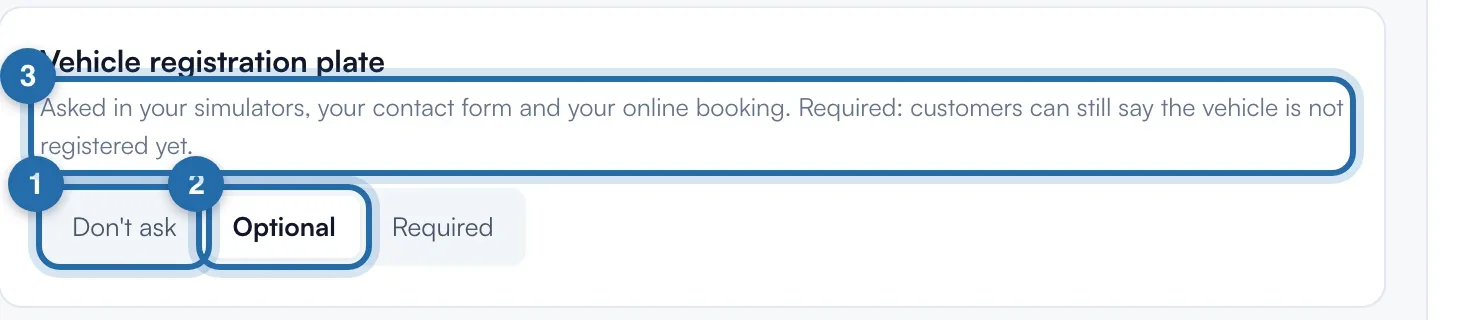
It is saved straight away
The message "Setting saved" confirms it, without "Save". The preview reloads. The setting is the same for all your tools: changing it here changes it everywhere.
Vehicles without a plate
Even in "Required" mode, the customer can declare a vehicle not registered yet (import, new).
Find the plate
It shows in the request, with a button to copy it, and in the request email. For an accepted appointment, it is also in the appointment description in the calendar.
What your customer sees
The plate takes your ChiptuneMAP listing's country. The customer can change the country on the blue strip, and the plate formats itself as they type.
If it doesn't work
- On ChiptuneMAP, the plate is not required.
- That is on purpose: on ChiptuneMAP, it stays optional whatever your setting.
- "Couldn't save the setting".
- The choice goes back to the previous mode. Reload the page and try again.