
Requests and appointments
Setting up my contact form: texts, registration, appearance and preview
The "Appearance" tab of "Online booking" sets the texts, the plate requested and the colours of the form on your website.
Before you start
- In the menu, open "Online booking", then the "Appearance" tab.
Edit the texts
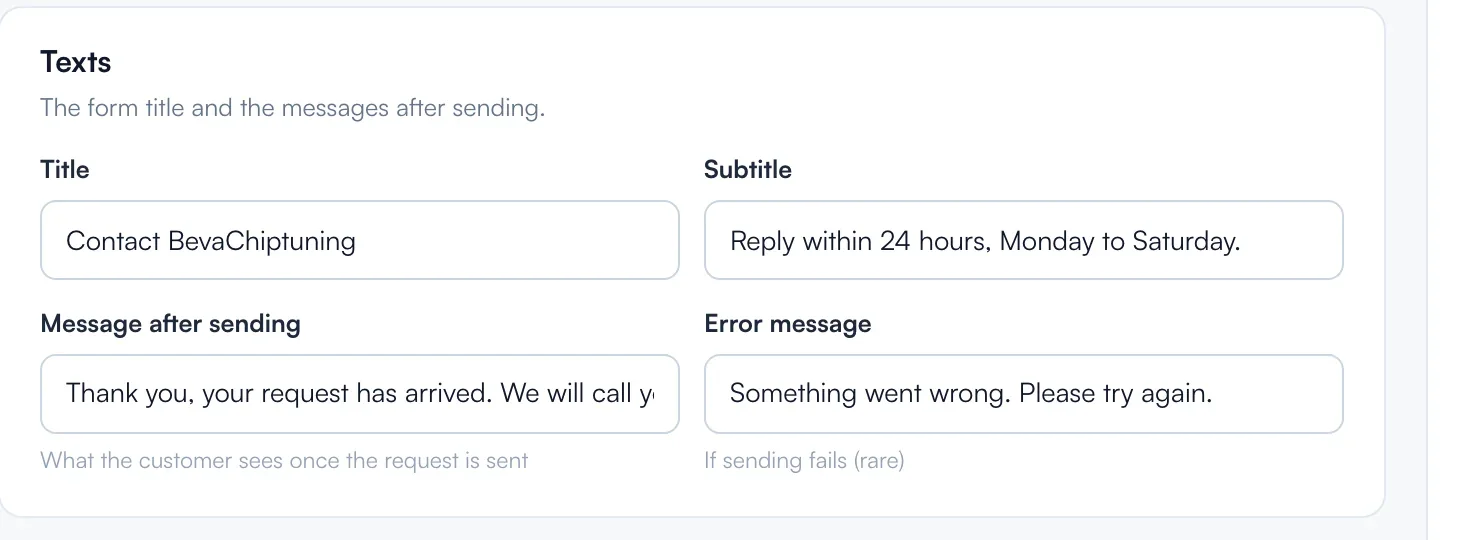
In "Texts": "Title", "Subtitle" (optional), "Message after sending" and "Error message". The title and subtitle show when online booking is turned off, and the form then becomes a simple message. The "Message after sending" shows after a question sent without an appointment.
Ask for the registration or not
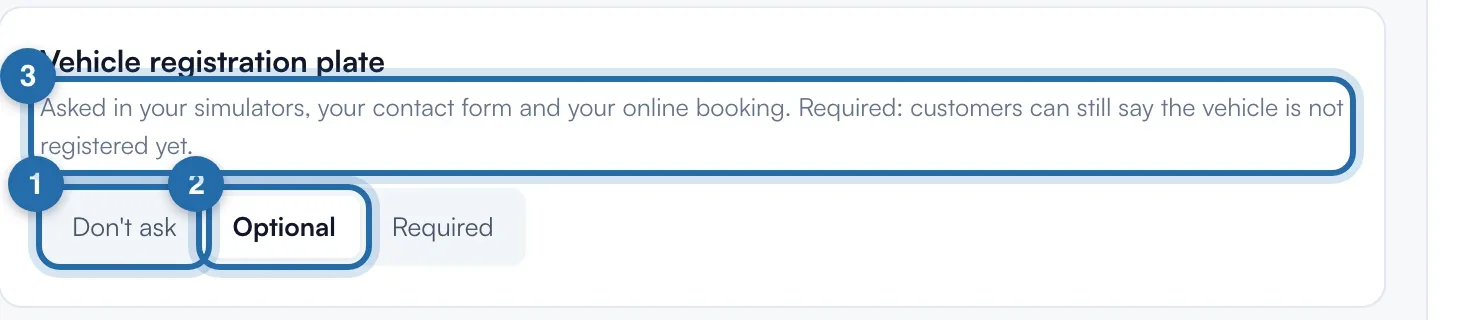
In "Vehicle registration plate", choose "Don't ask", "Optional" or "Required". This choice saves straight away and also applies to your simulators.
Choose the appearance
In "Appearance", "Same as the tuning simulator" takes your simulator's colours and follows each of its changes. "Custom" opens "Ready-made themes", "Main colours" (5 colours) and "Fields" (2 colours).
Set the shapes
In "Shapes", in "Custom" mode, choose the rounding of the "Frame", "Fields" and "Buttons": "Square", "Soft" or "Round". "Width" (100% for full width) and "Inner spacing" (e.g. 20px) can be set in both modes.
Save
Until you save, the top banner shows "Unsaved changes: they already show in the preview". Click "Save", or "Cancel" to go back to the saved setting.
Check in the preview
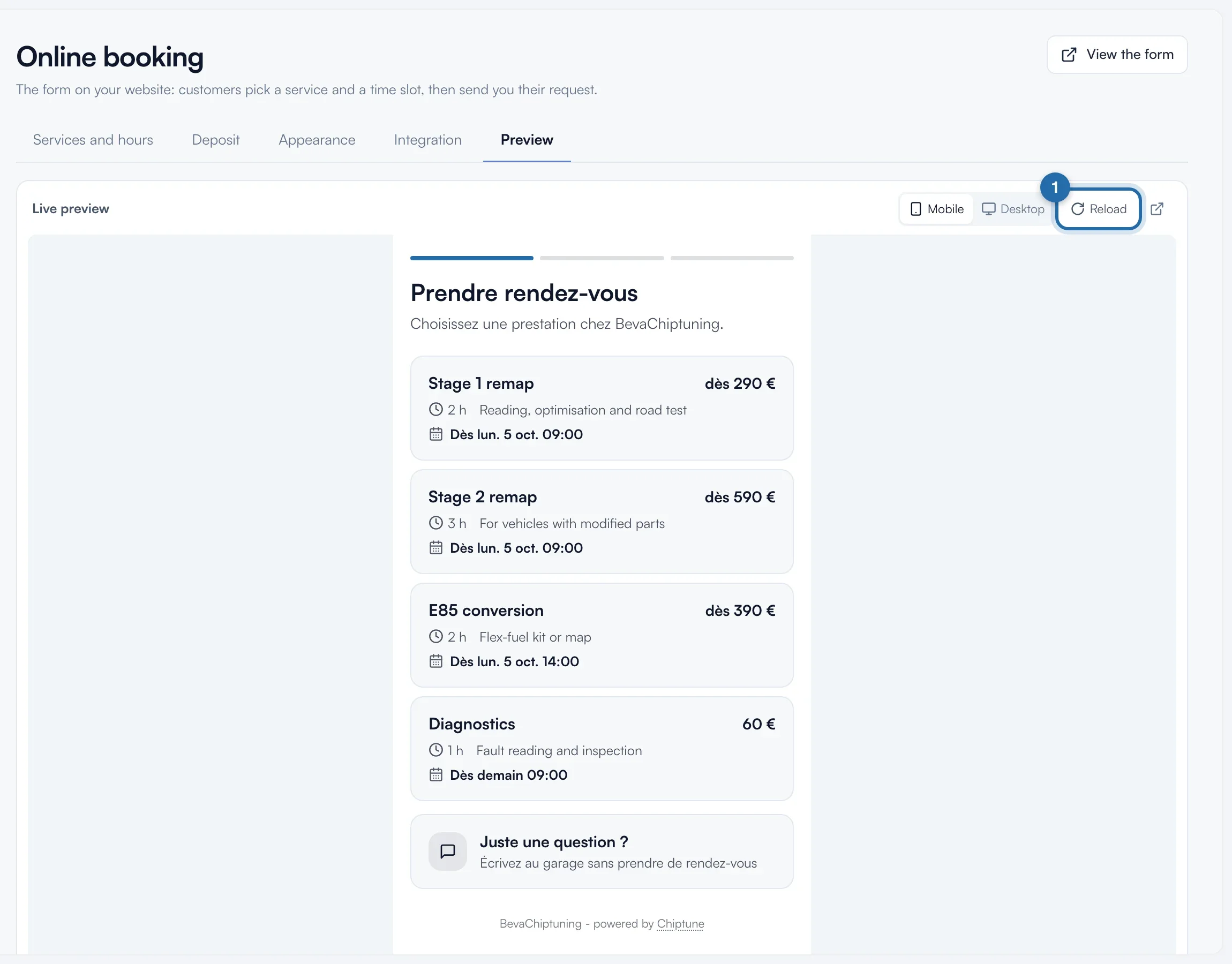
On the right of the page, or in the "Preview" tab, you see your real form in "Mobile" or "Desktop". "Reload" updates it. Your tests in the preview do not count in your statistics.
What your customer sees
The customer sees your services with their price, duration and first free slot, then "Just a question?" to write without booking.
If it doesn't work
- My title does not appear on my website.
- With online booking on, the form shows "Book an appointment". Your title and subtitle show when it is turned off.
- My colours do not change on my website.
- Check that you clicked "Save". In "Same as the tuning simulator" mode, change the simulator's colours instead.