
Attract customers
Your ChipLink statistics
The statistics in My link page show how many people open the page, which links they click and where they come from, over 7, 30 or 90 days. They are free for all accounts.
Before you start
- All accounts have access, free of charge.
- A published link page (see “My link page”). Visits are counted from the day statistics went live.
Open the statistics
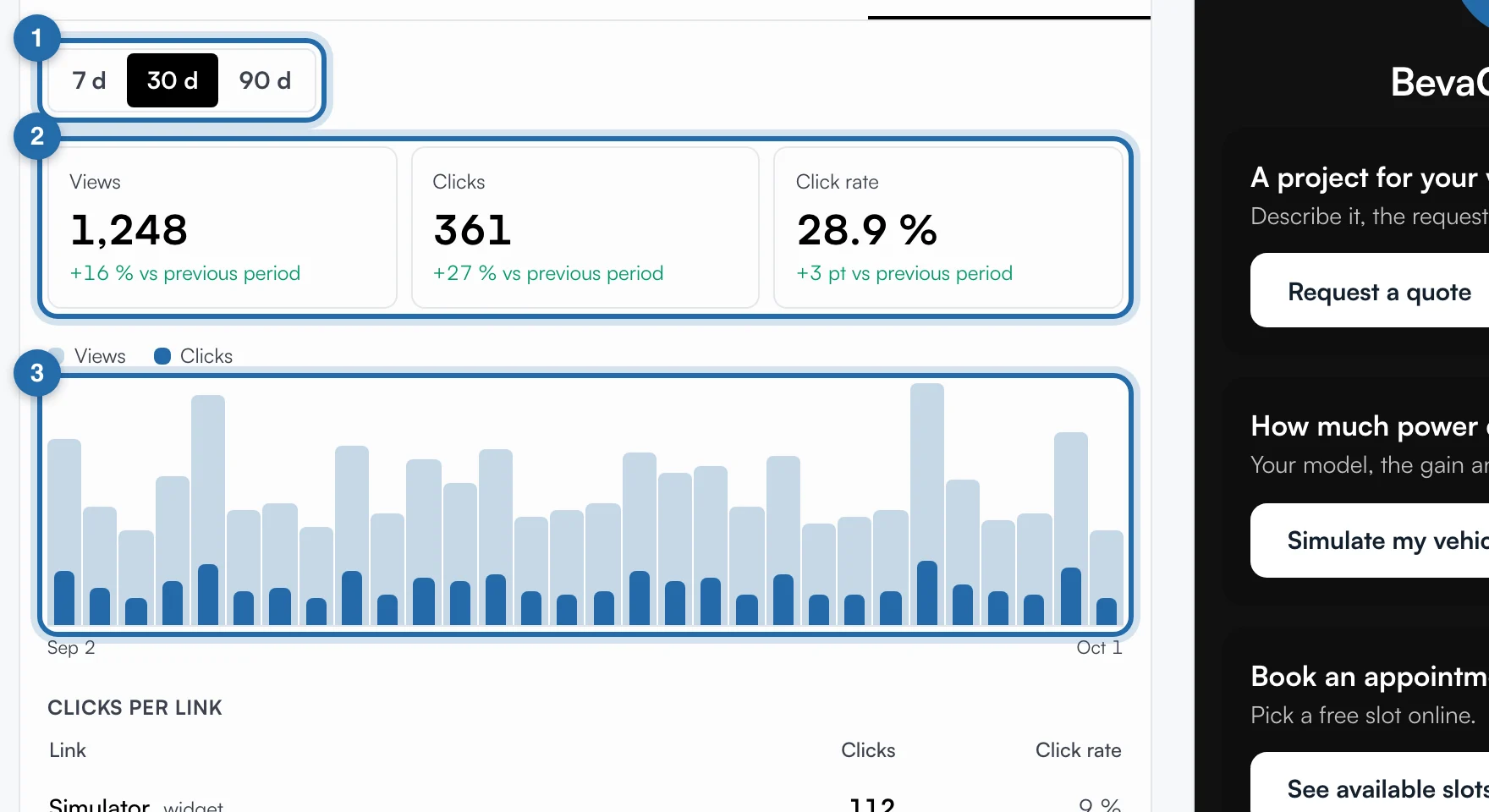
In “My link page”, click the “Statistics” tab, the fourth one after “Style”, “Content” and “Profile”. Direct link: app.chiptunepro.com/page-lien#statistiques. Pick the period at the top: “7 d”, “30 d” or “90 d”, up to and including today. Figures arrive within a minute.
Read the three cards and the chart
The cards show the page “Views”, the “Clicks” and the “Click rate” (clicks divided by views). Each card compares with the previous period, for example “+16 % vs previous period”. For the click rate, the difference is in points (“pt”). When there is no previous period, the card shows “No comparison yet”. Below the cards, the chart shows each day: light bars for views, dark bars for clicks. Hover over a bar to see the date and that day's figures.
See the most clicked links
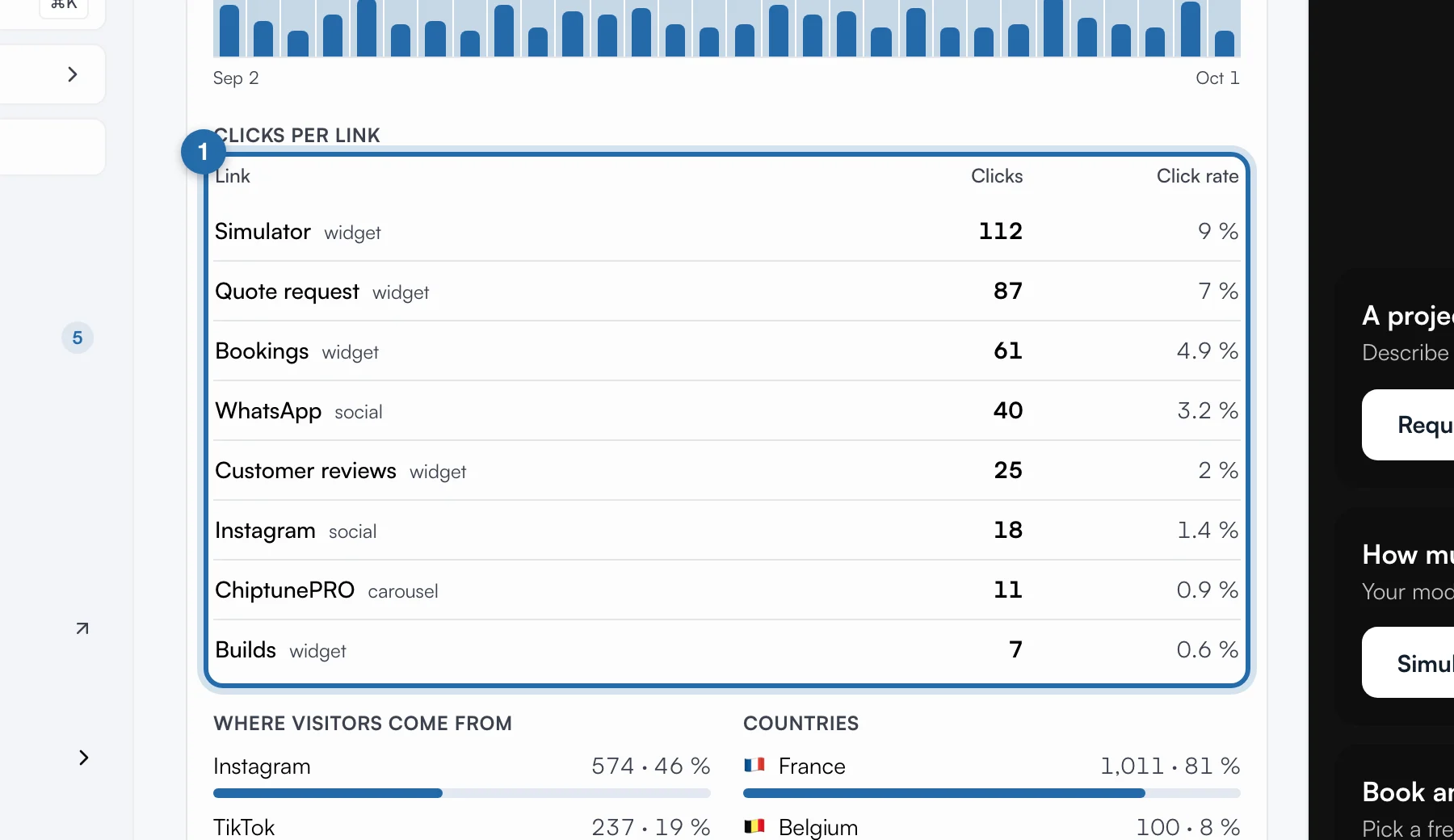
“Clicks per link” lists your links, widgets, carousel cards and social networks, from most to least clicked, with the click rate of each. Use it to put the most clicked blocks at the top of the page. A link removed from the page stays listed in grey with “removed from the page”.
Know where visitors come from
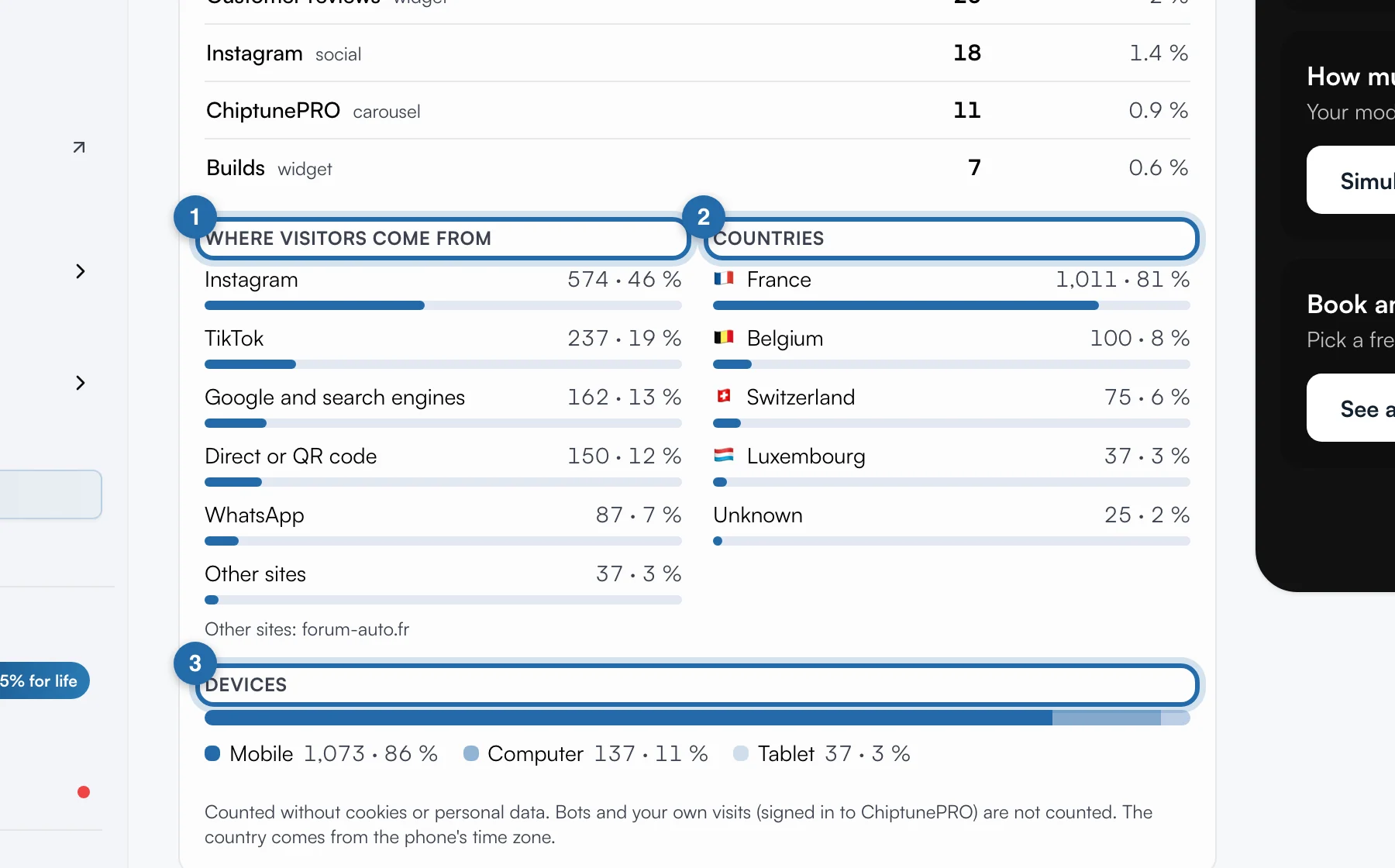
“Where visitors come from” ranks the sources: Instagram, TikTok, Facebook, “Google and search engines”, WhatsApp, YouTube, Snapchat, LinkedIn, X, ChiptuneMAP, “Direct or QR code” and “Other sites” (the sites are listed below). The source is the app the visitor opens the page from (for example Instagram's or TikTok's in-app browser), the referring site, or the link's utm_source parameter. To tell apart two places where you post the same link, add utm_source to the address, for example chiptunepro.com/@garage?utm_source=tiktok.
Countries and devices
“Countries” comes from the phone's time zone and shows the top 6, with “Unknown” when it is not available. “Devices” splits Mobile, Computer and Tablet.
If it doesn't work
- I open my page and the number of views does not change.
- Your visits are not counted while you are signed in to ChiptunePRO in that browser. The editor preview and opening the page from the invitation link are not counted either. For the same visitor, only one view is counted every 30 minutes, so reloading the page adds nothing.
- A click on “Share”, “Report” or “Create my ChipLink” does not show in the clicks.
- These three buttons are not counted as clicks.
- I have a lot of “Direct or QR code”.
- This line groups visitors whose source is unknown, for example a QR code or a copied link. Add utm_source to the links you post to see which ones work.
- The figures are lower than in another app.
- Bots and link previews (WhatsApp, Facebook) are excluded, and a view is counted only once every 30 minutes per visitor.
- Do the statistics use personal data?
- No. Counting is done without cookies or personal data.