
Customers, vehicles and files
Find a vehicle's ECU
The ECU reference shows on your vehicles and requests, based on the Alientech KESS3 and Magic Motorsport Flex lists.
Before you start
- The vehicle must be linked to an engine in your vehicle database (chosen from the lists, not entered manually).
Spot the badge
The ECU badge, with a chip icon, appears in the request list, in a request's details, on the vehicle record and in the customer record. Example: "Bosch MED17.5.21 · KESS3". A "to check" mention flags an approximate match.
Open the details
Click the badge. The details give the ECU or ECUs with their processor, the "Engine code", the generation "For a … vehicle" based on the vehicle year, and the source with its link.
Copy or check
"Copy ref" copies the reference. The "Kess" and "Flex" links copy the reference then open the manufacturer's list: paste it in their search.
No known ECU
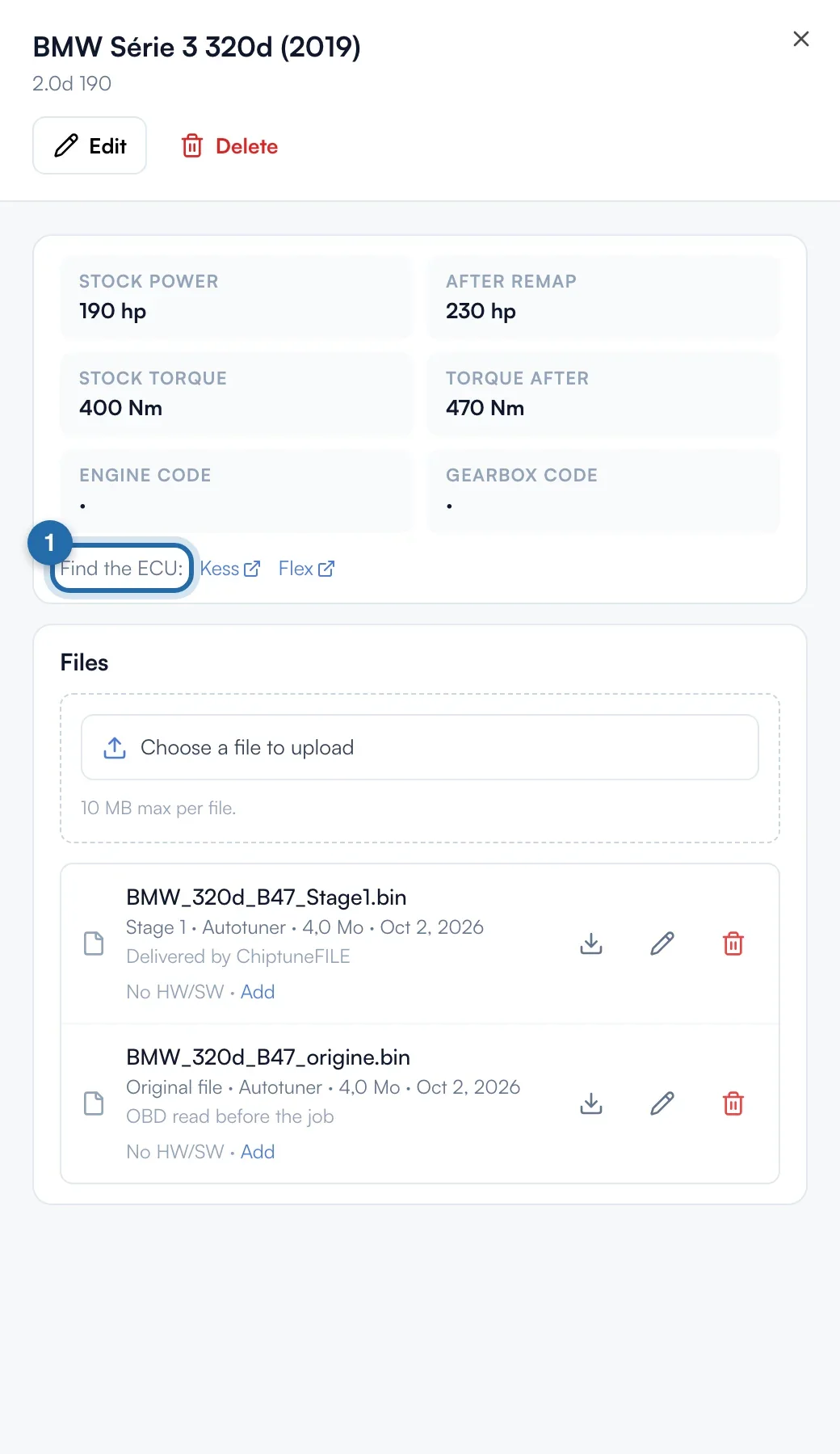
The vehicle record shows "Find the ECU:" followed by "Kess" and "Flex". One click copies the engine code, or failing that the make, model and engine, and opens the list: paste it in their search.
Before creating the vehicle
In "New vehicle", as soon as you choose the engine, the ECU shows under the lists, with the engine code and the source.
What your customer sees
The customer does not see the ECU.
If it doesn't work
- No badge on my vehicle.
- The vehicle was entered manually, the ECU for this engine is not known yet, or your account does not have access to it. Use the "Kess" and "Flex" links.
- Why give the vehicle year?
- Some engines change ECU during production. With the year, you get the one for the right generation.