
Customers, vehicles and files
Sort, select and handle my lists in bulk
In My customers, Quotes and Invoices, sort the list, select several rows and export, delete or mark them paid in one go.
Before you start
- Open "Customers" > "My customers", or "Quotes and invoices". Lists show 20 rows per page.
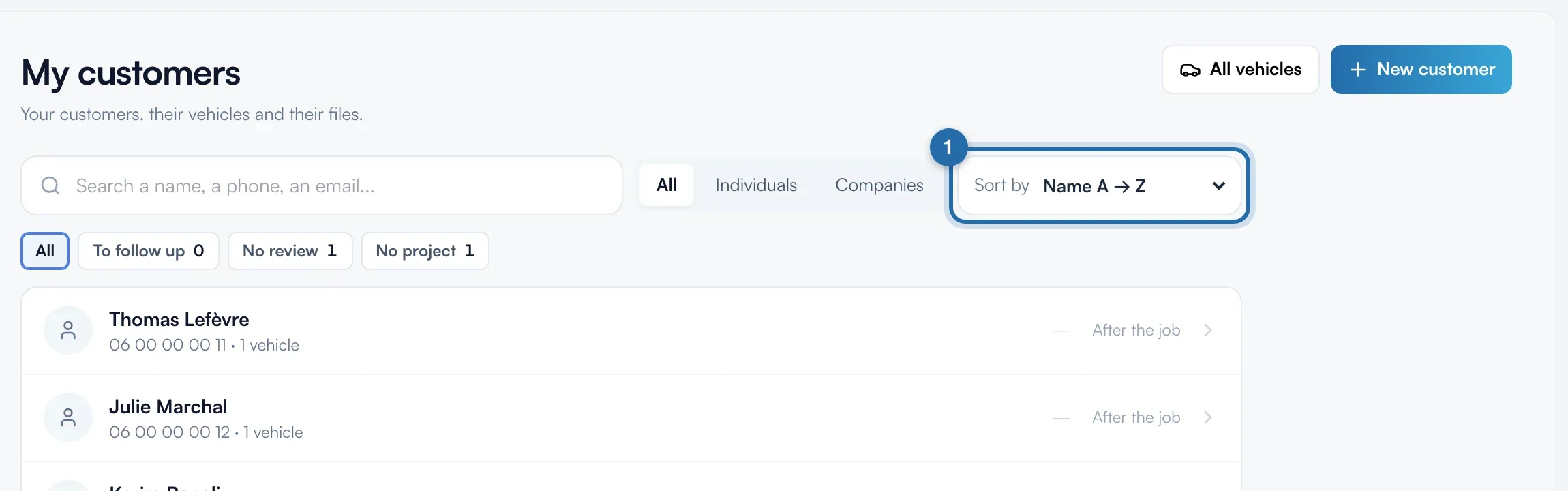
Sort the list
Open the "Sort by" menu to the right of the search. My customers: "Name A → Z", "Name Z → A", "Newest", "Oldest", "Recently updated", "Number of vehicles". Quotes and invoices: "Newest", "Highest amount", "Customer A → Z", "Number", "Nearest due date" or "Nearest expiry date".
Filter quotes and invoices by period
The menu to the left of "Sort by" offers "All dates", "This month", "Last month", "This quarter", "This year", "Last year" or "Custom period" ("From" and "to" fields). The badges below filter by status.
Select rows
Hover over the circle at the start of a row: a box appears, click it. On a phone, tap the circle. Cmd or Ctrl + click also selects a row. Shift + click selects every row between the last one selected and this one. "Select all", at the bottom of the list, selects the whole page.
Act on the selection
A black bar appears at the bottom of the screen with the number of rows, "Export" and "Delete". "Export" downloads a CSV file Excel can read (semicolon separator). The × or the Esc key clears the selection.
Mark invoices paid
For invoices, the bar adds "Mark paid". Only sent or overdue invoices are affected: the number in brackets shows how many will be.
Delete in bulk
Click "Delete" then confirm. Invoices: only drafts can be deleted, an issued invoice is cancelled with a credit note. Quotes: only drafts, declined and expired ones. Customers: their vehicles and those vehicles' files are deleted for good, quotes and invoices stay.
What your customer sees
Nothing is sent to the customer.
If it doesn't work
- "Delete" is greyed out.
- None of the selected rows can be deleted: issued invoices, or sent, accepted or invoiced quotes.
- My selection has disappeared.
- The selection only applies to the page shown. Changing page, filter or search clears the rows that are no longer visible.
- Does the back button bring me back to the same place?
- Yes. Search, filters, sort and page stay in the page address.