
Simulators
Changing many prices at once
"Edit several vehicles" changes the price of a level on a whole selection of engines, with a preview before you confirm.
Open the window
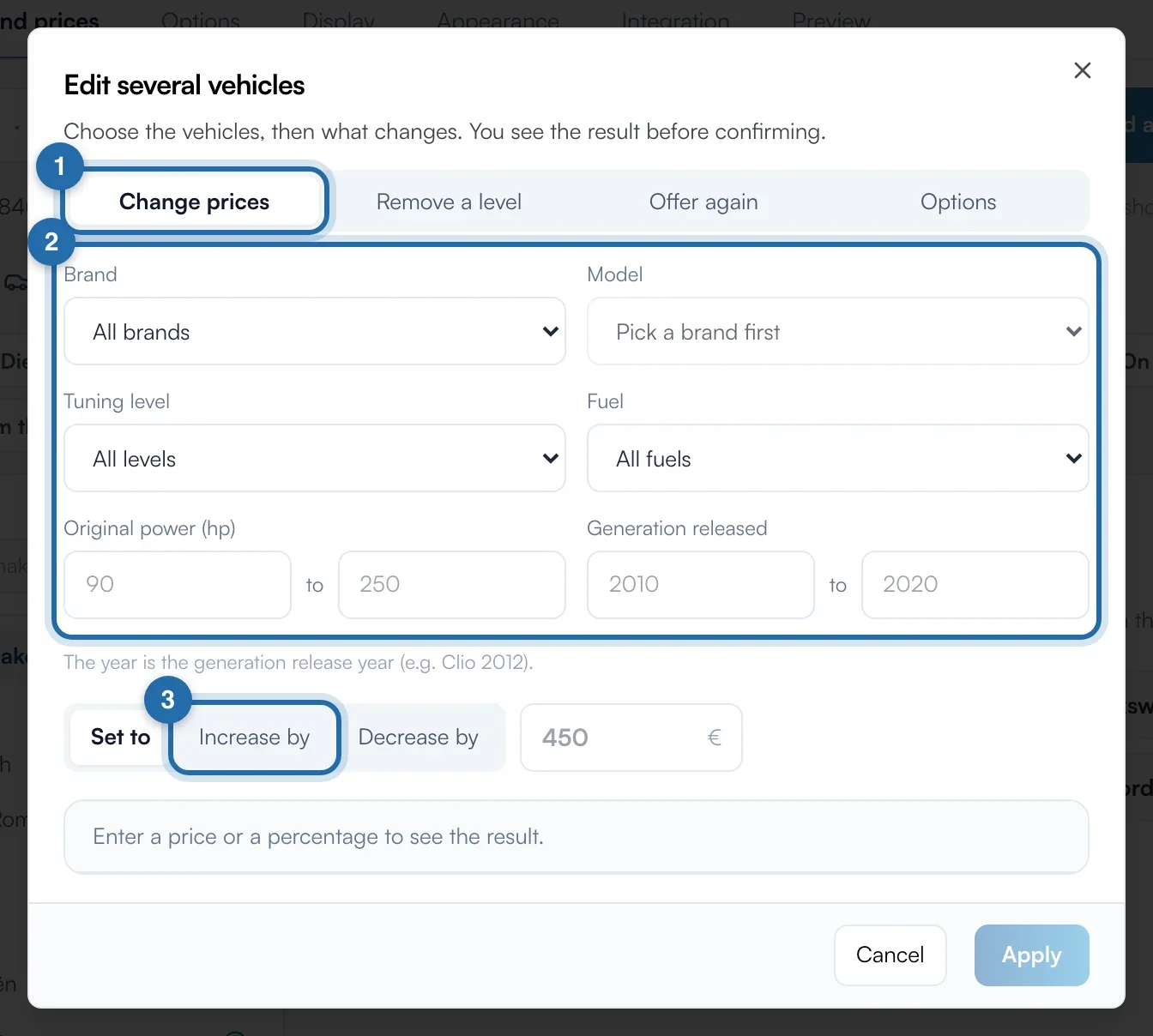
In "Vehicles and prices", click "Edit several vehicles" at the top right. The window opens on the "Change prices" tab, filtered on the make shown if there is one.

Choose the vehicles
Set the filters: "Brand", "Model" (after a brand), "Tuning level", "Fuel", "Stock power (hp)" from… to…, and "Generation released" from… to…. The year is the release year of the generation (e.g. Clio 2012). An empty filter takes everything.
Choose the change
"Set to" sets a price in euros. "Increase by" and "Decrease by" apply a percentage (100 at most for a decrease). Percentages only change levels that already have a price, and prices are rounded to the euro.
Check the preview
Under the field, the preview shows how many levels will change, out of how many found and how many already have a price, with before and after examples. It updates with each setting.
Apply
Click "Apply to N levels". The message "Prices changed on N levels" confirms it. A banner offers "Undo" for 10 minutes. After that, undo from "History".
What your customer sees
Your new prices show in the simulator on your website within about 1 minute.
If it doesn't work
- "Apply" stays greyed out.
- A price or percentage is missing, or the preview says "No level changes". Widen the filters.
- My percentage did not touch some engines.
- Increases and decreases only apply to levels that already have a price. Use "Set to" for "On quote" engines.
- I want to remove a level or an option on several vehicles.
- In the same window, use the "Remove a level", "Offer again" and "Options" tabs.