
Requests and appointments
Send a quote-based booking link (custom work)
For work outside your services, you set up the service and send a link: the customer picks their own drop-off day in your schedule.
Before you start
- Online booking is turned on in Online booking. Otherwise, the customer sees no slot.
- To ask for a deposit, deposits are turned on in the Deposit tab.
Open a new link
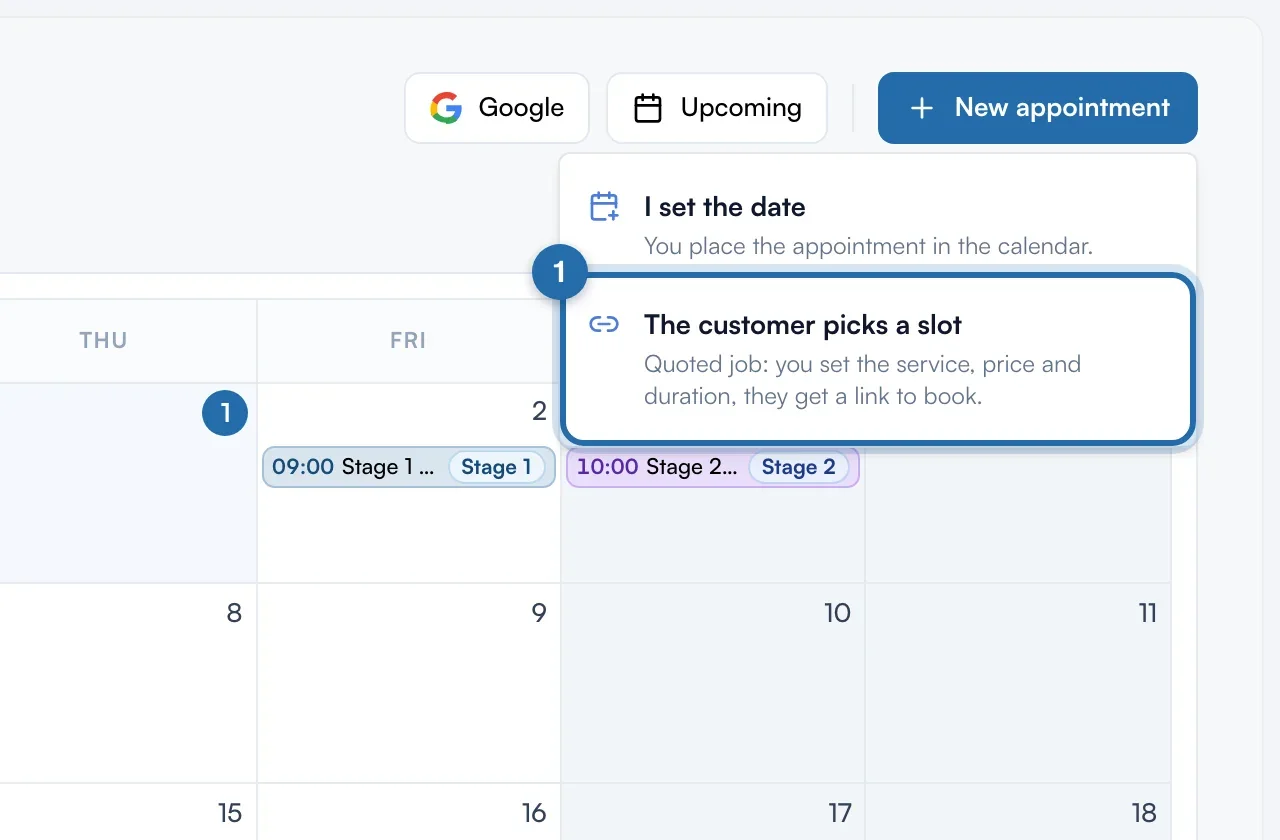
In the Calendar, click "New appointment", then "The customer picks a slot". The "New quote-based booking" window opens.
Describe the service
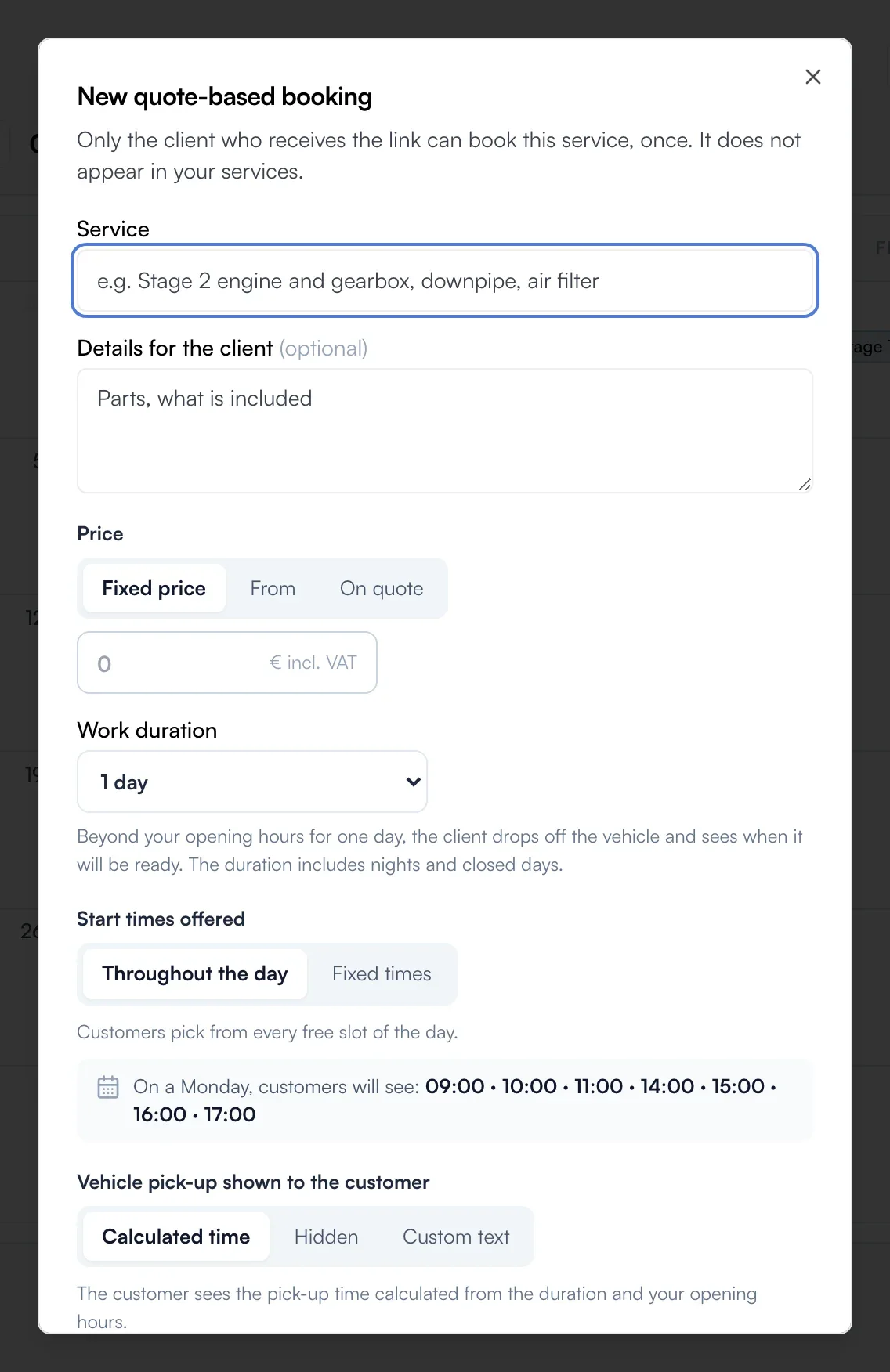
Fill in "Service" and, if needed, "Details for the client". For the "Price", choose "Fixed price", "From" or "On quote", incl. VAT.
Set the duration and deposit
The "Work duration" ranges from 1 h to 7 days, nights and closed days included. For the "Deposit", choose "Default", "None", "Amount" (€5 to €5,000) or "% of price".
Enter the customer and create the link
"Name" and "Email" are optional. With an email, tick "Email them the link". Choose how long it lasts in "Link valid for" (3 to 60 days), then click "Create link".
Share the link
The "Link created" window shows the link. Click "Copy link", "Send on WhatsApp" or "Send by email". The link only works for a single booking.
From a quote
On the quote page, the "Online booking" block offers "Send the quote with booking". In the sending screen, leave "The customer books their slot" on, set the duration and deposit, then click "Send the quote". The price comes from the quote.
Track, extend or cancel
In the Calendar, "Sent links" shows the state of each link: valid, payment in progress, booked, expired or cancelled. The row menu offers "Send again by email", "Cancel link" and, for an expired or cancelled link, "Extend by 14 days".
What your customer sees
The customer sees the service and its price, or the quote with its lines and PDF. They pick their drop-off day and see when the vehicle will be ready. With a deposit, they pay to confirm. The appointment goes into your calendar and the quote turns "accepted". A link that is already used or expired can no longer be used to book.
If it doesn't work
- The customer sees no slot.
- Online booking is turned off. Turn it on in Online booking.
- I can't find "Sent links".
- The button only appears in the Calendar after you create a first link.
- The "Extend by 14 days" button doesn't appear.
- It is only offered for an expired or cancelled link. A link that is still valid doesn't need extending.