
Calendar
Reading my calendar
The Calendar brings together your appointments, requests to accept and closures, in month, week or list view.
Before you start
- Open "Calendar" in the left menu, under "My activity". The calendar is included in every plan, with no subscription.
Choose the view
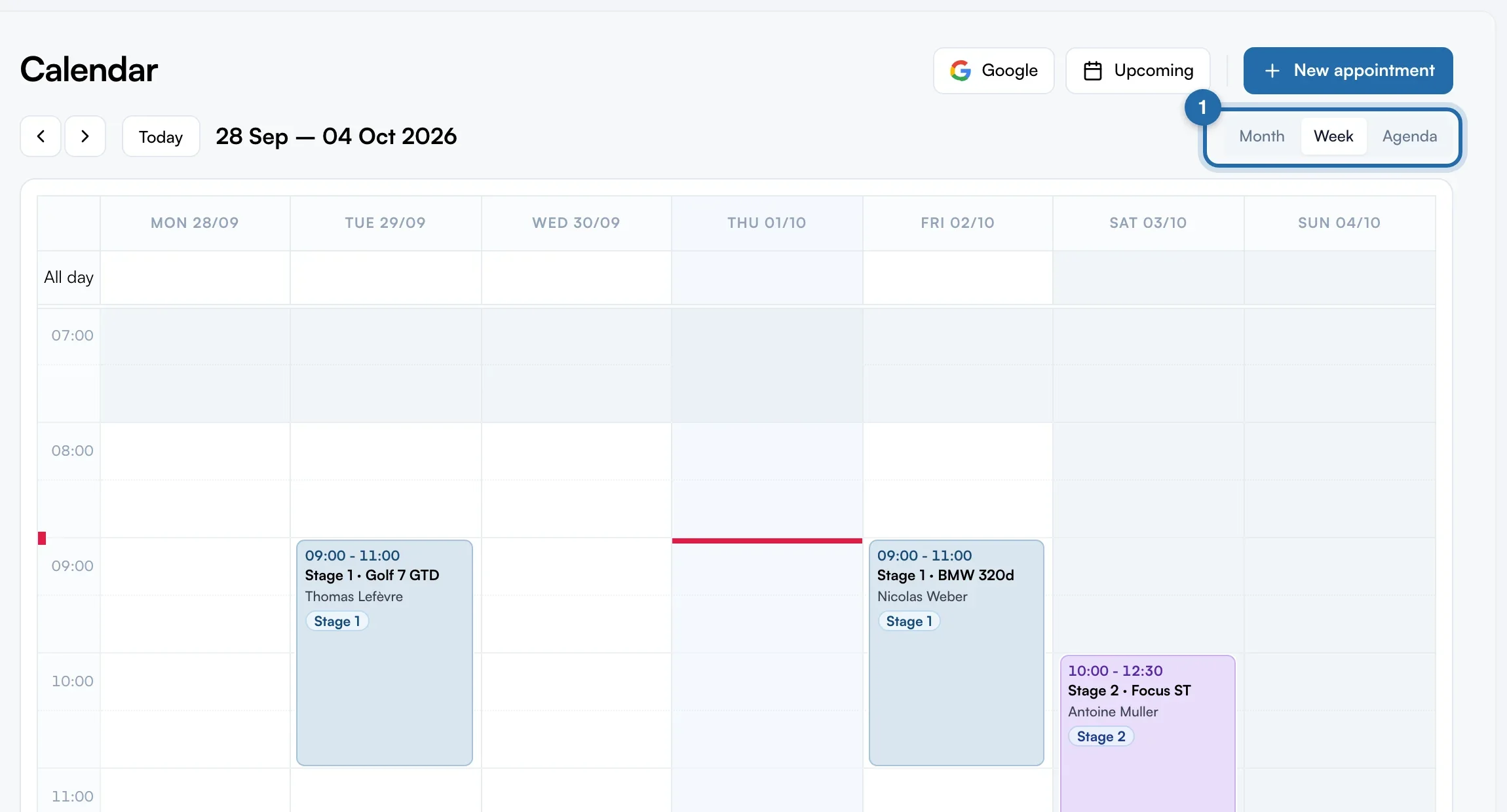
At the top right of the grid, choose "Month", "Week" or "Agenda". The arrows and "Today" change the period. On a phone, the calendar opens straight in "Agenda".
Read the week view
The week starts on Monday. White areas follow your opening hours, and the red line marks the current time. A "Stage 1", "Stage 2" or "E85" badge appears if the title or description mentions it.
Spot requests to accept
A request not yet accepted shows in orange, dotted, with "To accept": the slot is already held for the customer. A banner above the grid lists the next 5, with "Deposit paid" where relevant. A click opens the request.
Spot your closures and markers
Your blocked periods (holidays, closures) are hatched in grey, with their reason in week view. On an appointment, a globe means "Booked online", a green bank card "Deposit paid" and a key "Vehicle dropped off".
Open an appointment
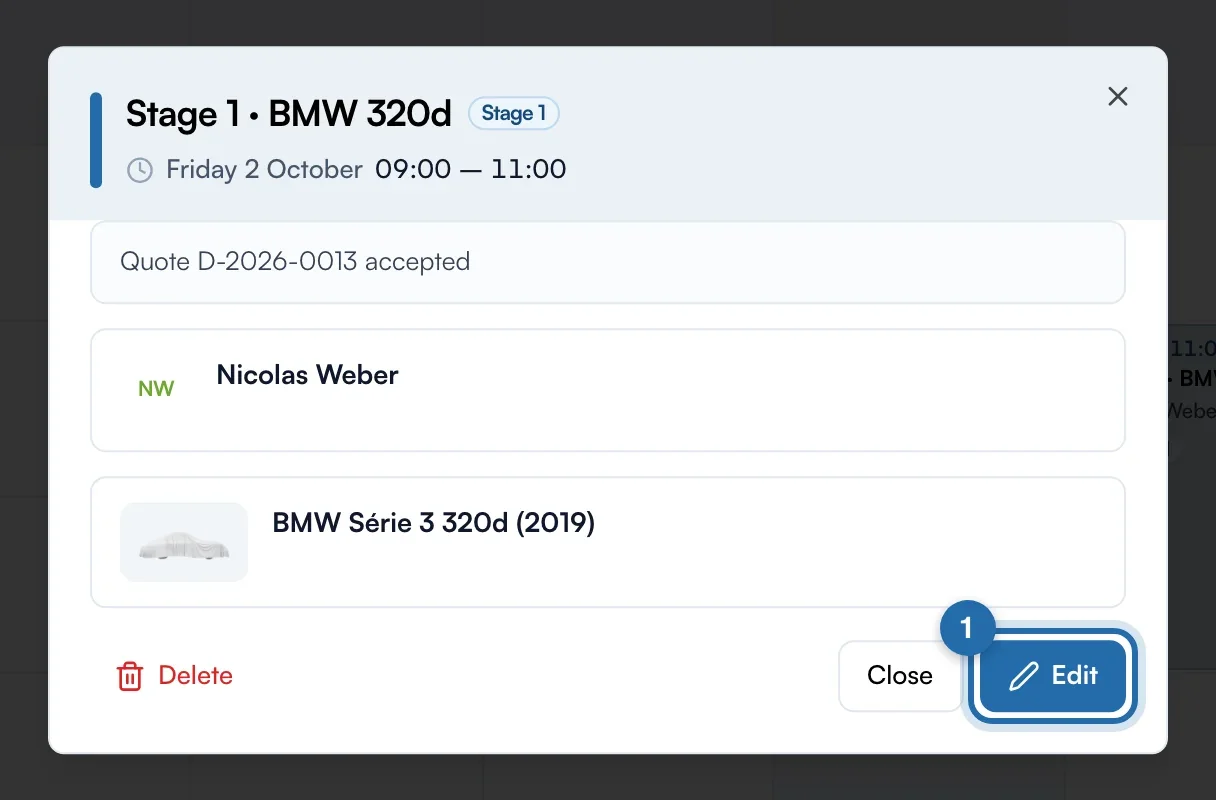
Click an appointment. The card shows the date, "Call", "WhatsApp" and "Email", the customer, the service, the deposit and the vehicle. At the bottom: "Delete", "Close" and "Edit".
See today and tomorrow
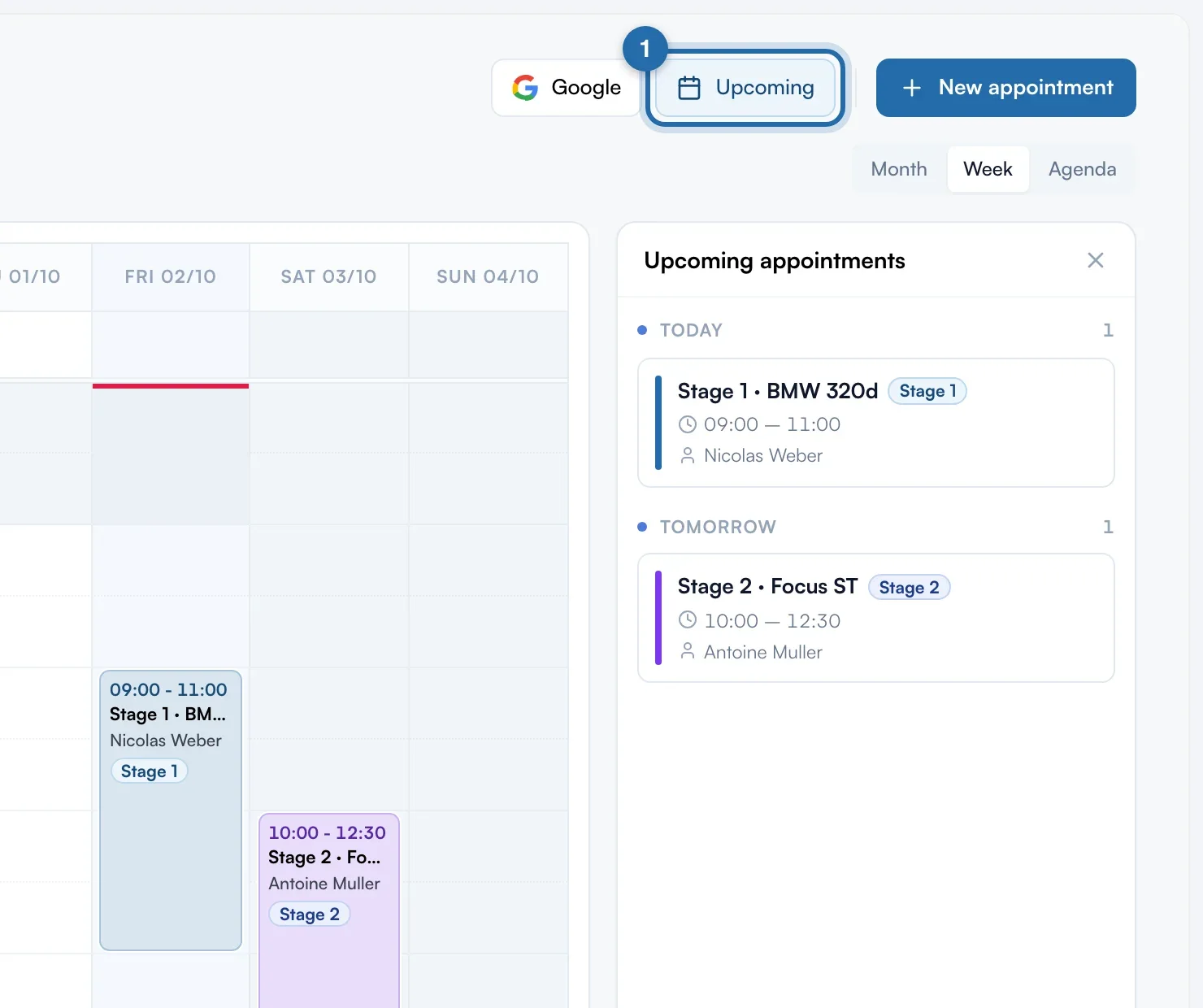
Click "Upcoming" at the top right: an "Upcoming appointments" panel lists the appointments for "Today" and "Tomorrow". The same button closes it.
Read the "Agenda" list
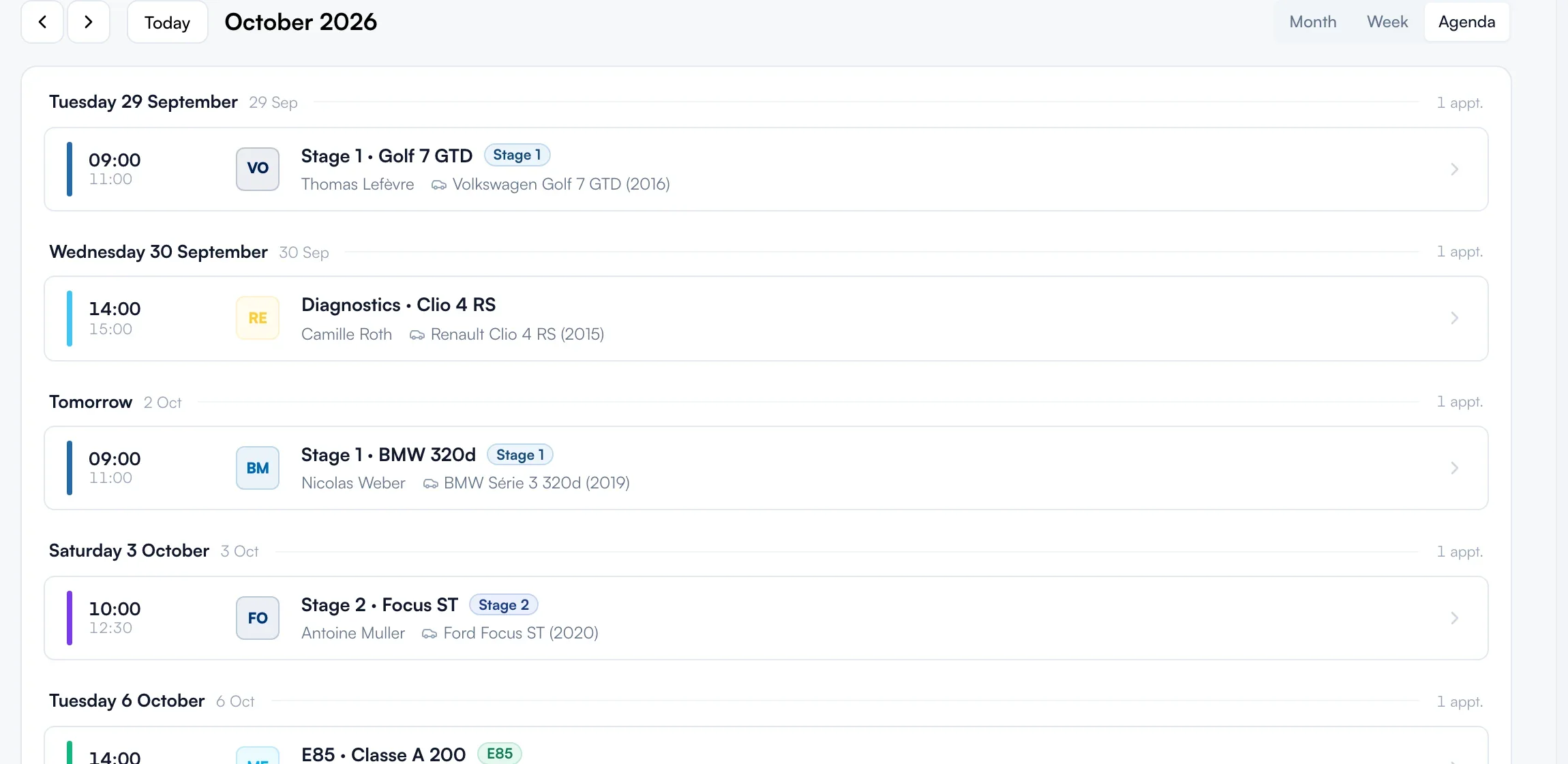
The "Agenda" view lists the appointments of the month shown, grouped by day, with the number of appointments each day.
Add or move an appointment
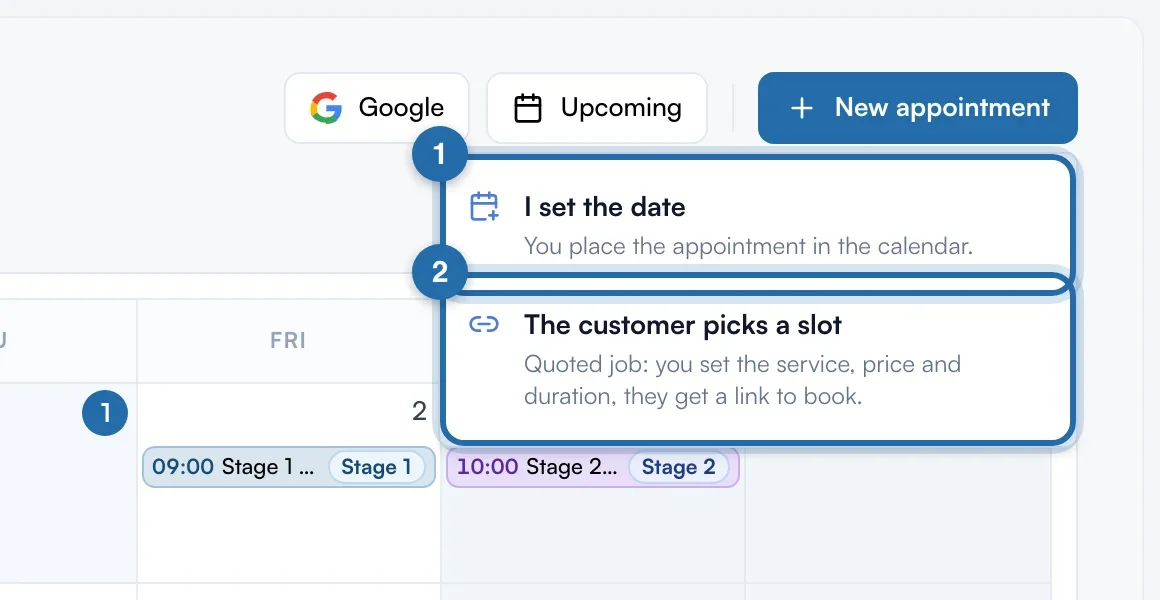
"New appointment" offers "I set the date" or "The customer picks a slot". Drag an appointment to move it. If it was booked online, choose "Move and notify" or "Move without notifying".
What your customer sees
With "Move and notify", the customer gets the new time by email.
If it doesn't work
- I can't move a dotted request.
- That is on purpose: open it with a click and accept it in "Requests". Once accepted, it becomes an appointment you can move.
- A day shows "+ 2" in month view.
- The month view shows 3 appointments per day. Click the link to see the others, or switch to "Week".