
Simulators
Add a vehicle and change its photo
Add a make, model or engine missing from the database, with your stages and prices, and use your own photo.
Open "Add a vehicle"
In "Vehicles and prices", click "Add a vehicle". The same button, "Add this vehicle", appears when a search finds nothing.

Step 1: the make
Type the make name. Click an existing make, or "New brand "…"" and choose its type (Car, Motorbike, Truck, Agricultural, Construction, Jet ski). Click "Continue".
Step 2: the model
Choose an existing model or type a name to create one, even if it already exists with another year. The "Release year" (4 digits) is required. Click "Continue".
Step 3: the engine and your prices
Enter the "Engine name", the "Fuel", the "Stock power" and the "Stock torque". For each level: "Power", "Torque" and "Your price" (empty = "On quote"). "Add:" offers the other levels. You can add a photo of the model. Click "Add the vehicle", or "Add and enter another engine" to continue on the same model.
Change a vehicle's photo
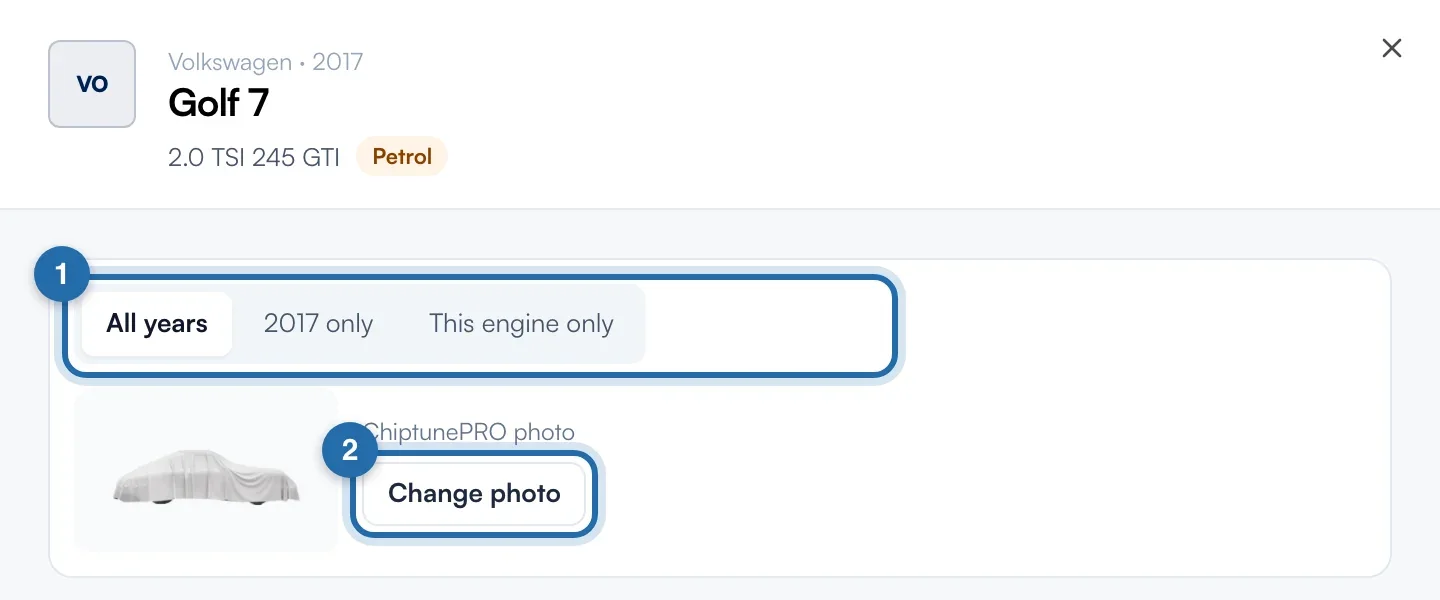
Open an engine in the list. At the top of the panel, choose the scope: "All years", "2017 only" (the model year) or "This engine only". Click "Change photo".
Frame and save
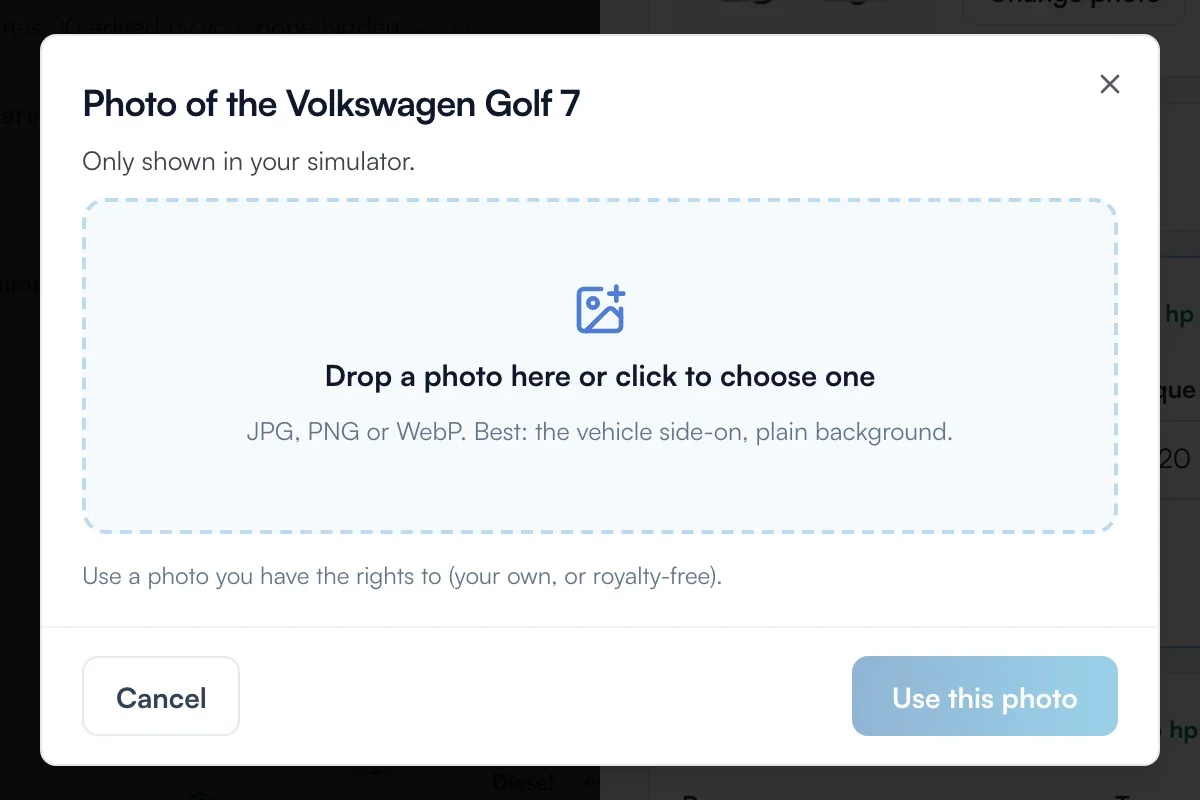
Drag a photo in or click to choose it: JPG, PNG or WebP, ideally the vehicle side-on against a plain background. Move the photo to frame it, set the "Zoom", then click "Use this photo". The message "Photo saved" confirms it.
What your customer sees
The added vehicle appears in your simulator with your stages and prices. Your photo replaces the ChiptunePRO photo in your simulator only.
If it doesn't work
- I want to go back to the original photo.
- Open the engine, choose the same scope and click "Back to the ChiptunePRO photo". On a year or engine photo, the link is called "Remove this photo" and brings back the broader photo.
- "Add the vehicle" stays greyed out.
- The engine name, stock power or stock torque is missing, or a level's power and torque.
- My photo has a white background around it.
- A cut-out photo (PNG or WebP with transparency) keeps its transparency. A JPG photo is placed on a white background.