
Simulators
Find and rename your added levels
One list groups all the levels you created on an engine, and the pencil changes their name in your simulator.
Before you start
- At least one level added on an engine with "Add a level" (for example "Stage 1 + DSG gearbox"). Without an added level, the badge does not appear.
Show your added levels
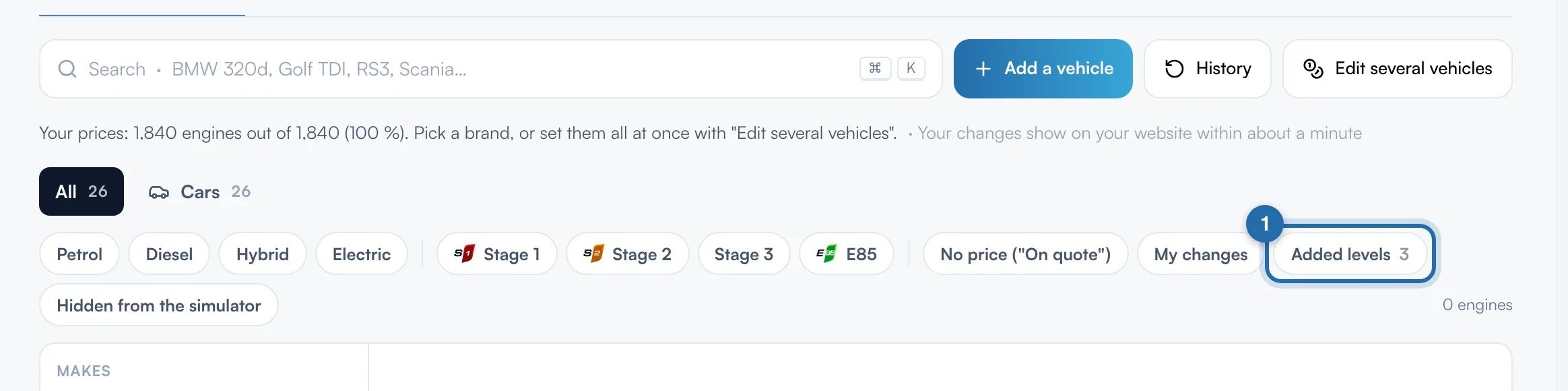
In "Simulators", "Power simulator", "Vehicles and prices" tab, click the "Added levels" badge in the filter row. The number next to it is how many levels you created.
Read the list
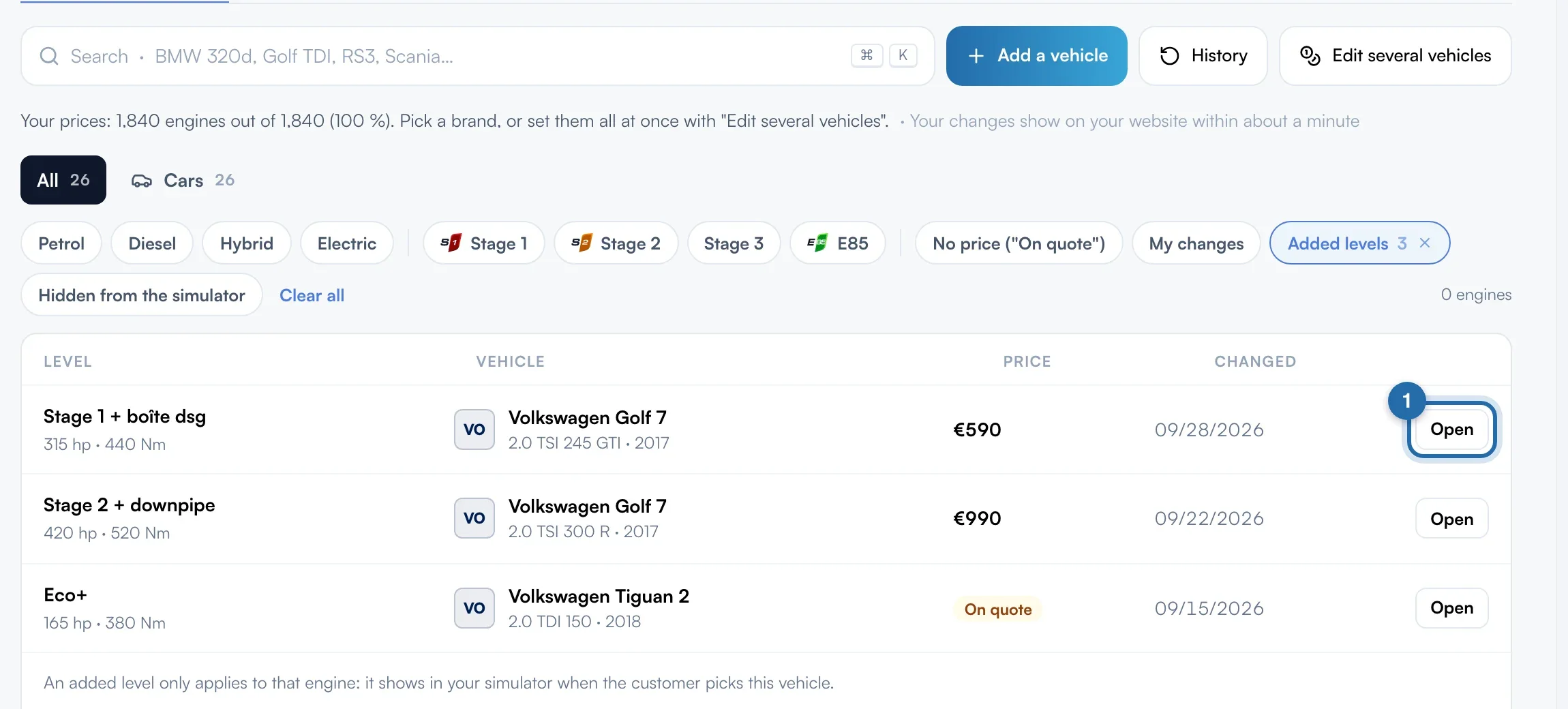
The list shows all your levels, across all makes: "Level" (with power and torque), "Vehicle", "Price" ("On quote" if there is none) and the "Changed" date. The search bar at the top filters by level, make, model, engine or year. Click "Open" to open the engine.
Find the pencil
The engine panel opens on the right. Your level has the "Added by you" badge. Click the pencil next to its name.
Rename
Type the new name, 2 to 50 characters, then click "Rename" (or press Enter). The change is saved straight away and the message "Level renamed "…"" confirms it. "Cancel" or Esc closes the field without changing anything.
Edit or remove the level
In the same block, change power, torque or "Your price", then click "Save" at the bottom of the panel. "Remove this level", in red, deletes the level after confirmation. The "Offered" switch hides it without losing its values.
What your customer sees
When the customer picks this engine in the simulator on your website, they see the level under its new name, with its figures and your price. An added level only appears on its own engine.
If it doesn't work
- I don't see a pencil on Stage 1.
- ChiptunePRO levels (Stage 1, Stage 2, Stage 3, E85) cannot be renamed. The pencil only exists on your added levels.
- The pencil has disappeared from my level.
- It is hidden while the block has an unsaved change, or when the level is "Not offered". Click "Save", or switch it back to "Offered".
- I want the same level on several engines.
- An added level applies to one engine only. Open each engine and click "Add a level".