
Putting the tools on my website
Put the ChiptuneMAP badge on my website
A small "Listed on ChiptuneMAP" badge on your website links to your listing and helps it rank in Google.
Before you start
- Your ChiptuneMAP listing published and visible: the badge block does not appear before that.
- Your website address in "My websites", for the check.
Open your listing
In the menu, click "ChiptuneMAP listing". Scroll down to the "Badge for your website" block, after "Customer reviews".
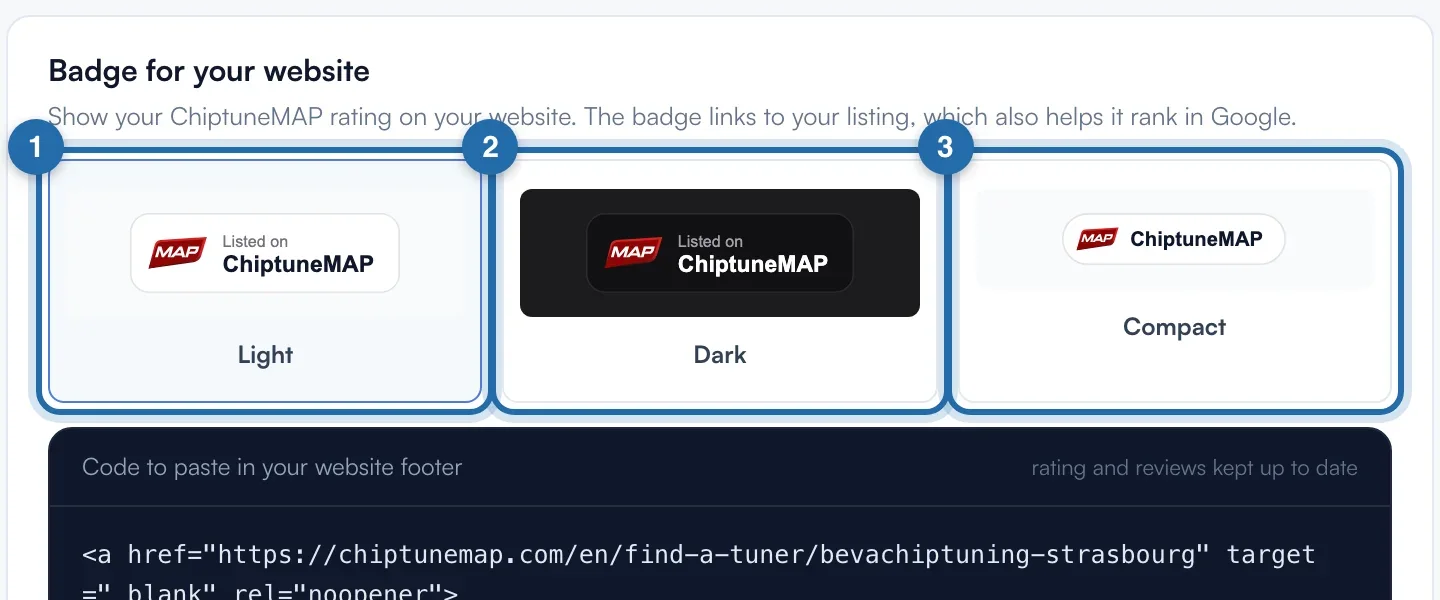
Choose the style
Click "Light", "Dark" or "Compact". The badge shows your ChiptuneMAP rating and updates by itself. Light and Dark are 52 px high, Compact 32 px.
Copy the code
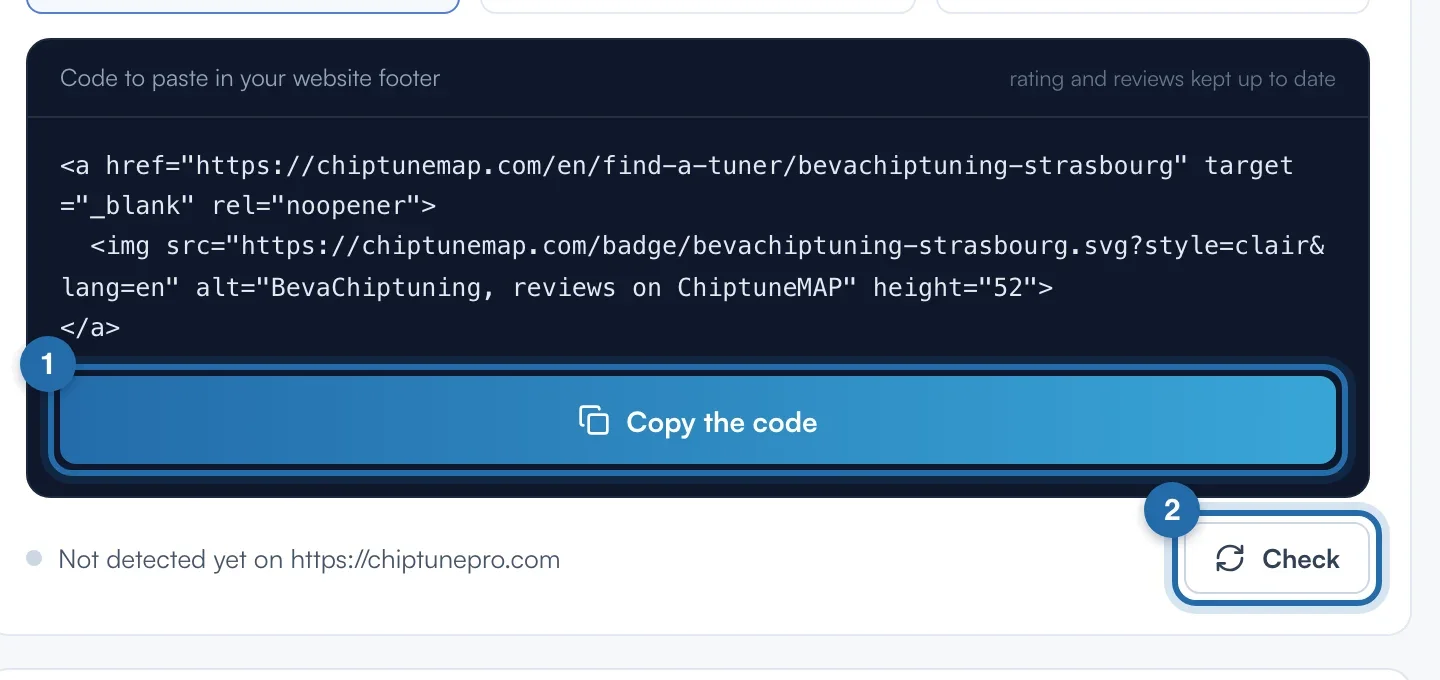
Click "Copy the code". The button shows "Copied, paste it on your website". The code is a link to your listing around the badge image, in your account language.
Paste it in the footer
Paste the code in your website's footer, so it is on every page, including the home page. WordPress: "Custom HTML" block in the footer. Other tools: "HTML" or "Code" block.
Check
Click "Check". ChiptunePRO looks for the badge on the home page of your declared website. The line changes to "Badge live on" your page, with the date. Otherwise it stays "Not detected yet on" your website.
What your customer sees
The visitor sees the badge with your rating. A click opens your ChiptuneMAP listing in a new tab, where they can ask you for a quote.
If it doesn't work
- I don't see the "Badge for your website" block.
- Your listing is not published yet or it is hidden. The block appears as soon as it is online.
- "Badge not found on your website's home page".
- The check only reads the home page. Put the badge in the footer, publish, then click "Check" again.
- "Badge no longer found on your website".
- It was seen and then disappeared, often after a theme change. Paste the code again.
- "Check already running".
- Wait a few seconds before trying again.