
ChiptuneMAP
Workshop photos, equipment, team and offers on my listing
Show your workshop, your equipment, your team and your current offer on your ChiptuneMAP listing.
Before you start
- A ChiptuneMAP listing published at least once: the "Workshop photos" and "Team" blocks only appear after that.
Add workshop photos
In Settings > My ChiptuneMAP listing, "Workshop photos" block, click "Add photos of your workshop" (afterwards, the "Add photos" button at the top of the block): up to 12 JPG, PNG or WebP photos of 8 MB max, several at once. They are saved straight away, without "Save".
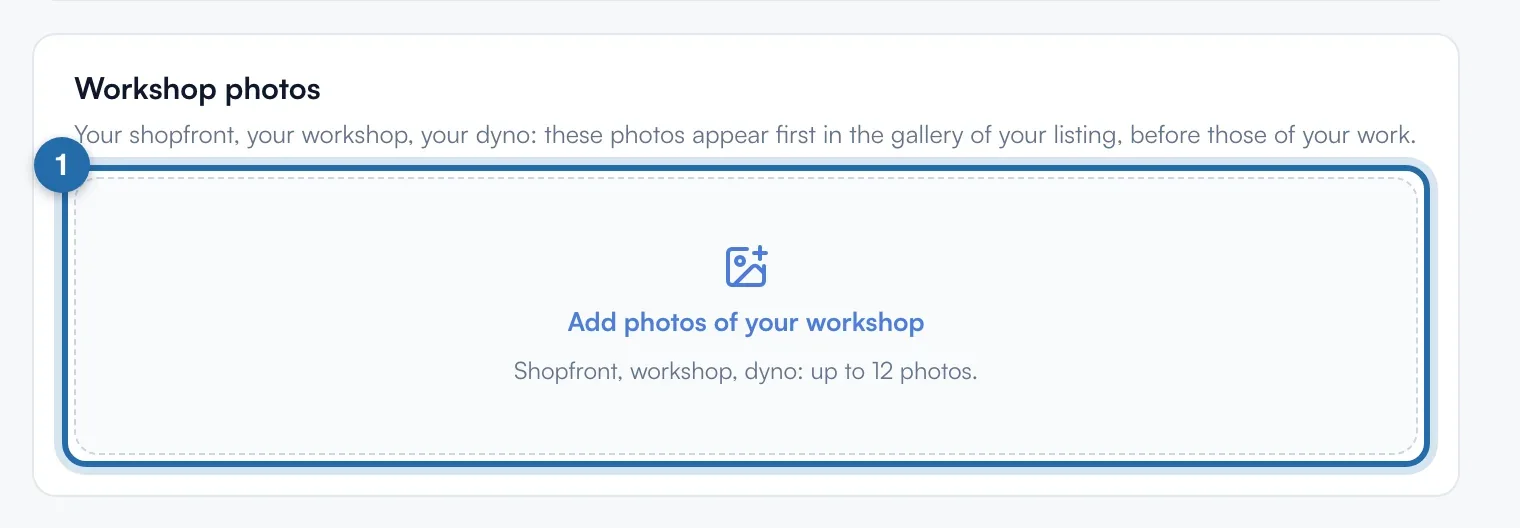
Order and captions
The first photo has the "Main photo" label. "Move earlier" and "Move later" change the order, the bin deletes. Under each photo, type a caption (e.g. Dyno): it saves when you leave the field.
Equipment and method
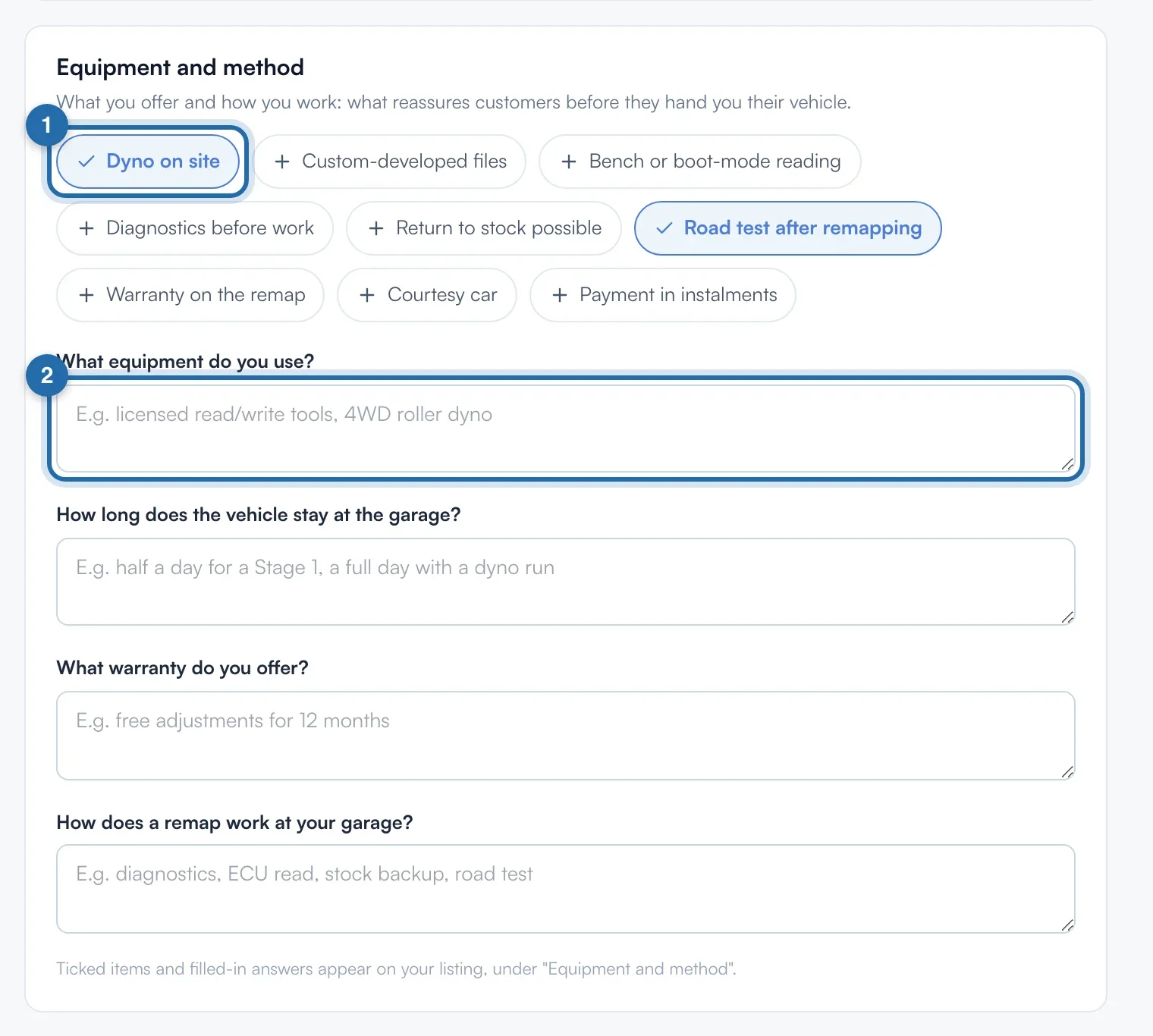
In "Equipment and method", click what you offer out of 9 choices ("Dyno on site", "Return to stock possible", "Courtesy car"…). Answer the 4 questions, 400 characters each. This block is saved with the "Save" button at the top of the page.
Introduce the team
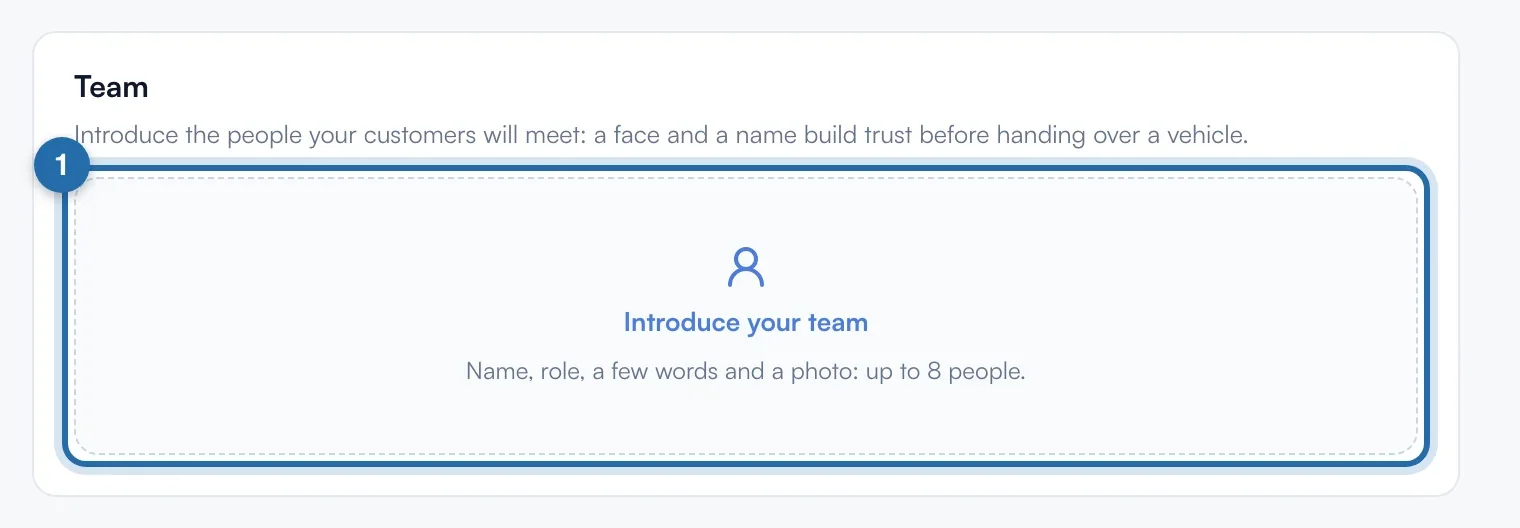
In "Team", click "Introduce your team". Once a person is saved, the button becomes "Add a person", at the top of the block. Up to 8 people.
A person's details
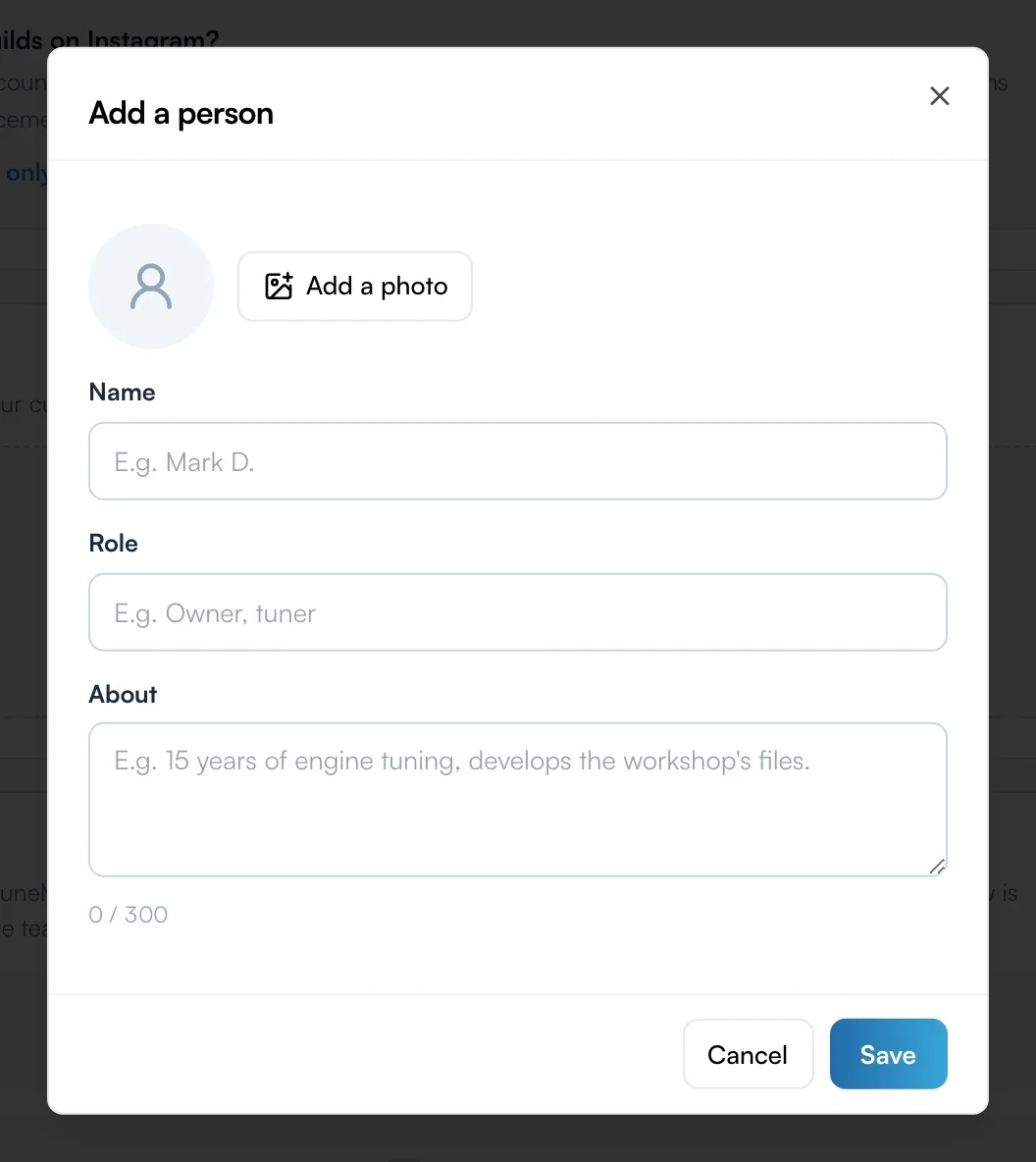
Fill in "Name" (required), "Role", "About" (300 characters) and "Add a photo" (JPG, PNG or WebP, 8 MB max). Click "Save": "Person added" confirms it. "Move up" and "Move down" change the order.
Show your current offer
Nothing to enter here: your running promo code or contest, created in the Offers menu (Pro plan), shows by itself on your listing under "Current offer", with a button to the offer page.
What your customer sees
Workshop photos open your listing's gallery, before your work, with their captions. Equipment and answers make up "Equipment and method", the team has its "Team" section. The offer shows "Promo code" or "Contest" and the "Get my code" or "Enter" button.
If it doesn't work
- "Up to 12 workshop photos".
- You have reached the limit. Delete a photo before adding another one.
- My equipment does not appear on the listing.
- This block needs the "Save" button at the top of the page, unlike photos and the team.
- "The person is saved, but not the photo".
- Open the person with the pencil and try again with another JPG, PNG or WebP file.