
Putting the tools on my website
Connect my AI (Claude, ChatGPT)
You connect Claude, ChatGPT or an automation tool to your account: the AI reads your data, prepares quotes, invoices, follow-ups and appointments, and you approve what goes out to your customers.
Before you start
- A Pro plan: Simple, Ultra or Lifetime.
- A Claude or ChatGPT account that accepts custom connectors (developer mode on ChatGPT).
Open "Connect your AI"
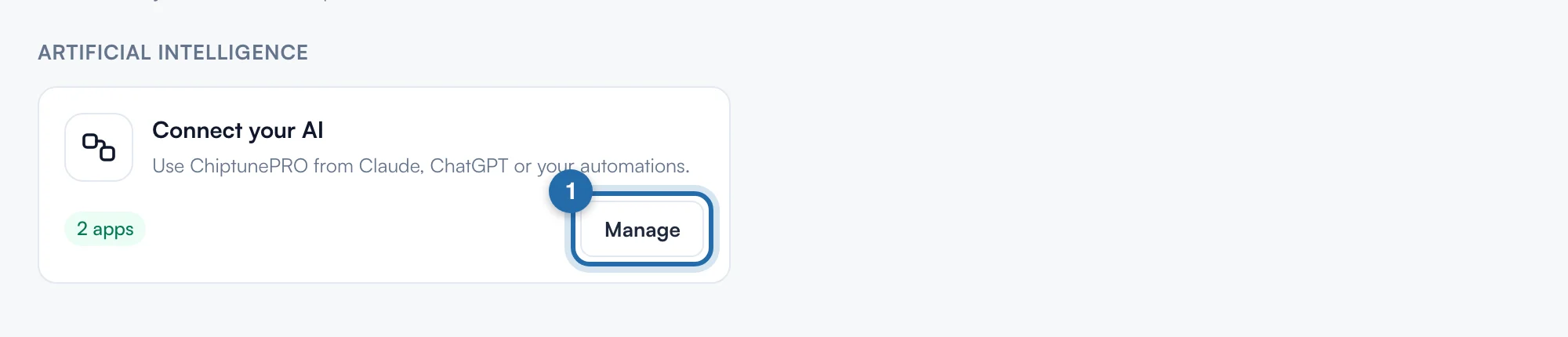
Click "Settings", then "Integrations". At the top, under "Artificial intelligence", the "Connect your AI" card shows how many apps are connected. Click "Configure" (or "Manage").
Copy the server address
Under "Server address", click "Copy". The same address works for every tool.

Add ChiptunePRO to your AI
Claude: "Settings › Connectors › Add custom connector", paste the address, then "Connect". ChatGPT: "Settings › Apps & Connectors › Advanced settings", turn on developer mode, then create a connector with the address (OAuth authentication). Claude Code, n8n, Make, Cursor: add an "HTTP" MCP server with the address. Menu names may vary with the version.
Choose the permissions
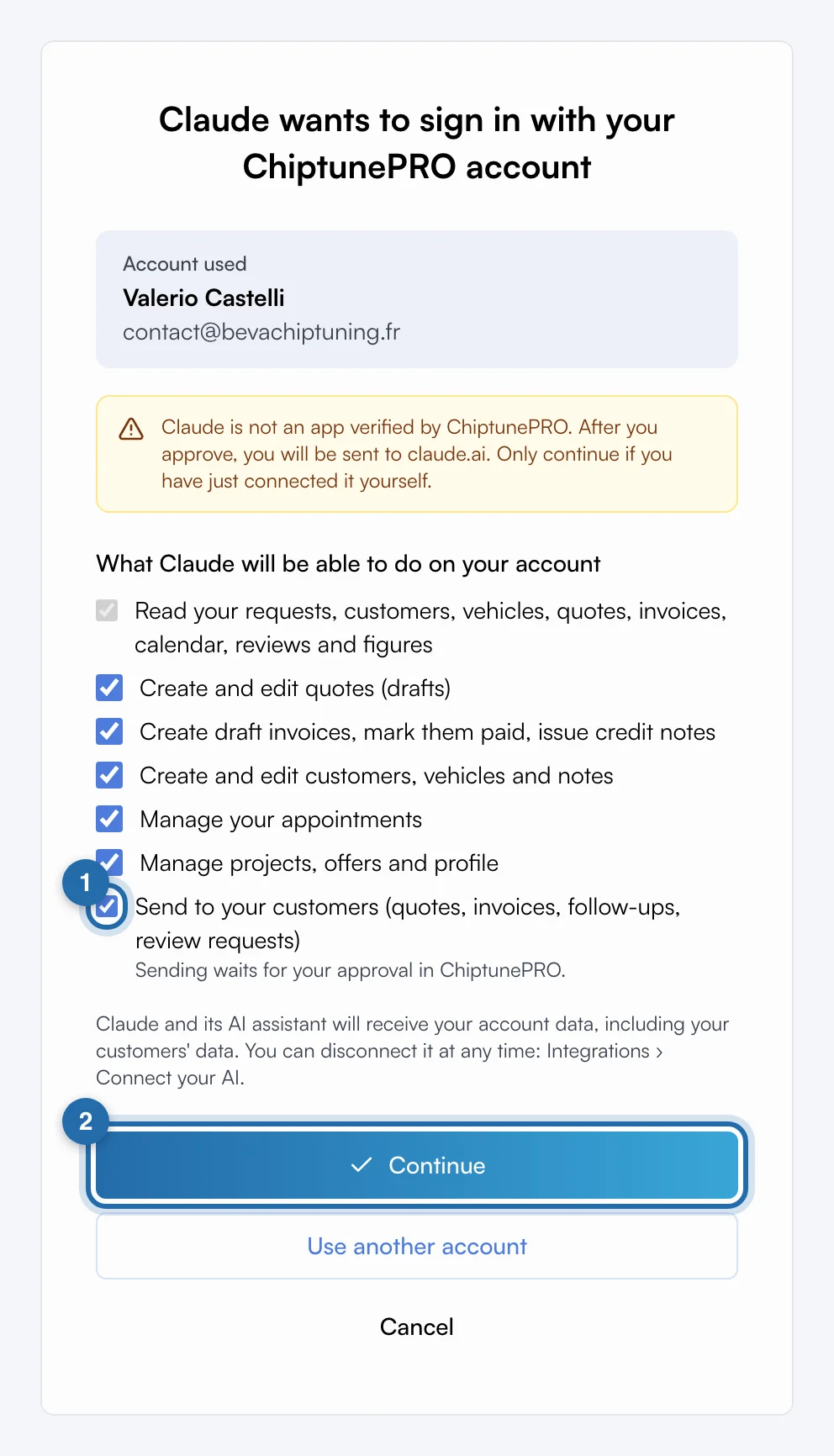
Your AI sends you back to ChiptunePRO. Log in if needed, tick what the app may do (read is always ticked) and click "Continue". If the app is not recognised by ChiptunePRO, an orange box shows which site you will be sent to: only continue if you have just connected it yourself.
Ask your questions
E.g. "Prepare the quote for Julien's request", "Follow up quotes sent more than 7 days ago", "Invoice yesterday's appointment", "Record this supplier invoice", "How much did I make this month?". The "Daily recap", "Monthly report" and "Quotes to follow up" shortcuts appear in your AI's menu.
Approve what the AI prepares
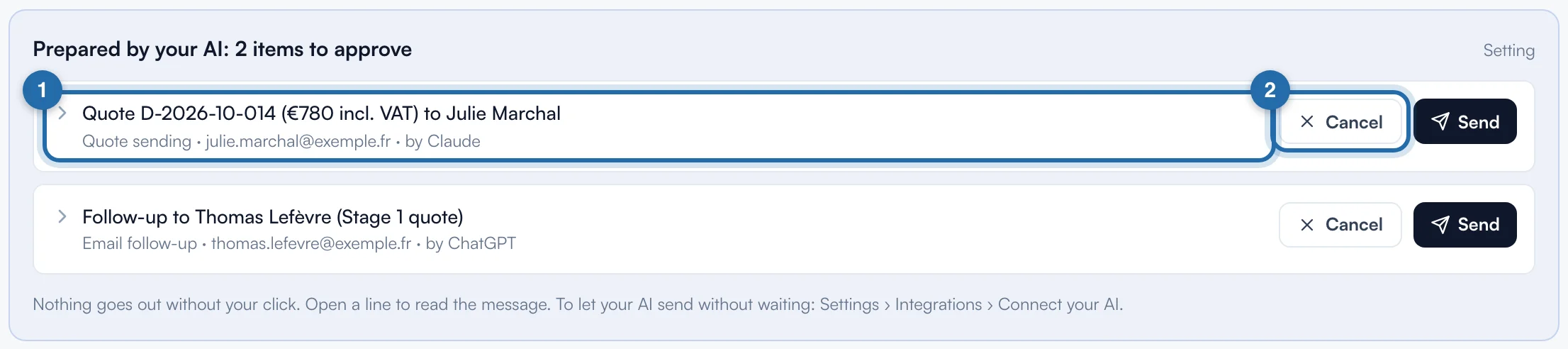
Items prepared by the AI (quotes, invoices, follow-ups, review requests, review replies, accepted appointments) appear in "Prepared by your AI" at the top of the dashboard "Overview". Open a line to read the message, then "Send" or "Cancel". Without a click, the item is dropped after 7 days.
Let the AI send on its own
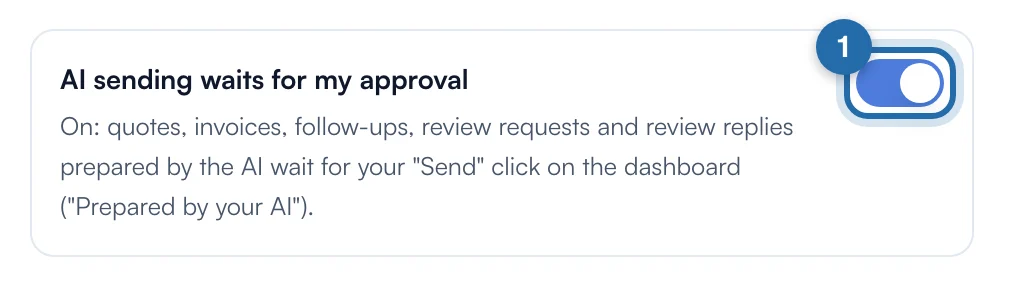
In "Connect your AI", untick "AI sending waits for my approval": what the AI sends then goes out immediately. Tick it again at any time to take back control.
Monitor and disconnect
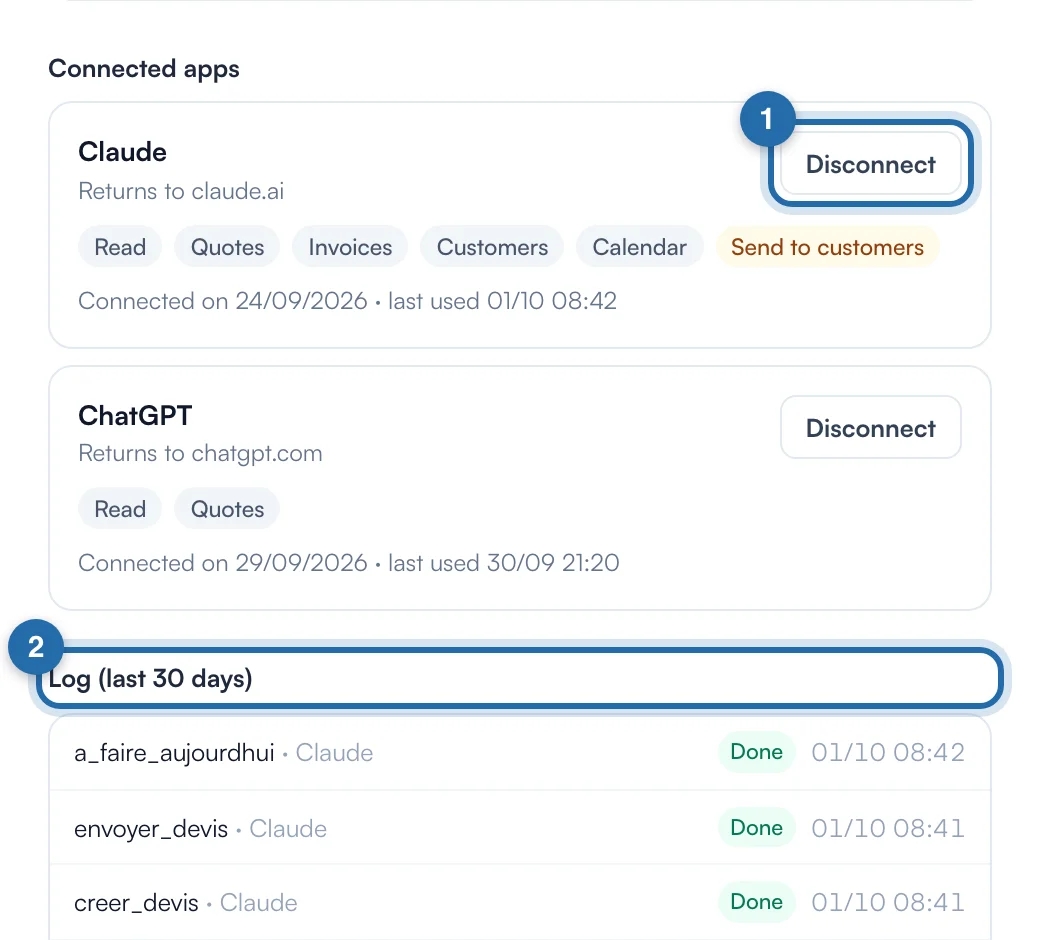
In "Connect your AI", "Connected apps" lists each app with its permissions and last use; "Disconnect" removes its access. The "Log (last 30 days)" shows every AI action.
What your customer sees
Your customers see nothing. Nothing is sent to them without your approval.
If it doesn't work
- My customer received nothing.
- Check "Prepared by your AI" on the dashboard: the item is probably waiting for your "Send" click.
- Can the AI delete an invoice?
- Only a draft quote or invoice that was never sent. An issued invoice is cancelled with a credit note, as in the app.
- Connecting shows "Pro plans only".
- Connect your AI is included in the Simple, Ultra and Lifetime plans. Change plan in "Settings › Subscription", then connect again from your AI.
- The AI says a permission is missing.
- Disconnect the app in "Connect your AI", then reconnect it from your AI and tick the permission you need.
- The AI cannot see a request's contact details.
- It is a locked request: it stays hidden from the AI, as in the app, until you unlock it.
- Does my data go to the AI?
- Yes: the connected app and its AI provider receive the data it reads from your account, including your customers' data. Disconnect it at any time.