
Putting the tools on my website
Measure my ads (Meta Pixel, Google)
You link your Meta pixel and your Google tag to count the requests and appointments that come from your ads.
Before you start
- Your Meta pixel ID (Events Manager) or your Google tag ID (G-… or AW-…).
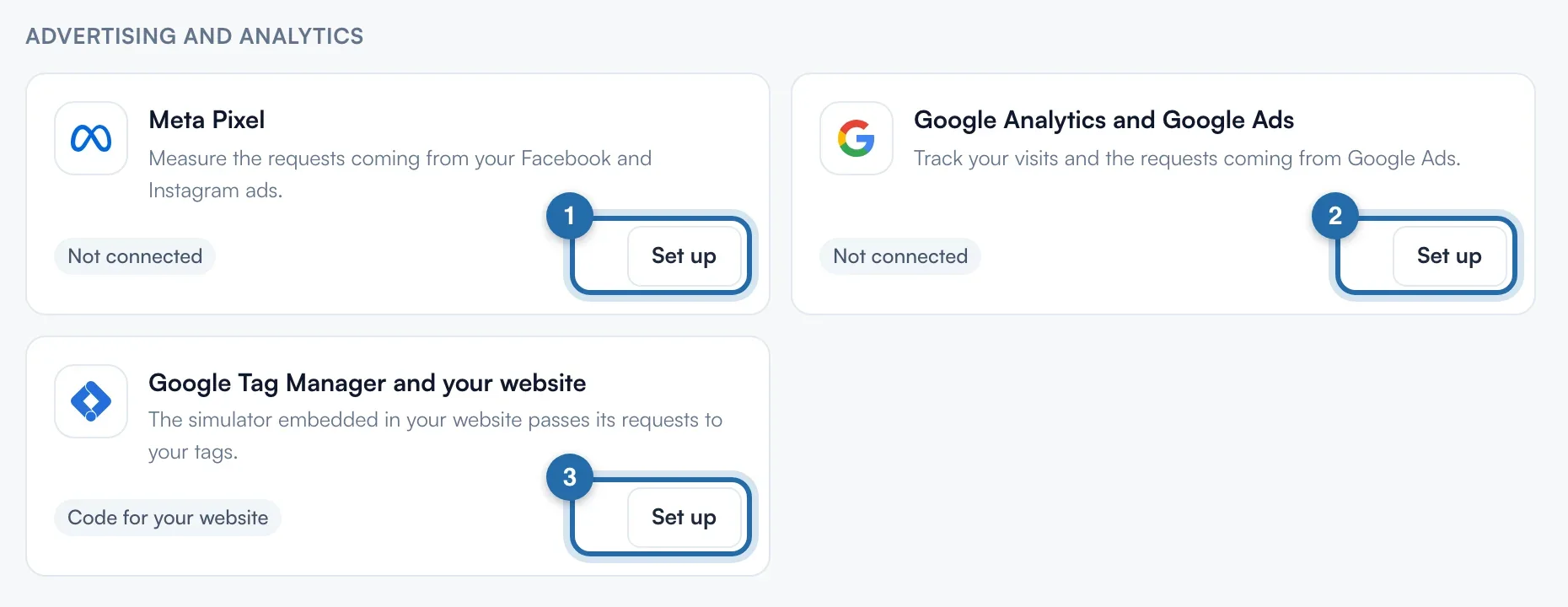
Open integrations
Click "Settings", then "Integrations". The "Advertising and analytics" section has 3 cards: "Meta Pixel", "Google Analytics and Google Ads", "Google Tag Manager and your website". Click "Set up".
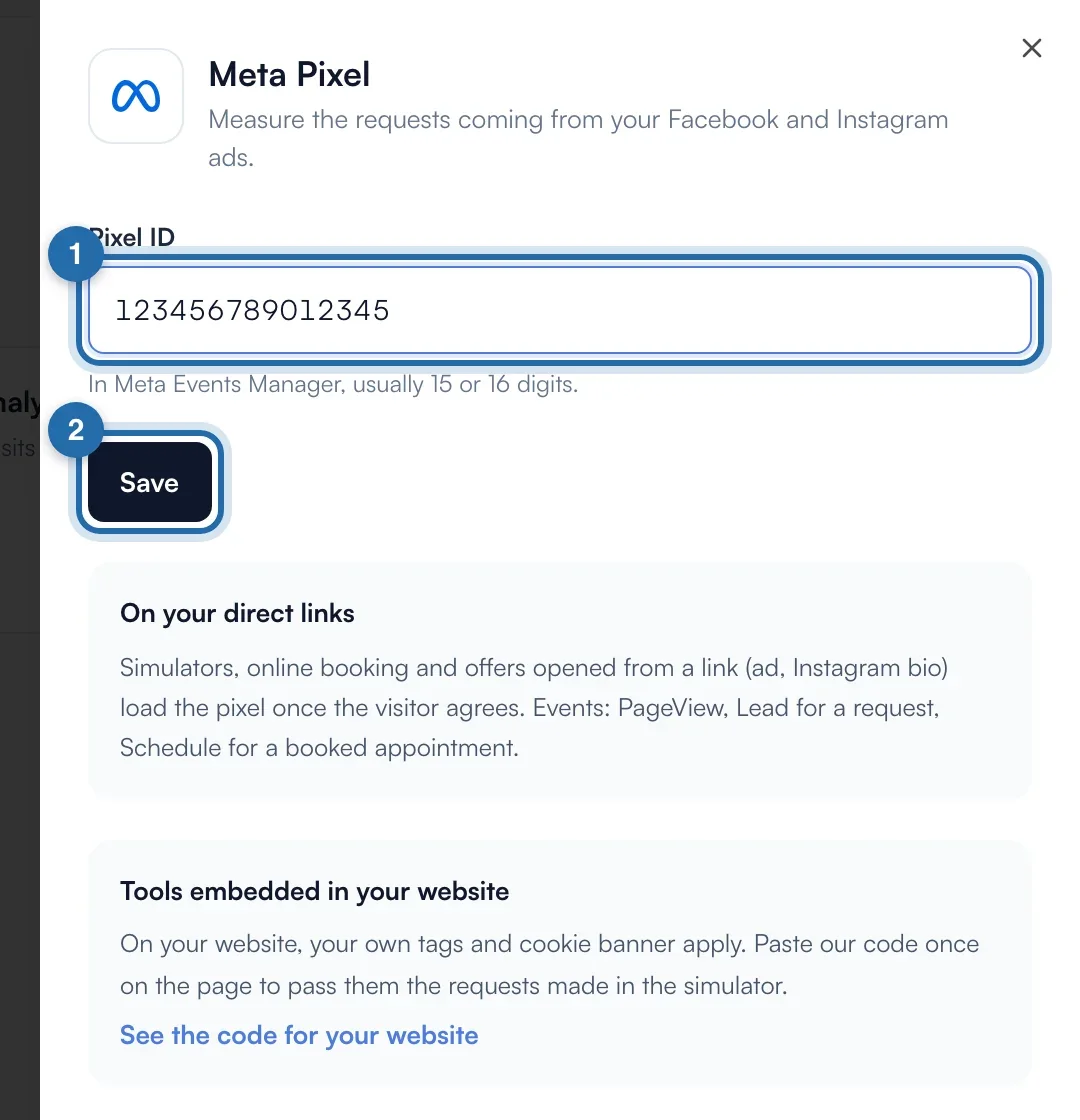
Paste the Meta pixel ID
In "Pixel ID", paste the number (10 to 20 digits, usually 15 or 16), then click "Save". The card changes to "Connected". "Remove" deletes it.
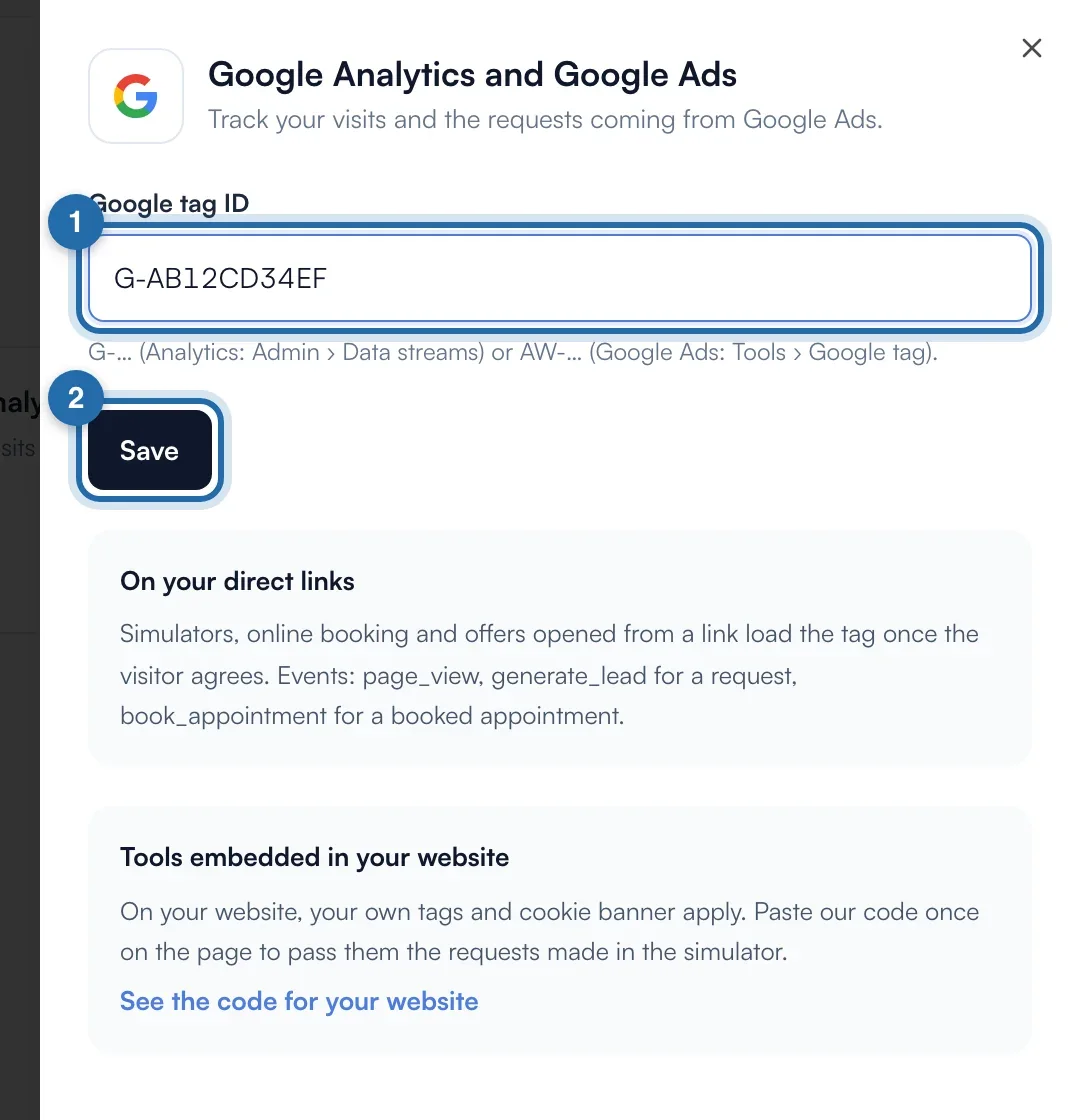
Paste the Google tag
In "Google tag ID", paste the ID starting with G- (Analytics), AW- (Google Ads) or GT-, then "Save".
What is measured on your direct links
Simulators, online booking and offers opened from a link (ad, Instagram bio) load your tags once the visitor agrees. Meta receives PageView, Lead for a request and Schedule for a booked appointment. Google receives page_view, generate_lead and book_appointment.
Tools embedded in your website
On your website, your own tags and cookie banner apply. Open "Google Tag Manager and your website", click "Copy code" and paste it on each page that contains a ChiptunePRO tool, after your pixel, your tag or Google Tag Manager. In Google Tag Manager, the events are called chiptune_lead and chiptune_schedule.
What your customer sees
The visitor sees nothing extra. On a direct link, your tags only load after they agree.
If it doesn't work
- The ID is rejected.
- Meta: digits only, 10 to 20. Google: it must start with G-, AW- or GT-. Spaces are removed automatically.
- No request shows in Meta for my website.
- The pixel set here only applies to direct links. For the simulator embedded in your website, paste the "Google Tag Manager and your website" code on the page, after your pixel.
- Where do I find these settings from the simulator?
- The "Integration" tab has a "Measure your Facebook, Instagram and Google ads" card with the "Open integrations" link.