
Simulators
Add a note for my customers on a service
A short note under a level's figures (Stage 1, E85…) informs the customer before they book.
Before you start
- The level must be offered on the engine ("Offered" switch on).
Open the engine
In "Power simulator", "Vehicles and prices" tab, choose the make then click the engine row. Under each level's power, torque and price, click "Add a note for your customers".
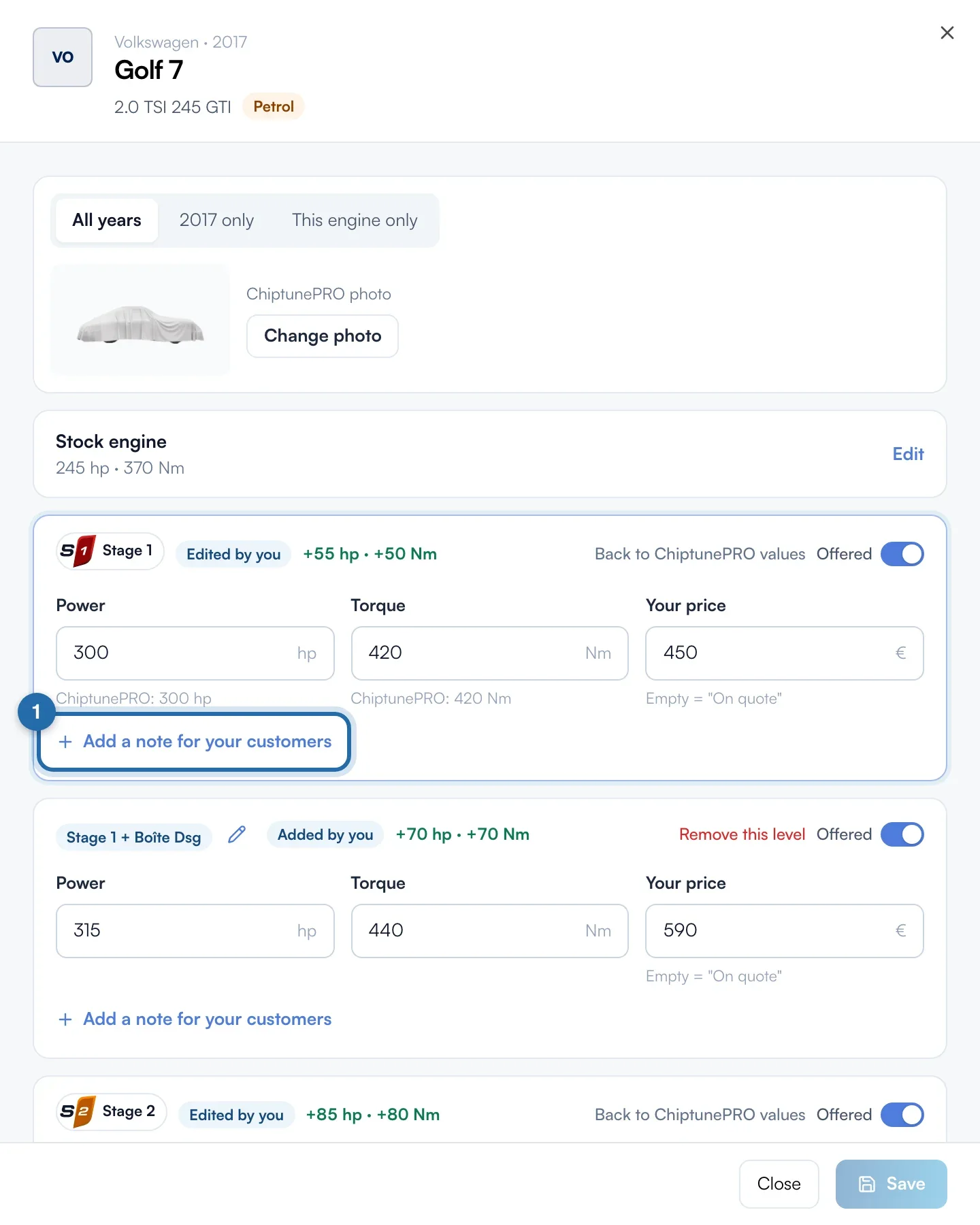
Write the note
Type your text in "Note for your customers" (1): 200 characters at most, on one line, with a counter. The suggestions (2) add a sentence in one click: "Diagnostic included", "Back to stock", "By appointment", "Half a day".
Choose the scope
In "Applies to", "This engine" applies to this engine only. "All my Stage 1" (depending on the level) applies to all your vehicles, except those with their own note. Write a note for all your Stage 1, then override it on one engine with "This engine".
Save
Click "Save" at the bottom of the panel. The "Note saved" message confirms it. Until then, the bottom of the panel shows "Not saved".
Remove a note
Click "Remove", to the right of "Note for your customers", then "Save".
What your customer sees
In the simulator on your website, under the chosen level's figures, the customer sees the "A word from the garage" box with your garage's name and your note.
If it doesn't work
- The "Add a note for your customers" link does not appear.
- The level is "Not offered" on this engine. Turn on "Offered" to be able to add the note.
- My note for all my Stage 1 does not appear on one engine.
- This engine has its own note, which comes first. Open it to change or remove it.
- I can't start a new line.
- The note fits on one line: a line break becomes a space.