
Calendar
Link Google Calendar
Connect your Google account to see your Google events in the Calendar and keep both calendars in sync.
Before you start
- Pro plan. The Calendar stays free for everyone, only the sync with Google needs the subscription.
- A Google account with Google Calendar.
Open the Google window
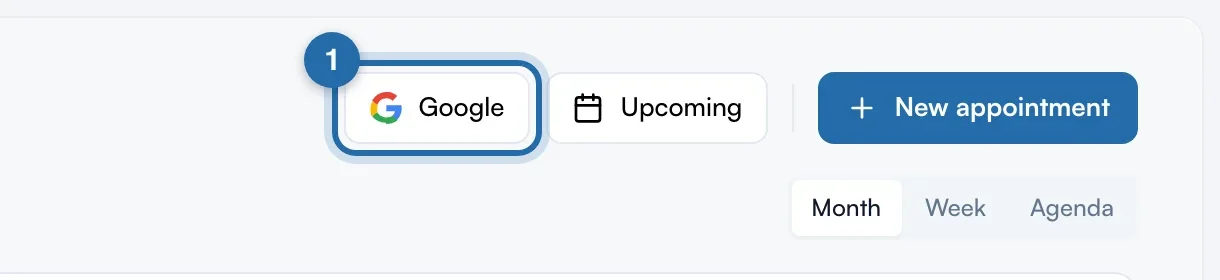
In "Calendar", click "Google" at the top right. The "Google Calendar" window shows the "Connection": "Connected" or "Not connected".
Connect to Google
Click "Connect to Google Calendar". Google asks you to choose your account and allow access to your calendar, then brings you back to ChiptunePRO. Without the Pro plan, the window shows "See plans" instead.
Turn on automatic sync
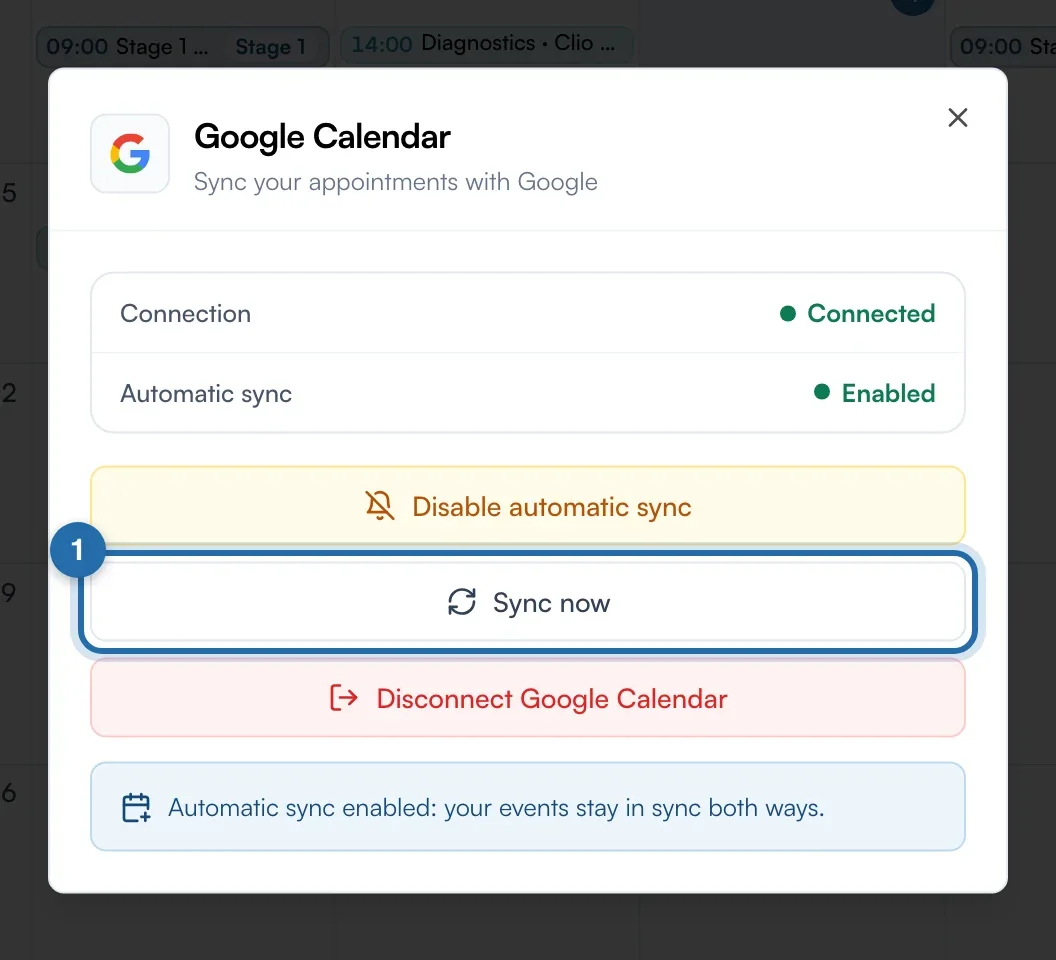
Once connected, click "Enable automatic sync". The "Automatic sync" line switches to "Enabled": your events stay in sync both ways. To stop it, click "Disable automatic sync".
Sync on demand
"Sync now" imports Google events straight away. A message gives the number of events synced and the Calendar reloads.
Spot Google events
Events coming from Google show in green in the Calendar. Their card has the "Google" mention next to the title.
Disconnect Google
In the same window, click "Disconnect Google Calendar". The connection and automatic sync stop.
What your customer sees
Nothing changes for your customers. An appointment booked online arrives in your Calendar, and in Google Calendar if it is linked, with the service and the customer's name in the title.
If it doesn't work
- The window shows "See plans".
- Your account does not have the Pro plan. The message reminds you that sync is included in the subscription and that the calendar stays free.
- A Google event does not appear.
- Click "Google" then "Sync now". Also check that the period shown contains the event.
- The message "Error connecting to Google" shows.
- Click "Connect to Google Calendar" again and accept all the permissions Google asks for.