
Account and subscription
Network option: several centres (Settings > Network)
Link your centres and let your simulator send each request to the right centre.
Before you start
- A Visibility, Pro or lifetime plan.
- Each centre has its own ChiptunePRO account.
Open Network
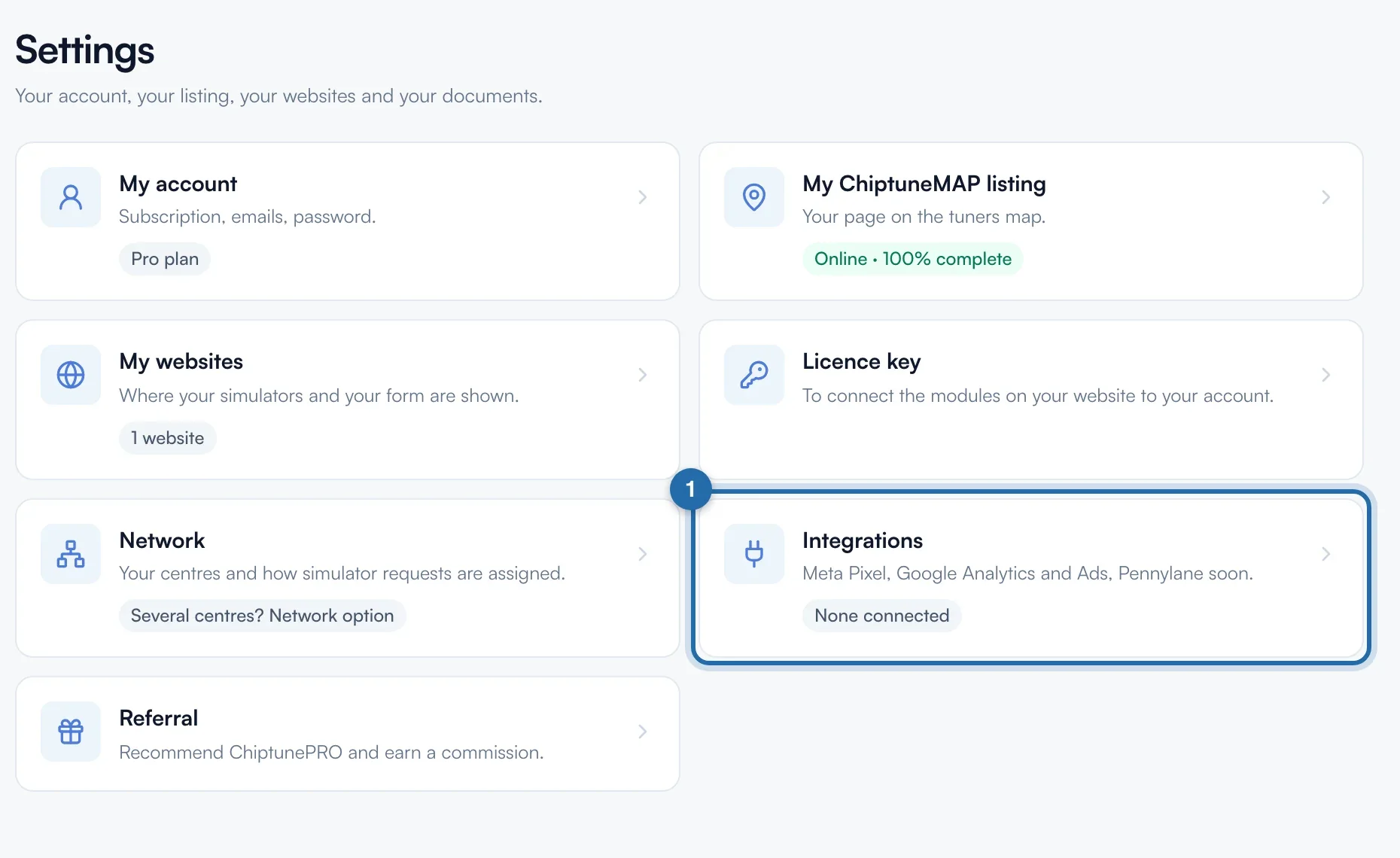
Click "Settings", then the "Network" card. The same option is also in "My account", "Subscription" card, "Network option" row.
Create your network
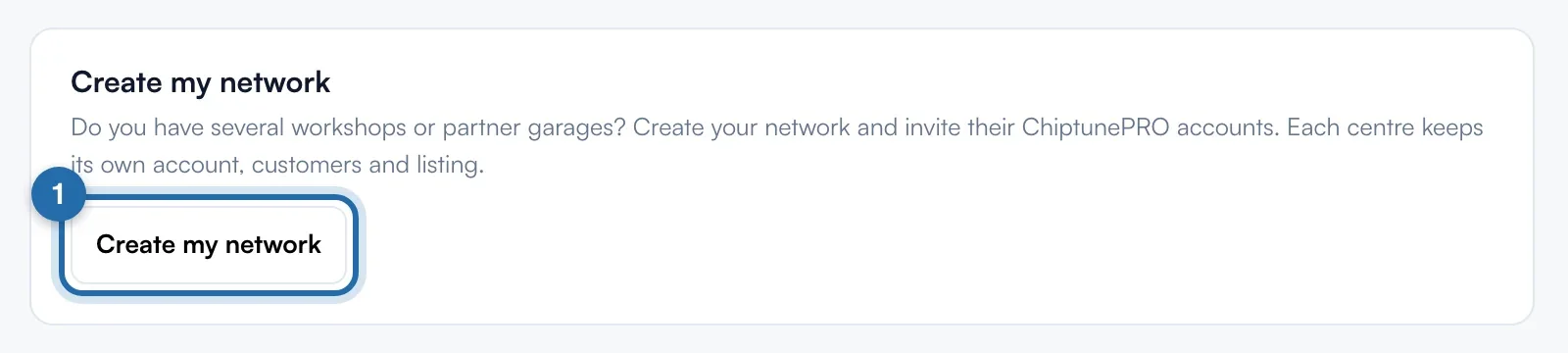
In "Create my network", click "Create my network". It is included in all plans. The message "Network created: invite your centres" shows.
Invite your centres
In "Add a centre", enter the "Centre account email" and a "Display name (city)", then click "Invite". The centre appears with "Invitation sent", then "Active" when it accepts in its own Settings > Network.
Activate the option
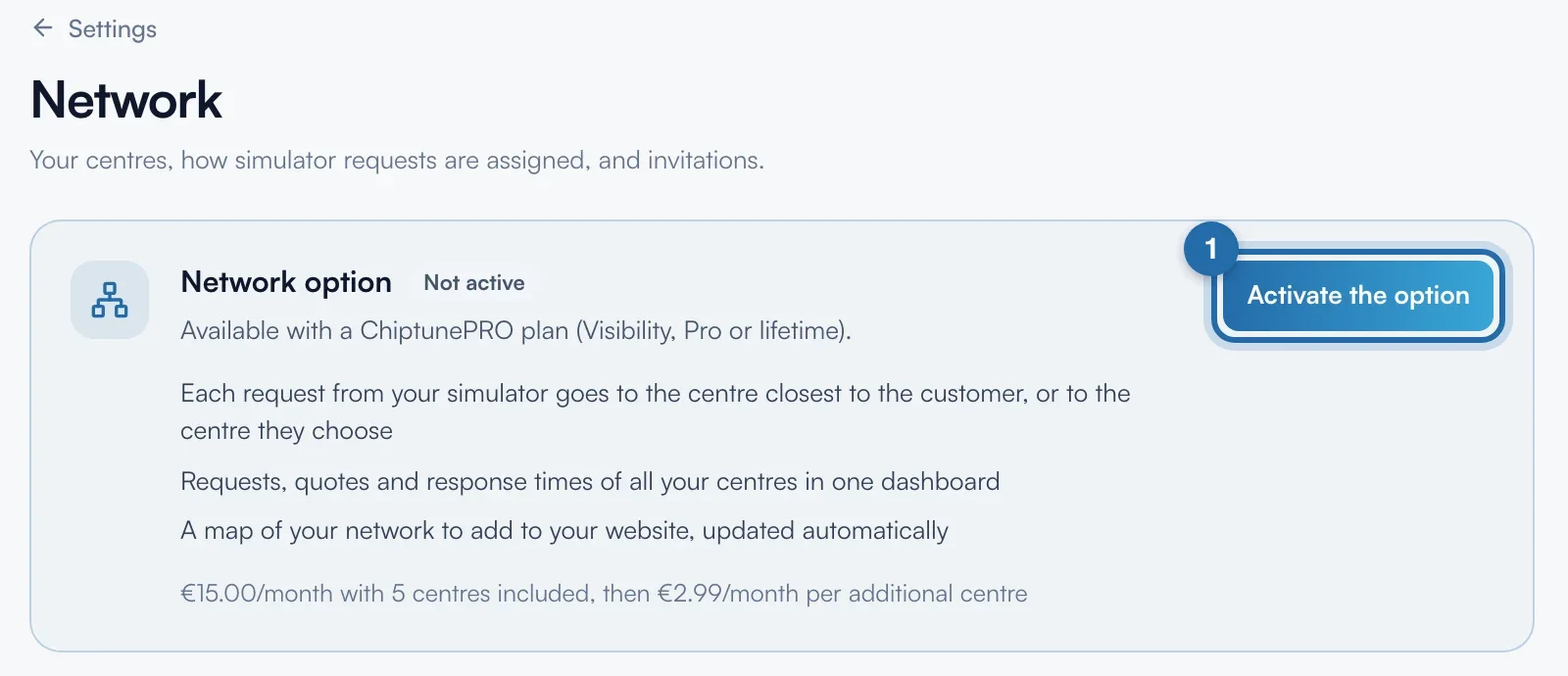
At the top of the page, click "Activate the option". Price: €15.00/month with 5 centres included, then €2.99/month per extra centre (6 centres: €17.99). Payment is by card on Stripe, then you come back to the page with "Network option activated".
Without a plan
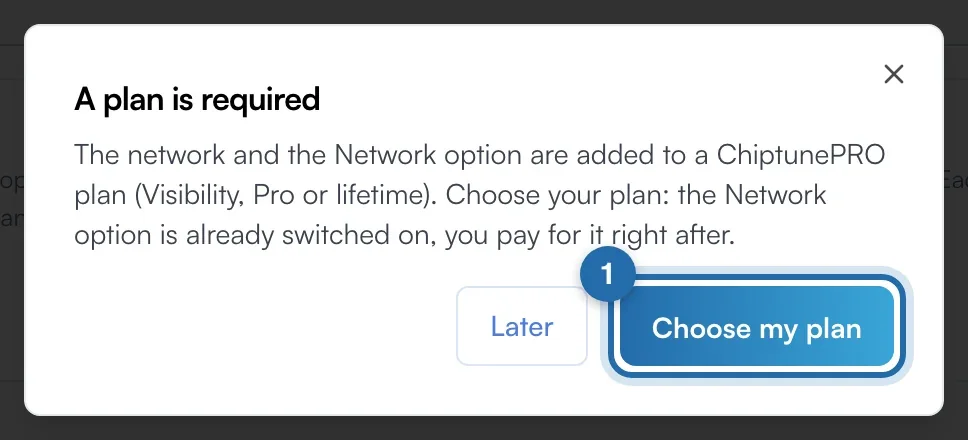
If your account has no plan, "Activate the option" opens the "A plan is required" window. Click "Choose my plan": the plans page opens with the Network option already ticked, paid right after the plan. "Later" closes the window.
Choose who receives requests
In "Who receives a request from the network simulator?", tick "The centre closest to the customer" (based on their postcode), "The customer picks their centre" or "Always the main centre". The choice is saved on click.
Follow the network
Click "Open the network view": requests received, pending requests, response time and accepted quotes for each centre. A pending request can be sent to another centre with "Reassign to".
What your customer sees
On the simulator on your main website, the request goes to the closest centre, or the customer picks their centre with the distances. A centre's website and ChiptuneMAP listing always send to that centre.
If it doesn't work
- A centre has a crossed-out pin icon.
- Its listing address needs completing: it does not receive "closest centre" requests.
- How do I stop the option?
- Click "Stop", then "Stop at the end of the period". The option stays active until the date already paid, "Keep the option" cancels the stop. Your centres keep their accounts.
- I invite a 6th centre.
- A confirmation shows the new amount: €2.99/month more per centre beyond 5, prorated.