
Account and subscription
Manage several garages on one device
Switch from one garage to another without logging in again.
Before you start
- One ChiptunePRO account per garage, with its own email and password.
Add a garage
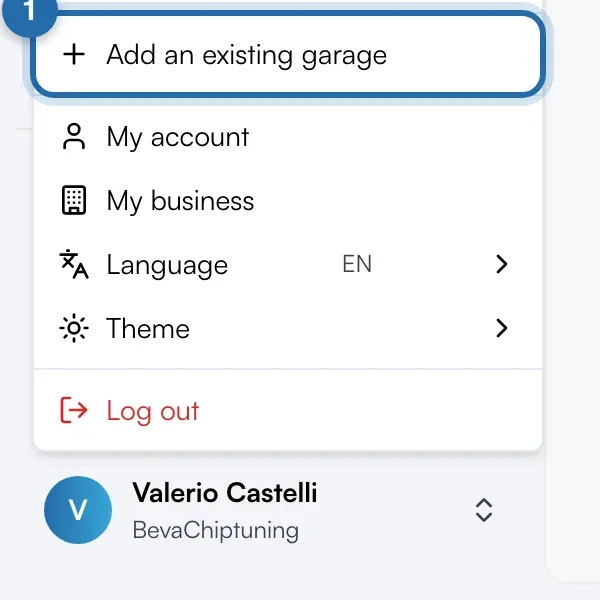
At the bottom left, click your name to open the account menu, then "Add an existing garage". The login page opens: log in with the other garage's email and password. The first one stays saved.
Switch between garages
Open the account menu again: your other garages are listed under "Your garages". Click one to open it. Up to 8 garages per device.
See the other garages' requests
A red dot on your photo flags new requests in another garage. In the menu, a badge next to the garage gives their number. The count updates every 5 minutes and when you come back to the tab.
Remove a garage from the device
Click "Manage garages", then "Remove" next to the garage. Its account is not deleted: you only need to log in again to get it back.
Log out of one garage only
"Log out of" followed by the garage name only closes the open garage. The device switches to the next garage in the list.
If it doesn't work
- I don't see "Manage garages".
- The link appears once 2 garages are saved on the device.
- My garages have disappeared on another computer.
- The list is specific to each device and browser. Add them again with "Add an existing garage".
- I want my centres to receive requests from my simulator.
- That is the Network option, in Settings > Network.