
Account and subscription
My ChiptunePRO invoices, my card and my company name
Download your subscription invoices, change your card and the name printed on the invoices.
Before you start
- A subscription paid by card. Without a Stripe payment, the "Billed to" block does not appear.
Open My invoices
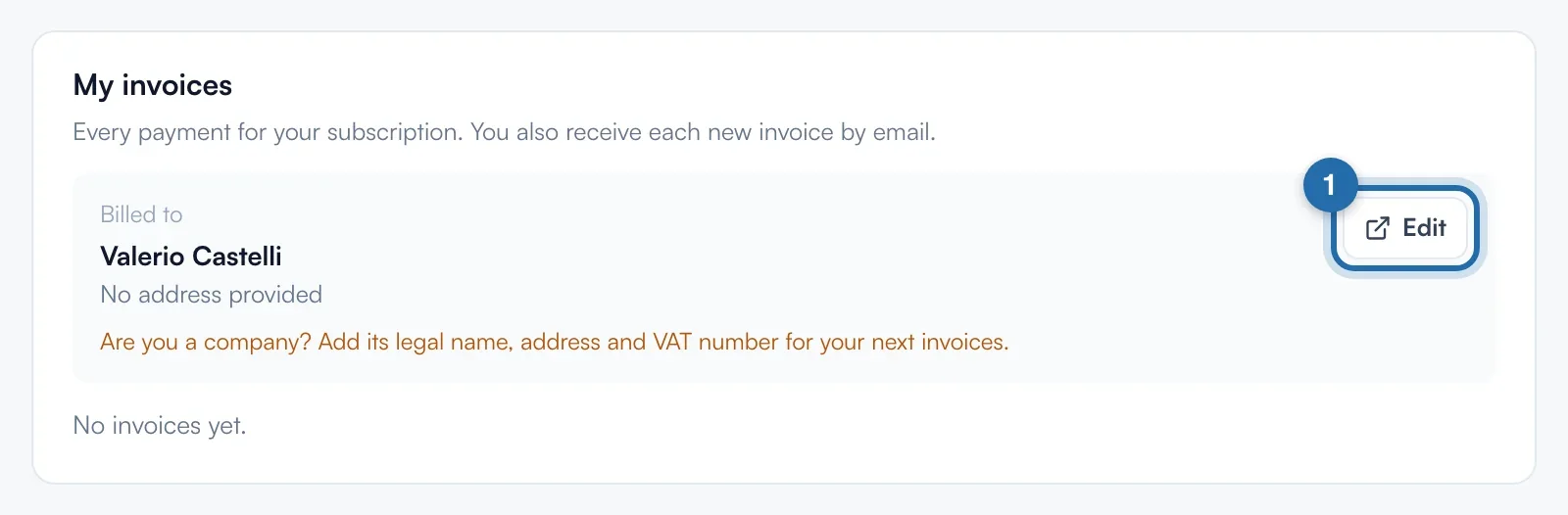
Go to "Settings" > "My account", "My invoices" card, below "Subscription". Each payment is listed with its date, number and amount. The 12 most recent show, "See … more invoices" shows the rest.
Download an invoice
Click "PDF" at the end of the row: the invoice opens in a new tab. An invoice marked "To pay" has a "Pay" button instead, which opens the Stripe payment page. "Unpaid" means a final failure.
Put the invoice in your company's name
The "Billed to" block shows the name, address and VAT number printed on your invoices. Click "Edit": the secure Stripe page opens, enter the company name, address and VAT number. The next invoices use this information, older ones do not change.
Change card
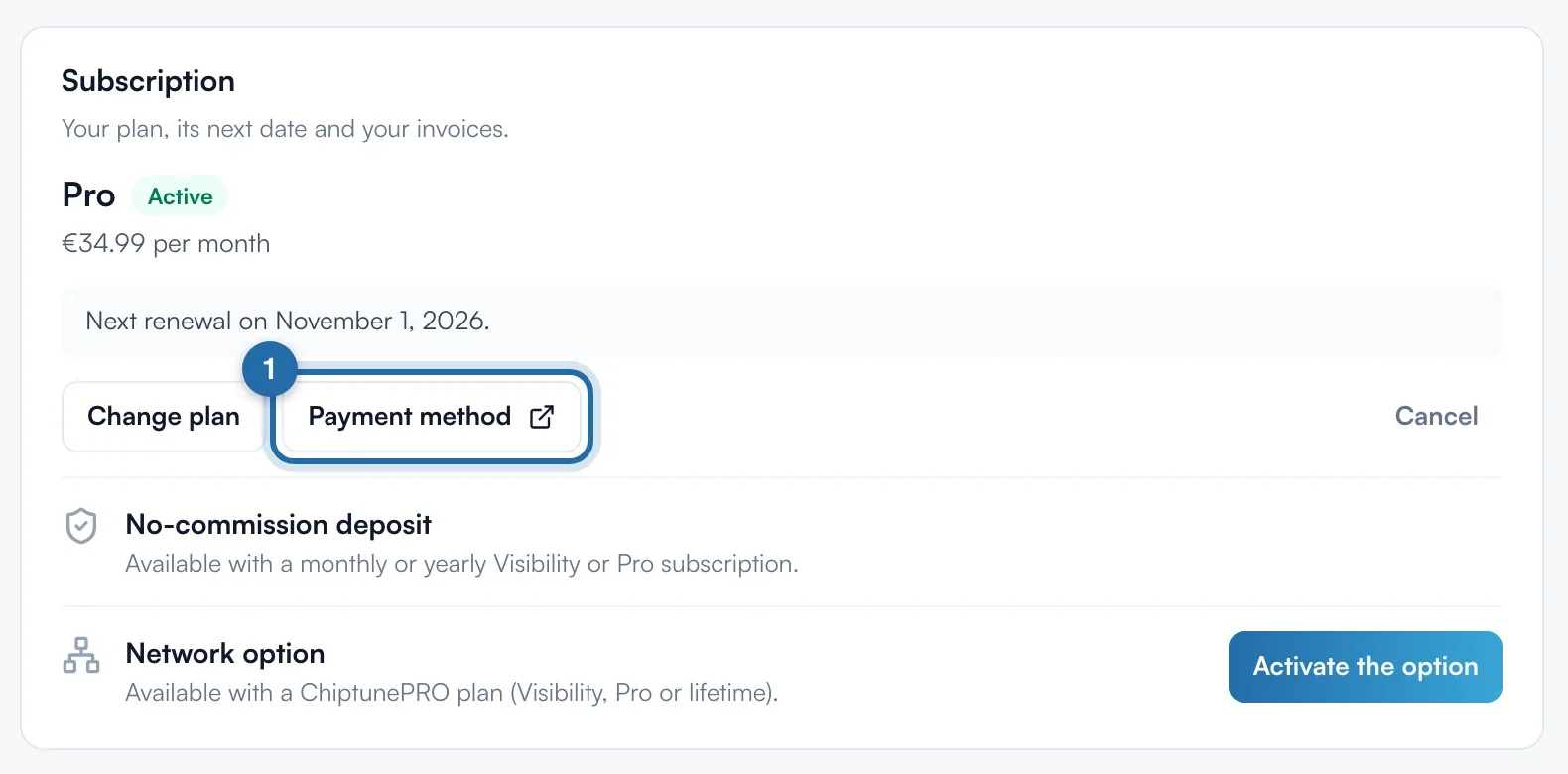
In the "Subscription" card, click "Payment method". Your Stripe payment area opens in a new tab: replace the card, then come back to ChiptunePRO.
If it doesn't work
- "No invoices yet."
- No payment has been made yet, for example during the free trial. The first invoice comes with the first charge.
- The "Billed to" block shows "No address provided".
- Click "Edit" and add the address and VAT number. The orange message then disappears.
- Do I also get invoices by email?
- Yes, each new invoice is sent to the account's email address.