
Requests and appointments
Quotes: the customer accepts by booking a slot
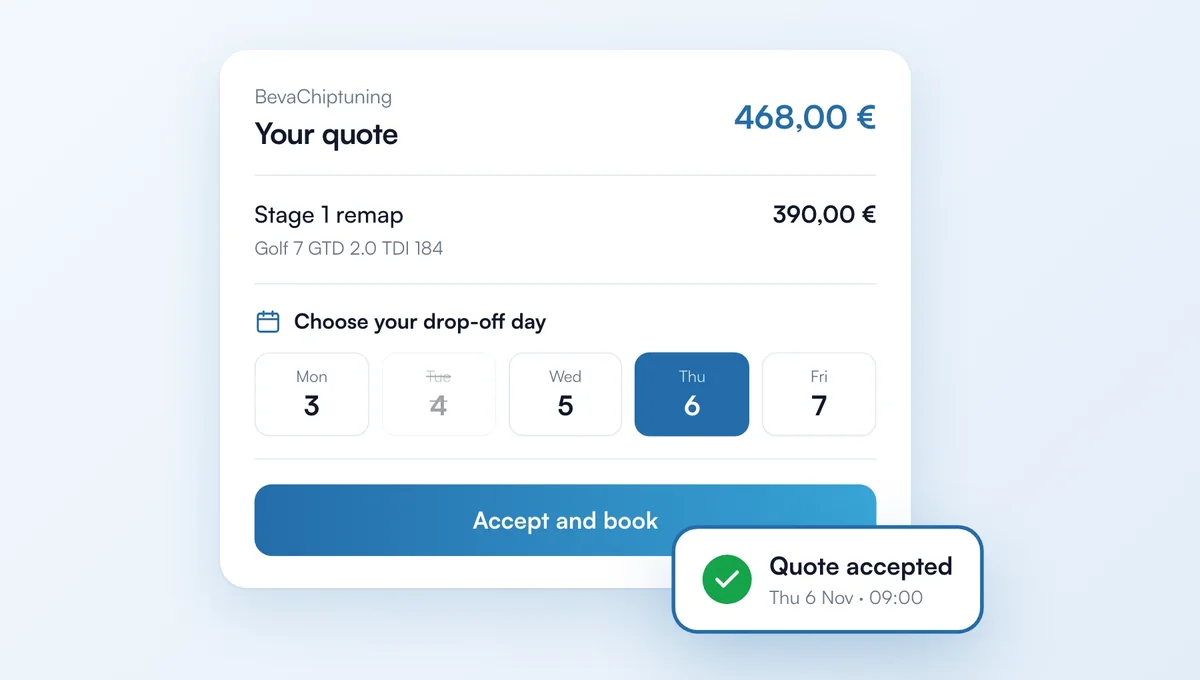
Send the quote with a booking link: the customer reads it, picks a drop-off day and books. The quote turns "accepted" and the appointment lands in your calendar, with nothing to approve.
How it works
On a quote: "Send with booking link". Set the work duration and the deposit; the customer, lines and total come from the quote.
The quote email (PDF attached) shows an "Accept and book my slot" button. The customer sees the quote, picks a date and sees when the vehicle will be ready.
With a deposit, the appointment is confirmed on payment. The link follows the quote expiry date and is cancelled if the quote is declined or deleted.
On the quote page, "Online booking" shows where the link stands: waiting, payment in progress, booked.
The feature behind it
What it does, in detail, with screens from the app.